
What You’ll Learn
- Checking SSL certificate status for HTTPS child sites
- Viewing detailed certificate information
- Scheduling automated SSL checks
- Overwriting general settings for individual sites
Browse Certificate Status
On MainWP > Add-ons > Monitoring > SSL Monitor > Dashboard, search by site name or URL, sort supported column headings, and use the page and page-size controls to browse your sites. Results load as you change the table controls; wait for the loading indicator to finish before selecting rows or starting a check. The SSL Monitor widget on the main Overview page also supports search, sorting, and paging. Click SSL Monitor Dashboard in its footer to open the full table. An individual site’s Overview widget shows its saved certificate details and links to that site’s SSL Monitor page.N/A or Not checked indicates that certificate data is unavailable or has not been collected. Run Check SSL Certificate for the site and review any reported error before relying on its expiration information. The table and widgets show saved results; browsing them does not perform a new certificate check.
Install the SSL Monitor extension
Go to your MainWP Dashboard
Go to the MainWP > Add-ons > Manage Add-ons page
Click the Install Add-ons button
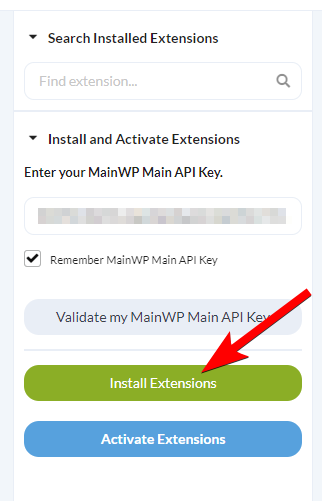
Locate the SSL Monitor extension and select it
Click the Install button
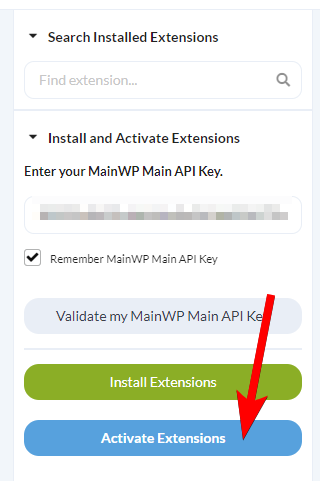
Once the installation process is complete, click the Activate Add-ons button.
Check SSL Certificates
For all Sites
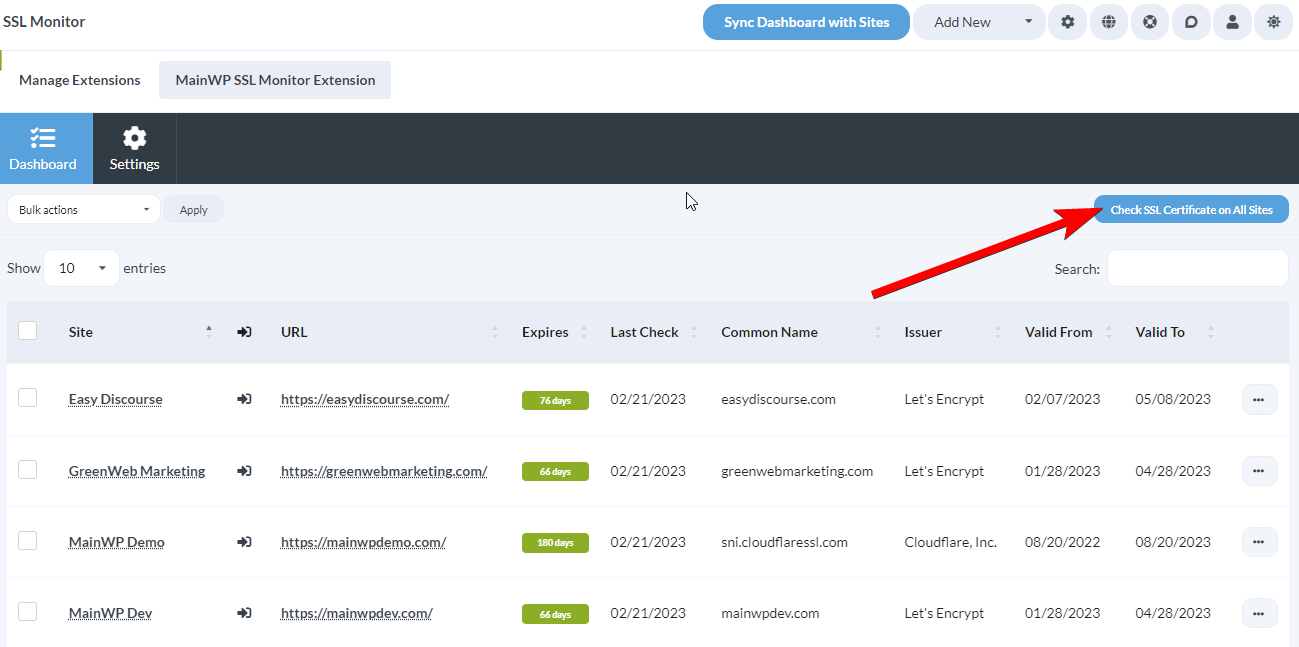
Go to the MainWP > Add-ons > Monitoring > SSL Monitor > Dashboard page.
Click the Check SSL Certificate on All Sites button in the top right
For individual Sites
Go to the MainWP > Add-ons > Monitoring > SSL Monitor > Dashboard page.
Locate the desired site in the table.
Click the Check SSL Certificate action in the ellipsis menu.
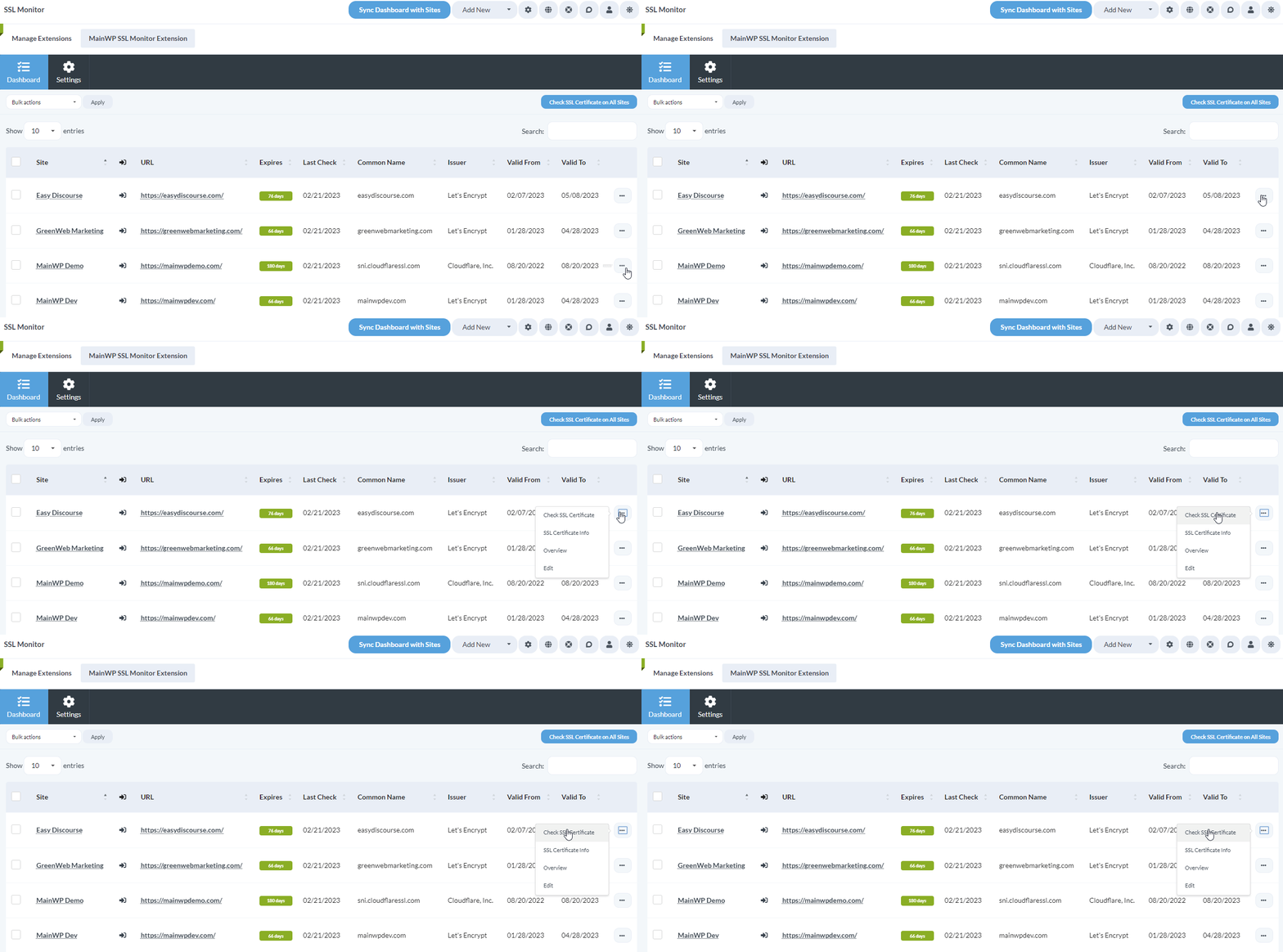
View Detailed Certificate Information
Go to the MainWP > Add-ons > Monitoring > SSL Monitor > Dashboard page.
Locate the desired site in the table
Click the SSL Certificate Info action in the ellipsis menu.
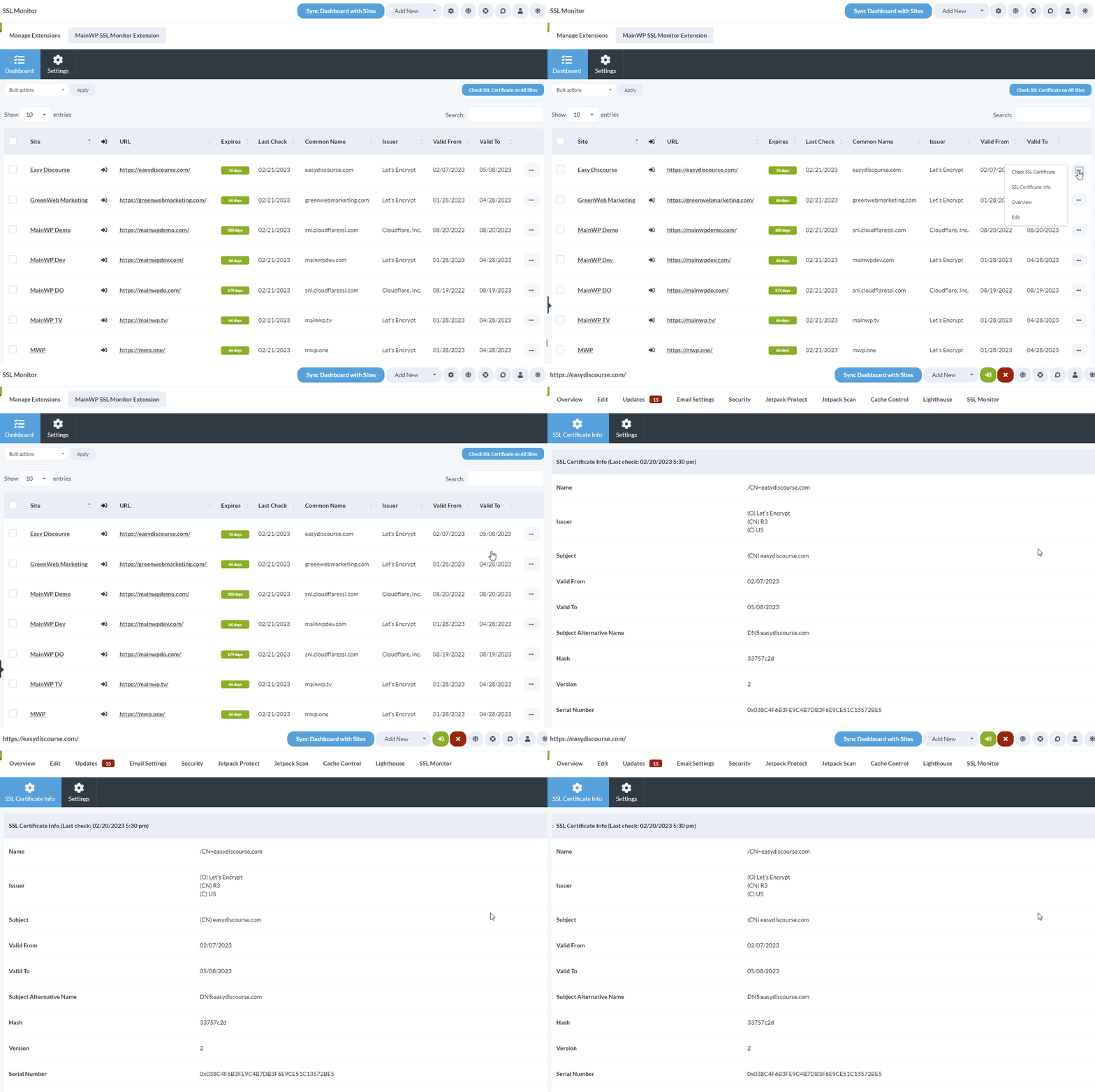
Adjust the SSL Monitor Settings
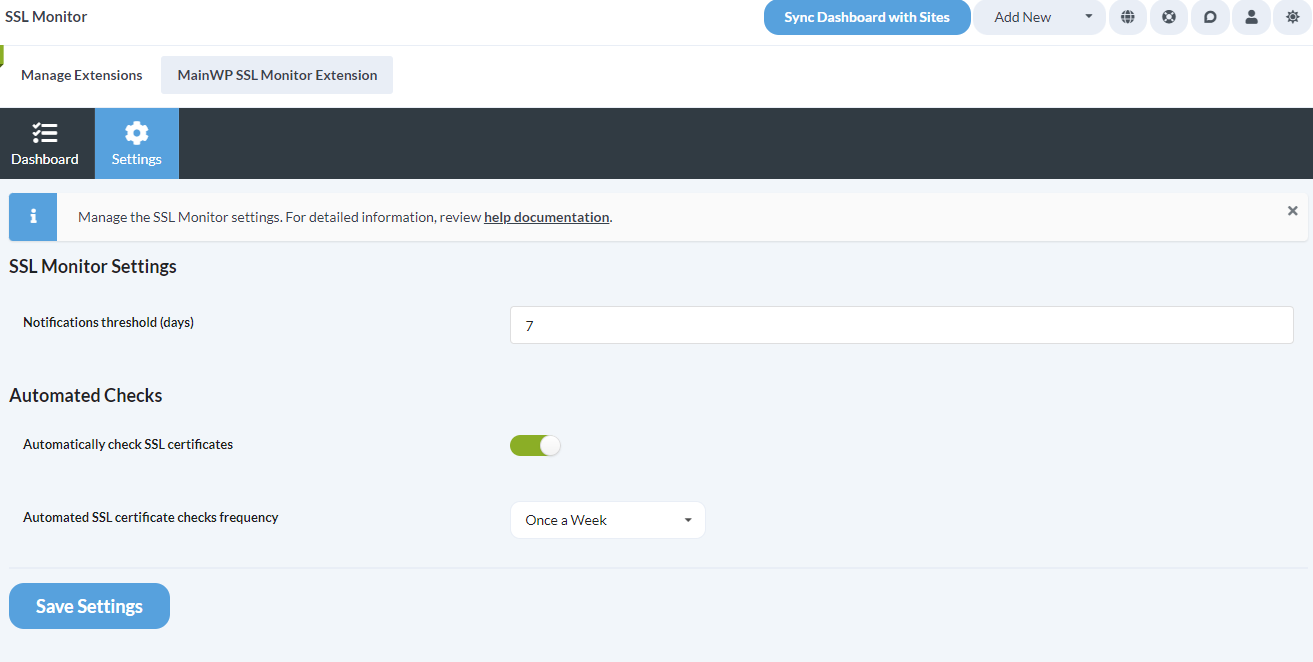
Go to the MainWP > Add-ons > Monitoring > SSL Monitor > Settings page.
- Notifications threshold (days): you will be notified by email if an SSL Certificate for any monitored site reaches the threshold you define here.
- Automated Checks: you can enable automatic SSL certificate checks and set the frequency for those checks
After you've adjusted the settings, click the Save Settings button
Automatic Inclusion of New Sites
SSL Monitor 5.3 automatically adds a monitoring record when you connect a new HTTPS site to MainWP Dashboard. It does not perform a certificate lookup during site connection. With Automated Checks enabled, the scheduler performs the first check and subsequent checks at the configured frequency. Automatic checks apply only to sites whose saved URL starts withhttps://. HTTP sites are excluded. Existing individual overrides remain in effect, including sites where automated checks are disabled.
Adjust the SSL Monitor settings on a Single Site
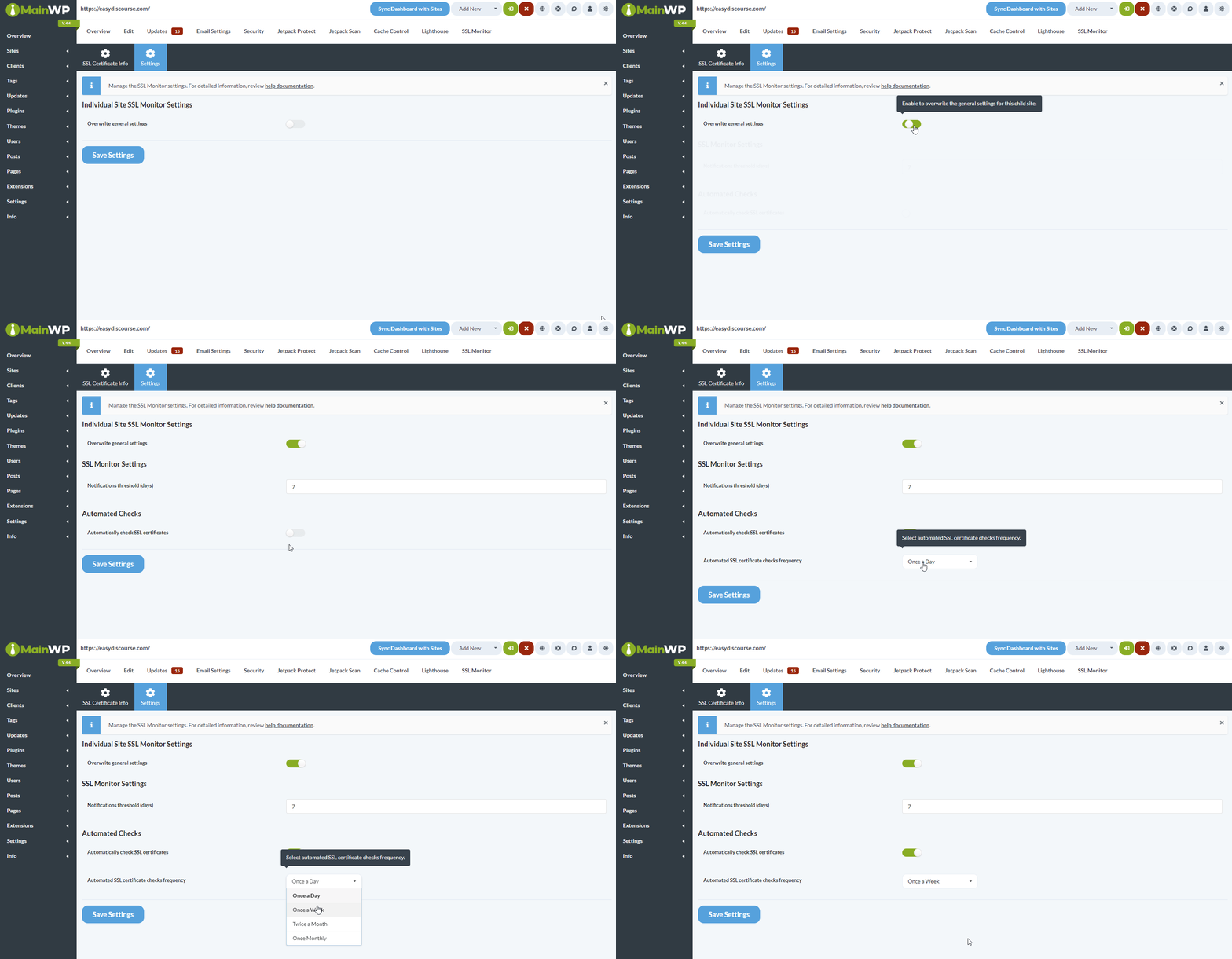
Login to your MainWP Dashboard
Go to the MainWP > Sites > Manage Sites page
Locate the Child site, open its Dashboard, and go to SSL Monitor > Settings page
- Overwrite the general settings by enabling the Overwrite general settings toggle
- Adjust the Notifications threshold (days) and whether you want to automatically check SSL certificates for this specific site
Click the Save Settings button
Check Sites via WP CLI
If you prefer running SSL checks from the command line, or want to trigger them from a script or cron job outside of the MainWP Dashboard’s built-in scheduler, use the WP-CLI commands the extension registers underwp mainwp-ssl-monitor.
Both commands accept either a comma-separated list of child site IDs or the --all flag to target every child site.
Check the SSL certificate for one or more sites:
SSL Monitor REST API
All MainWP REST API calls, including full documentation and examples, are publicly available on Postman. For more details about enabling the MainWP REST API and managing keys, see REST API Overview.Related Resources
- Database Health Check - Check the Add-on’s Dashboard database table and column definitions
- Monitoring Add-ons - Browse all monitoring tools
- Domain Monitor - Track domain expiration
- Advanced Uptime Monitor - Monitor site uptime