
What You’ll Learn
- Connect Matomo to MainWP Dashboard
- Assign Matomo properties to managed sites
- Complete the Matomo 5.2 storage migration
- Use analytics in reports and through MainWP Abilities
- Understand site deletion and add-on removal
Prerequisites
- An active MainWP Matomo Integration
- A Matomo Cloud or Matomo On-Premise instance available over HTTPS at the site root
- A Matomo API token with access to the properties you want to use
- Sites configured for tracking in Matomo and added to MainWP Dashboard
This integration reads data from a separate Matomo instance. It does not insert tracking code into your Child sites. Add the tracking code manually or through a separate plugin. Matomo for WordPress and Piwik Pro are not supported.
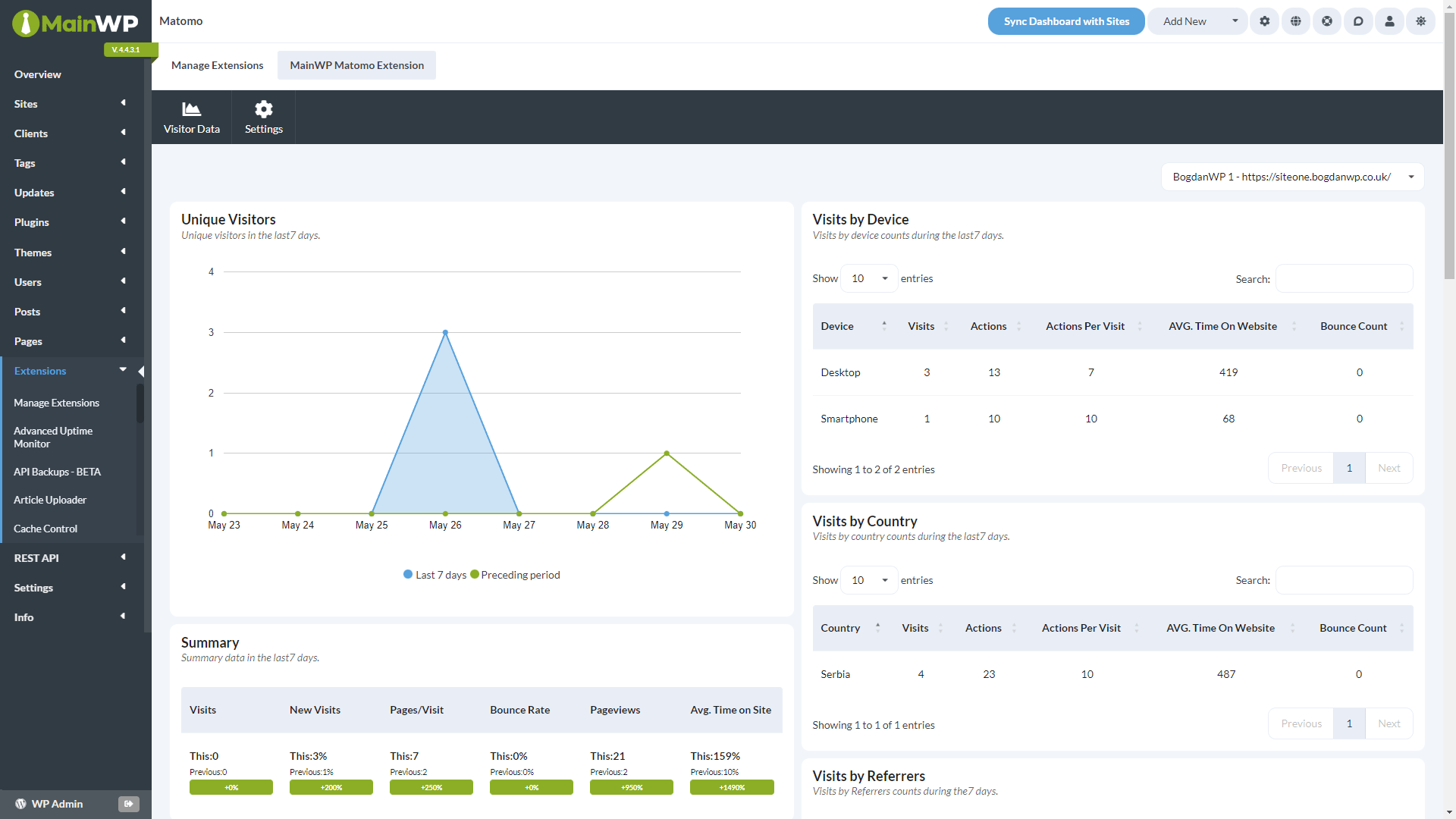
Connect Matomo
1
Open the Matomo settings
In MainWP Dashboard, go to MainWP > Add-ons > Matomo > Settings and locate Matomo Connection.
2
Enter the Matomo URL and API token
Enter the address you use to open Matomo in Matomo URL, and paste your token into API token. If Matomo is installed in a subfolder, include the subfolder, such as
https://example.com/matomo/. Otherwise, use the root address, such as https://analytics.example.com.The address must use HTTPS and must not contain a query string, fragment, or embedded username and password. For example, http://analytics.example.com is not supported.3
Configure data and reporting
Select the Reporting period and Sync frequency, and set Connection timeout (in seconds) to a value from 1 to 30.Enable Automatically assign properties to sites if you want MainWP to match Matomo properties to your managed sites automatically.
4
Save the connection
Click Save Settings. MainWP validates the connection and loads the properties available to the token. Resolve any connection or token error shown before continuing.
Matomo URL rules
MainWP saves a normalized form of the Matomo URL. Matomo 5.2.1 and later accept addresses such as:index.php is removed, so https://example.com/matomo/index.php is saved as https://example.com/matomo/.
MainWP rejects the URL and keeps the existing settings when:
- A folder name contains characters other than ASCII letters, digits,
.,_,~, and-. - A folder name is empty (two slashes in a row),
., or.., or contains%codes. index.phpappears anywhere other than the end of the address.- The server name contains unsupported characters, such as an underscore or non-ASCII letters. Enter international domain names in their
xn--form. - The port is outside 1 to 65535, or the address is longer than 2048 characters.
Saved API Tokens
The API token field stays blank after saving. The saved token is protected and kept outside the general settings row; it is not displayed in the form. Leave the field blank to retain the saved token when saving settings for the same Matomo installation. The host, port, and subfolder must stay the same. Changing onlyhttp:// to https:// keeps the saved token. Paste a new token to replace it.
Changing the server, port, or subfolder requires a token for the new installation. MainWP does not send the old token to a different address. Two Matomo installations in different subfolders on one server, such as /matomo/ and /stats/, are separate connections with their own token, site assignments, and cached analytics.
If MainWP reports that the saved connection cannot be verified or needs credential recovery, check the Matomo URL, paste the current API token, and click Save Settings.
HTTPS and Certificate Verification
Matomo 5.2 always verifies TLS certificates. The oldmainwp_piwik_sslVerifyCertificate option no longer disables verification. Use a valid certificate and resolve certificate or trust-chain errors on the Matomo server before retrying the connection.
Assign Matomo Properties to Sites
1
Edit a managed site
Go to MainWP > Sites > Manage Sites, locate the site, and click Edit.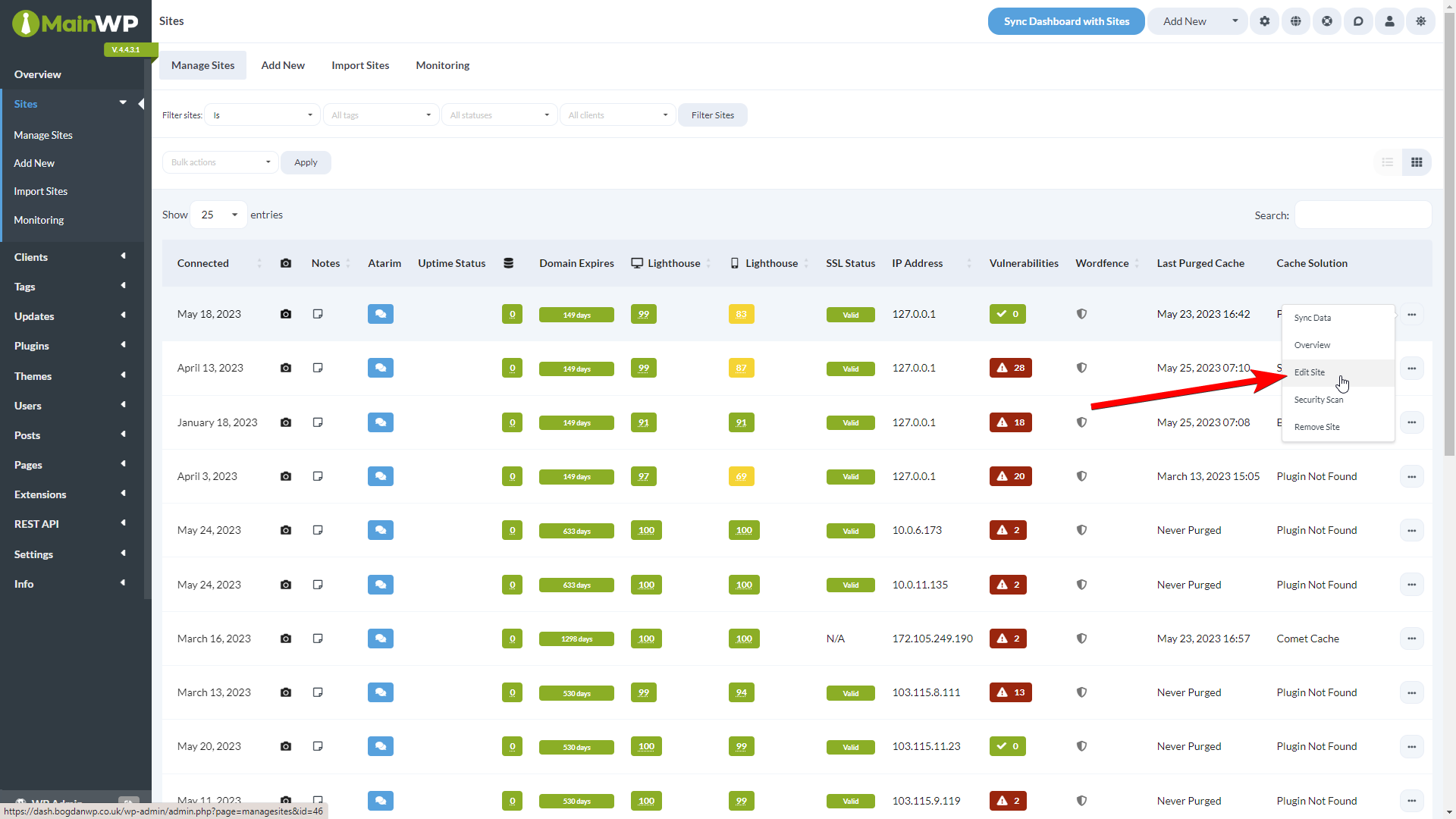
2
Select the Matomo property
In General Options, locate Matomo account property under Matomo (formerly Piwik) and select the corresponding property.
3
Save the assignment
Click Update Site, then repeat for the other managed sites.
After Updating to Matomo 5.2
Open MainWP > Add-ons > Matomo > Settings and check any migration notices. Large installations may need additional admin page loads to finish processing existing site data.- If the saved address uses HTTP, configure the HTTPS address and click Save Settings.
- Saved subfolder connections from version 5.1.2 migrate automatically. If version 5.2 paused a subfolder connection, update to 5.2.1 or later. The connection resumes on an admin page load within about 15 minutes, without saving the settings again.
- If MainWP asks you to save the connection again, verify the URL and token and follow the notice.
- If site assignments could not be imported, save the connection to reload its property list, then review and save the affected site assignments.
- Resolve any database or migration error displayed before relying on analytics or abilities.
Team Control Permissions
If you use the Team Control Add-on, users need access to the Matomo Add-on to view or change Matomo account property when editing a site. Users without that permission cannot manage the mapping. To grant access, enable the Matomo extension permission when editing the role in MainWP > Add-ons > Agency > Team Control. Matomo abilities also enforce the Add-on permission and the selected site’s access and edit permissions. Client Reports and Pro Reports have a separate read path. Report requests can read the six summary values below without the Matomo extension capability. Site access, Team Control restrictions, edit rights, a connected MainWP site, and a current Matomo assignment still apply. This access does not grant permission to change the connection or site mappings.Matomo Data in Reports
Matomo 5.2 limits Client Reports and Pro Reports requests to these six summary values for the selected date range:
The token names remain unchanged. Despite its name,
[piwik.new.visits] uses unique visitors, not a separate count of new visits. Matomo 5.1.2 returned additional data; integrations using those extra fields need to use the supported summaries or a separate data source. The report response excludes the connection and token.
See Available Pro Reports Tokens for the report token reference.
MainWP Abilities
Matomo 5.2 registers twelve abilities for reading connection status, listing cached properties, previewing and updating site assignments, reading analytics snapshots and trends, and requesting, checking, or cancelling background refreshes. Refresh requests are processed through WordPress scheduled tasks. An accepted request means it was queued; check the operation status to confirm completion. These features require WordPress 6.9 or later and MainWP Dashboard with Abilities API support. Use the dedicated Matomo Abilities reference for permissions, inputs, request examples, and error handling.Site Deletion and Add-on Removal
Removing a managed site from MainWP also removes its local Matomo mappings, cached analytics, and related management records. This does not delete the property or tracking data from the Matomo server. Deleting the Matomo Add-on removes its saved connection and protected token, its own database tables and options, and its scheduled tasks. Deactivating the Add-on does not perform that uninstall cleanup. Save any information you need before deleting it; reconnect and reassign properties if you install it again.Unique Visitors for Custom Date Ranges
MainWP requests Matomo analytics for custom date ranges, such as the last 7 or 30 days. Unique visitors may be unavailable for those ranges depending on the Matomo service and configuration. For Matomo On-Premise, follow Matomo’s guide to enabling Unique Visitors for custom date ranges. Matomo Cloud does not support enabling this metric for custom date ranges. Do not add daily unique visitor counts together to estimate the unique visitors for the whole period; repeat visitors would be counted more than once.Related Resources
- Matomo Abilities - Manage connections, mappings, and refresh operations
- Analytics Add-ons - Browse analytics integrations
- Pro Reports Add-on - Include analytics in reports
- Available Pro Reports Tokens - Matomo token mappings