
What You’ll Learn
- Understanding Quick Clone vs Clone from Backup
- Preparing destination sites for cloning
- Cloning sites up to 256MB with Quick Clone
- Cloning larger sites using backup files
- Managing Clone enablement and site participation
- Reading and changing Clone policy through the Abilities API
- Troubleshooting common cloning issues
How it Works
The Clone extension requires a preinstalled WordPress site connected to your MainWP Dashboard (Destination Site). Once you install a fresh WordPress website and connect it to your MainWP Dashboard, you will be able to use the clone feature and clone your template site (Source Site). The Extension allows you to clone websites in two ways:- Quick Clone
- Clone from Backup
Quick Clone
The quick clone feature allows you to clone one child site to another child site. This method allows you to quickly clone your website simply by selecting a Source Site and following the process in a few quick, easy steps. This method is recommended for WordPress sites up to 256MB.Clone from Backup
This method allows you to clone one child site to another, simply by uploading a backup file (created by the MainWP native backup feature) of the source site to your destination site server. This method is recommended for larger WordPress sites over 256MB.Important Notes
To clone a site, the connection between two child sites (Source and Destination) needs to be established without issues. If the Quick Clone feature fails for you, it is more than likely due to insufficient server resources. Be sure to review MainWP System Requirements and resolve any of the potential issues.Plugin and Theme Settings Compatibility
Starting with MainWP Child 6.2.2, Clone/Restore leaves a database value unchanged during URL replacement if its serialized data contains PHP objects, cannot be safely decoded, or exceeds processing limits. Source-site URLs inside those values are not replaced with destination-site URLs. This applies to both Quick Clone and Clone from Backup. After cloning, check plugin and theme settings on the destination site for references to the source site. If a setting still uses the source URL, update it through the plugin or theme’s settings, or follow its developer’s migration instructions.Manage Clone Settings
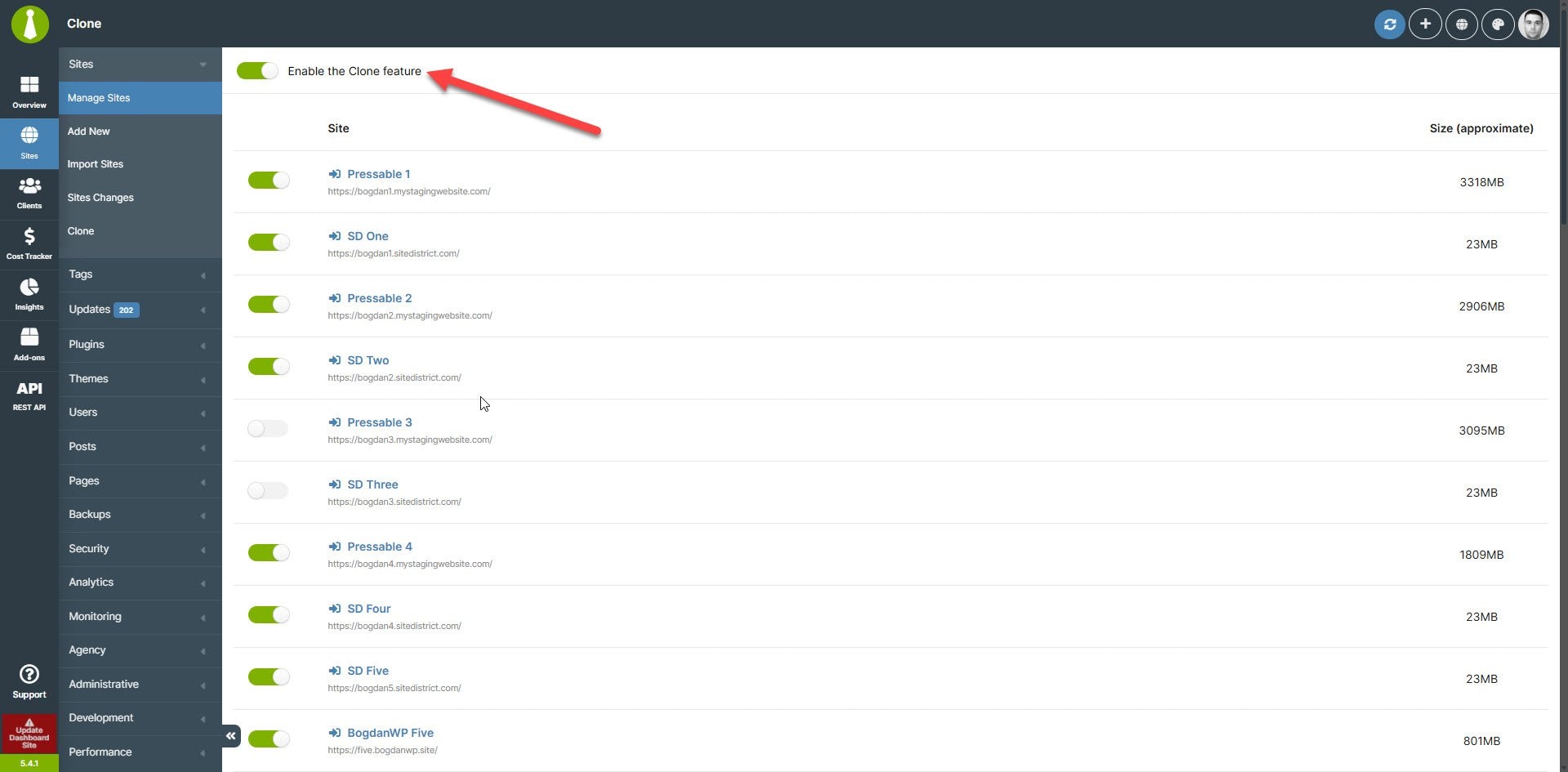
Open MainWP Dashboard > Sites > Clone to manage the Clone policy.Enable the Clone feature.
Choose which sites can participate.
Sync the affected sites.
Abilities API
Version 5.1 adds three WordPress abilities to read one site’s stored Clone policy, enable or disable Clone globally, and allow or disallow one site’s participation. These operations manage Dashboard settings. They do not sync sites, start a clone, create backups, or restore data. See Clone Abilities for requirements, permissions, request examples, and save-result handling.Clone WordPress Site (Quick Clone)
Quick Clone feature enables you to clone one child site to another child site. This means that both child sites need to be connected to your MainWP Dashboard.1. Destination site preparation
Install a new WordPress site
Install the MainWP Child plugin to a newly created WordPress site
Connect the newly created site to your MainWP Dashboard
2. Enable the Clone Feature
Log in to your MainWP Dashboard
Go to the MainWP Dashboard > Sites > Clone page
Enable the Clone feature
Sync your sites
3. Clone a Child Site
Log in to your newly created Child Site (Destination)
Go to the WordPress admin > Settings > MainWP Child > Restore / Clone page
Locate the Select Source for clone box
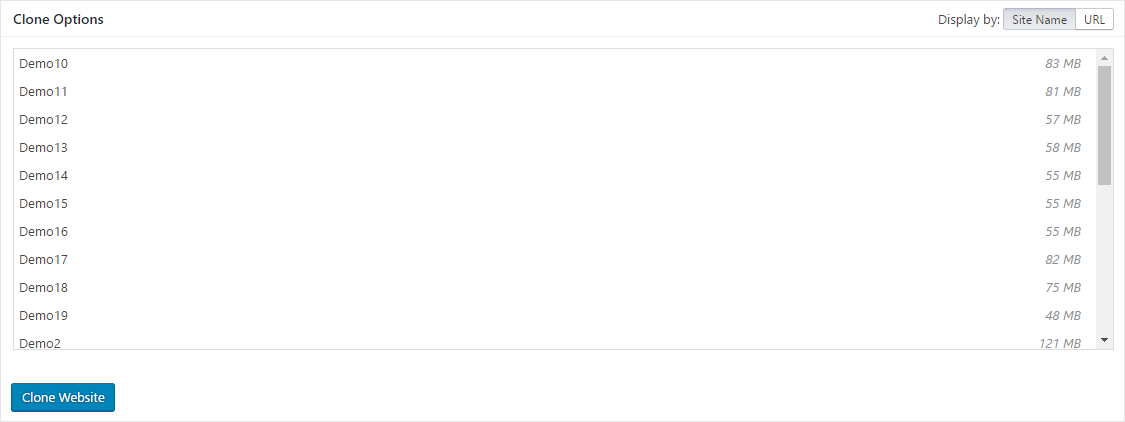
Select the Child Site that you want to clone (Source)
Click the Clone website button
Important Notes
If, after the cloning process, your destination site is redirecting you back to the source site, it is more than likely that the process failed to update the siteurl and the home values in the wp_options table inside the database. In this case, please check this help document to see how to update it manually. If your Source child site is larger than 256MB, it is more than likely that the cloning process will fail. In this case, try to clone your child site by using the Clone from the Backup method.Clone WordPress Site (Clone from Backup)
Clone from Backup enables you to restore a full MainWP legacy backup on the destination child site.1. Destination site preparation
Install a new WordPress site
Install the MainWP Child plugin to the newly created WordPress site
Connect the newly created site to your MainWP Dashboard
2. Enable the Clone Feature
Log in to your MainWP Dashboard
Go to the MainWP Dashboard > Sites > Clone page
Enable the Clone feature
Sync your sites
3. Create a Backup of the Source Site
This step requires the MainWP Legacy Backups feature enabled. If you have it disabled, enable it on the top-right user menu > MainWP Settings > General Settings (/wp-admin/admin.php?page=Settings) page and set it as the primary backup solution. Once you are done with the cloning process, revert your settings to the previous state.
Log in to your MainWP Dashboard
Go to the MainWP Dashboard > Sites > Manage Sites page
Locate the Site you want to clone
Click the Backup Now button
Create the Full Backup of the Child site
Download the backup file
4. Clone a Child Site
Use your favorite FTP Client to upload the downloaded backup file to your Destination site server
Log in to your Destination site
Go to the WordPress admin > Settings > MainWP Child > Restore / Clone page
Locate the Option 2: Restore/Clone From Server box
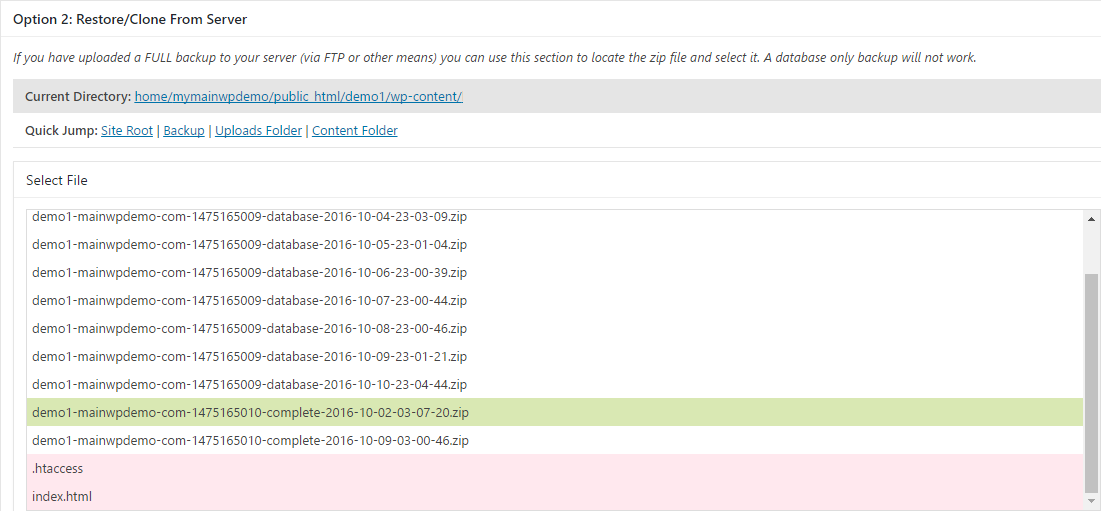
Select the previously uploaded backup file
Click the Clone/Restore Website button
Important Notes
If after the cloning process, your destination site is redirecting you back to the source site, it is more than likely that the process failed to update the siteurl and the home values in the wp_options table inside the database. In this case, please check this help document to see how to update it manually. Before trying to clone a website, make sure that the backup file is not corrupted by trying to open it on your local computer. Also, verify that there are no files missing.Related Resources
- Clone Abilities - View and manage stored Clone policy
- Development Add-ons - Browse all development tools
- Staging Extension - Create staging environments
- System Requirements - Verify server requirements