
/wp-admin/index.php). The control displays your avatar or a user icon. If you prefer having the link in the main navigation sidebar, you can add it using PHP and CSS snippets.
What You’ll Learn
- How to add a WP Admin link to the sidebar
- How to position it at the bottom of the navigation
Prerequisites
- Custom Dashboard extension (free)
Add the WP Admin Button
This requires both a PHP snippet (to create the menu item) and a CSS snippet (to position it at the bottom).Step 1: Add PHP Code
1
Open Custom Dashboard
Navigate to the Custom Dashboard extension settings.
2
Add the PHP snippet
Go to the PHP tab and add this code: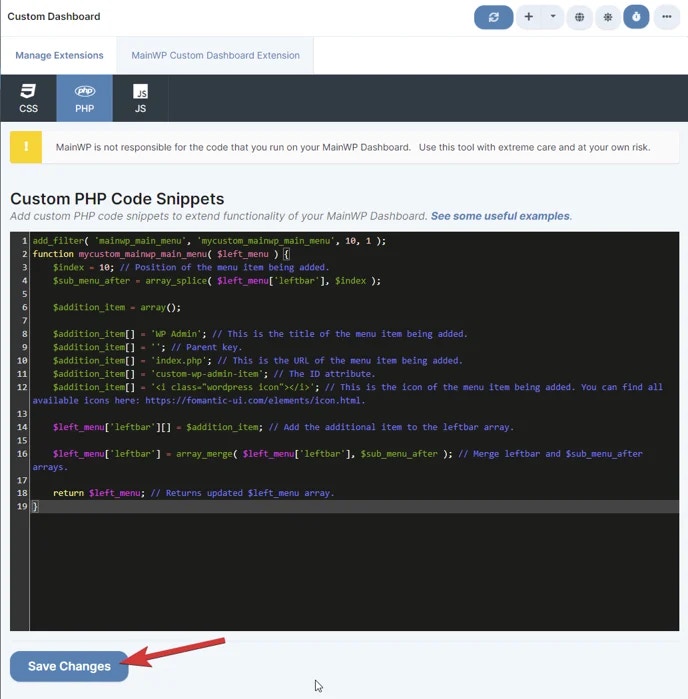
3
Save the PHP code
Click Save Changes.
Step 2: Add CSS Code
1
Go to CSS tab
Switch to the CSS tab in the Custom Dashboard extension.
2
Add the CSS snippet
Add this code to position the button at the bottom of the sidebar: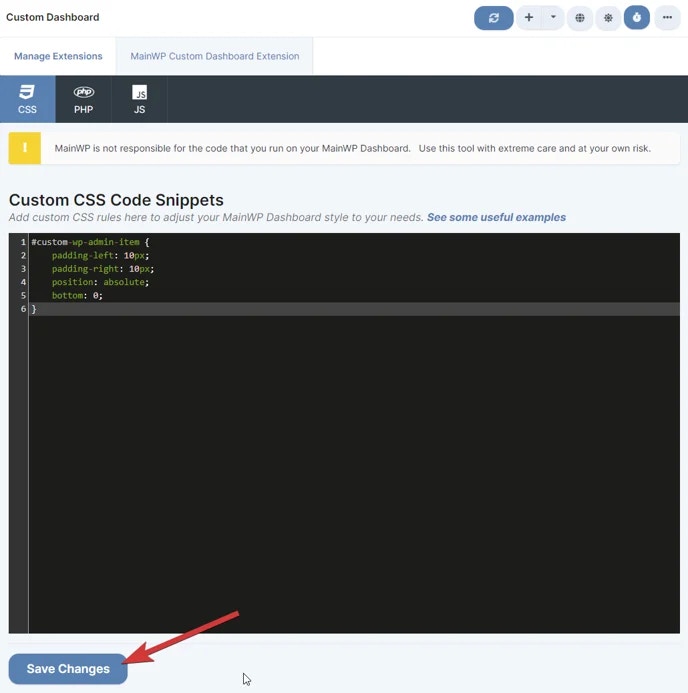
3
Save the CSS code
Click Save Changes. The WP Admin button now appears at the bottom of the navigation sidebar.
Customization Options
Self-Check Checklist
- Custom Dashboard extension installed
- PHP code added to PHP tab
- CSS code added to CSS tab
- Both snippets saved
- WP Admin button visible in navigation sidebar
Related Resources
- Add Menu Entries - Add other custom menu items
- Custom Dashboard Extension - Full extension documentation