
This page is a high-level overview. For installation steps, command reference,
workflow examples, releases, and the latest updates, use the official
mainwp/mainwp-control repository.
Open the GitHub Repository
View the README, releases, issue tracker, and the latest usage examples.
What You’ll Learn
- What MainWP Control is
- When to use it instead of the MCP Server
- Basic requirements and a simple starting point
- Where to find the authoritative documentation
Prerequisites
- Node.js 20.18.1 or later
- MainWP Dashboard 6 or later
- WordPress 6.9 or later on the Dashboard for the Abilities API
- A WordPress user account with permission to perform the actions you need
- A WordPress Application Password for that user
Common Use Cases
- Run scheduled maintenance or reporting tasks from cron
- Use MainWP operations inside CI/CD pipelines and deployment scripts
- Query your Dashboard and return JSON output for other tools
- Run bulk or batch-friendly workflows from the command line
How MainWP Control Works
MainWP Control connects to your MainWP Dashboard and exposes its available operations through themainwpcontrol command. In practice, that means you can
sign in once, discover the abilities your Dashboard makes available, and then
run those abilities directly from the terminal.
This is useful when you want a repeatable workflow instead of a browser-based
process. For example, you can script routine checks, pass JSON output to other
tools, and build scheduled jobs around the same Dashboard actions you already
use in MainWP.
Typical Workflow
Guided Setup in MainWP Dashboard
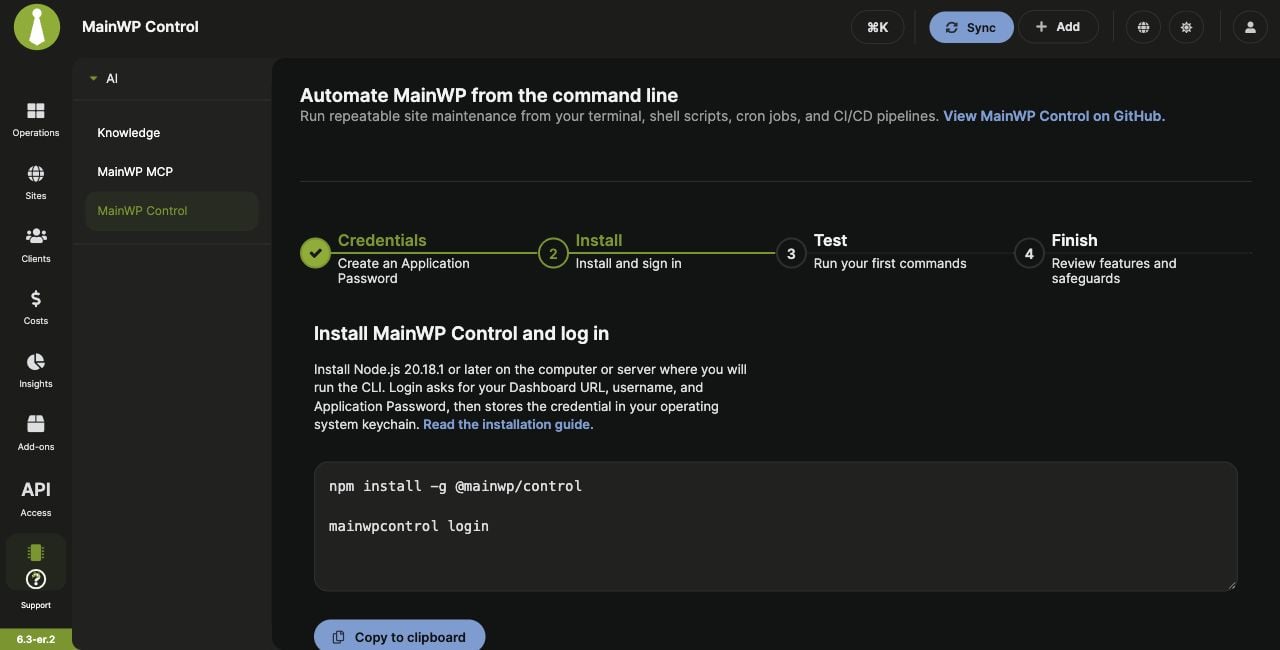
MainWP Dashboard 6.3 adds MainWP > AI > MainWP Control. The page has four steps and lets you create an Application Password without leaving it. Access to this setup page requires a WordPress administrator account withmanage_options.
1
Create a credential
In Credentials, click Create Application Password, review the prefilled name, and click Create. Save the generated password before closing the success dialog.
2
Install and sign in
Select Install, then click Copy to clipboard for the installation and login commands. Run them on the computer or server where you will use MainWP Control. Login asks for the Dashboard URL, the WordPress username that owns the password, and the Application Password.
3
Test with read-only commands
Select Test and copy
mainwpcontrol abilities list and mainwpcontrol abilities run list-sites-v1 --json. Run them in your terminal and check the returned sites.4
Review features and safeguards
Select Finish for links and reminders about profiles, structured output, previews, confirmation, and credentials.
Terminal Setup
MainWP Control installs as themainwpcontrol command. A common starting flow
is:
Login, Timeouts, and Output
Login Without the CLI Password Prompt
mainwpcontrol login uses MAINWP_APP_PASSWORD instead of prompting for a
password when that environment variable is set. Also set
MAINWP_DASHBOARD_URL to the Dashboard the password belongs to, and provide
the matching URL and username with --url and --username.
See the environment-variable authentication guide
for setup instructions. If login reports that credentials were not saved to
the system keychain, keep both variables available for subsequent commands.
Adjust the HTTP Request Timeout
The default HTTP request timeout is 30 seconds. If a request times out, you can increase thetimeout value in settings.json. The value is in milliseconds;
for example, 120000 allows up to 120 seconds per request:
.config/mainwpcontrol/settings.json under your home directory.
If XDG_CONFIG_HOME is set, the file is in mainwpcontrol/settings.json under
that directory instead. Run mainwpcontrol config show to inspect the active
settings. See the settings file reference
for details.
Read Update Results
--json produces structured output for scripts and other tools to process.
Omitting --json from abilities run still displays the result as JSON; it does
not convert update results into a table.
When building a report with list-updates-v1, retrieve every page using page
and per_page. The total field counts all matching updates, so it can be
larger than the number of entries in the current page’s updates array. Check
any returned errors before treating a report as complete.
Use mainwpcontrol abilities info list-updates-v1 to inspect the input schema
available on your Dashboard. The update list reflects information already
stored in the Dashboard; listing updates does not perform a fresh site sync.
MainWP Control vs MCP Server
Use MainWP Control when you want:- A CLI for scripts, scheduled jobs, and shell-based automation
- Structured command output, including JSON, for pipelines and monitoring
- Explicit commands instead of natural-language prompts
- Claude, Cursor, OpenAI Codex, VS Code Copilot, or another MCP client to call MainWP tools
- Conversational access to MainWP through an AI assistant