
What You’ll Accomplish
- Update WordPress core, plugins, themes, and translations individually or in bulk
- Configure automatic updates for trusted plugins, themes, and translations
- Ignore specific updates globally or per site, including WordPress core and translation updates
- Use the rollback feature to recover from failed updates
Prerequisites
- MainWP Dashboard installed and activated
- At least one child site connected to your Dashboard
- Sites synced recently to have current update data
Find Update and Trust Settings
Use Sites > Updates (/wp-admin/admin.php?page=UpdatesManage) to run manual updates. Trust controls are on separate pages:
- Sites > Plugins > Advanced Auto Updates (
/wp-admin/admin.php?page=PluginsAutoUpdate) - Sites > Themes > Advanced Auto Updates (
/wp-admin/admin.php?page=ThemesAutoUpdate)
/wp-admin/admin.php?page=Settings). In General Settings, find the Updates Settings section. Marking items as trusted and enabling automatic updates are separate steps.
WordPress Core Updates
Update All WordPress Installations
Navigate to WordPress Updates
/wp-admin/admin.php?page=UpdatesManage&tab=wordpress-updates).Update all sites
Confirm
Update a Single WordPress Installation
Navigate to WordPress Updates
/wp-admin/admin.php?page=UpdatesManage&tab=wordpress-updates).Locate site
Update
Auto Update WordPress Core
Enable automatic WordPress core updates in two steps: enable the feature, then enable it for individual sites.Enable Auto Updates Feature
Navigate to Settings
/wp-admin/admin.php?page=Settings).Find Update Settings
Enable
Save
Enable Auto Update for a Site
Navigate to Manage Sites
Edit site
Enable auto update

Save
Ignore WordPress Core Updates
You can ignore WordPress core updates for individual child sites, or ignore a specific WordPress core version from the WordPress Updates table.Ignore Core Update for a Site
Navigate to Manage Sites
Edit site
Enable ignore
Save
Ignore a Specific Core Version
Navigate to WordPress Updates
/wp-admin/admin.php?page=UpdatesManage&tab=wordpress-updates).Locate the site
Select an ignore option
Un-ignore Core Update
Use the same child site settings steps and set Ignore Core Update to NO. To review ignored WordPress core versions, go to Sites > Updates > WordPress (/wp-admin/admin.php?page=UpdatesManage&tab=wordpress-updates) and click View Ignored Updates. This button appears only when ignored WordPress core updates exist.
The ignored WordPress core updates page uses wp-admin/admin.php?page=UpdatesManage&tab=updates-ignore, but it is not shown as a separate Updates menu item. MainWP opens it from the View Ignored Updates button on the WordPress Updates tab.
Plugin Updates
Update All Plugins on All Sites
Navigate to Plugin Updates
/wp-admin/admin.php?page=UpdatesManage&tab=plugins-updates).Update all
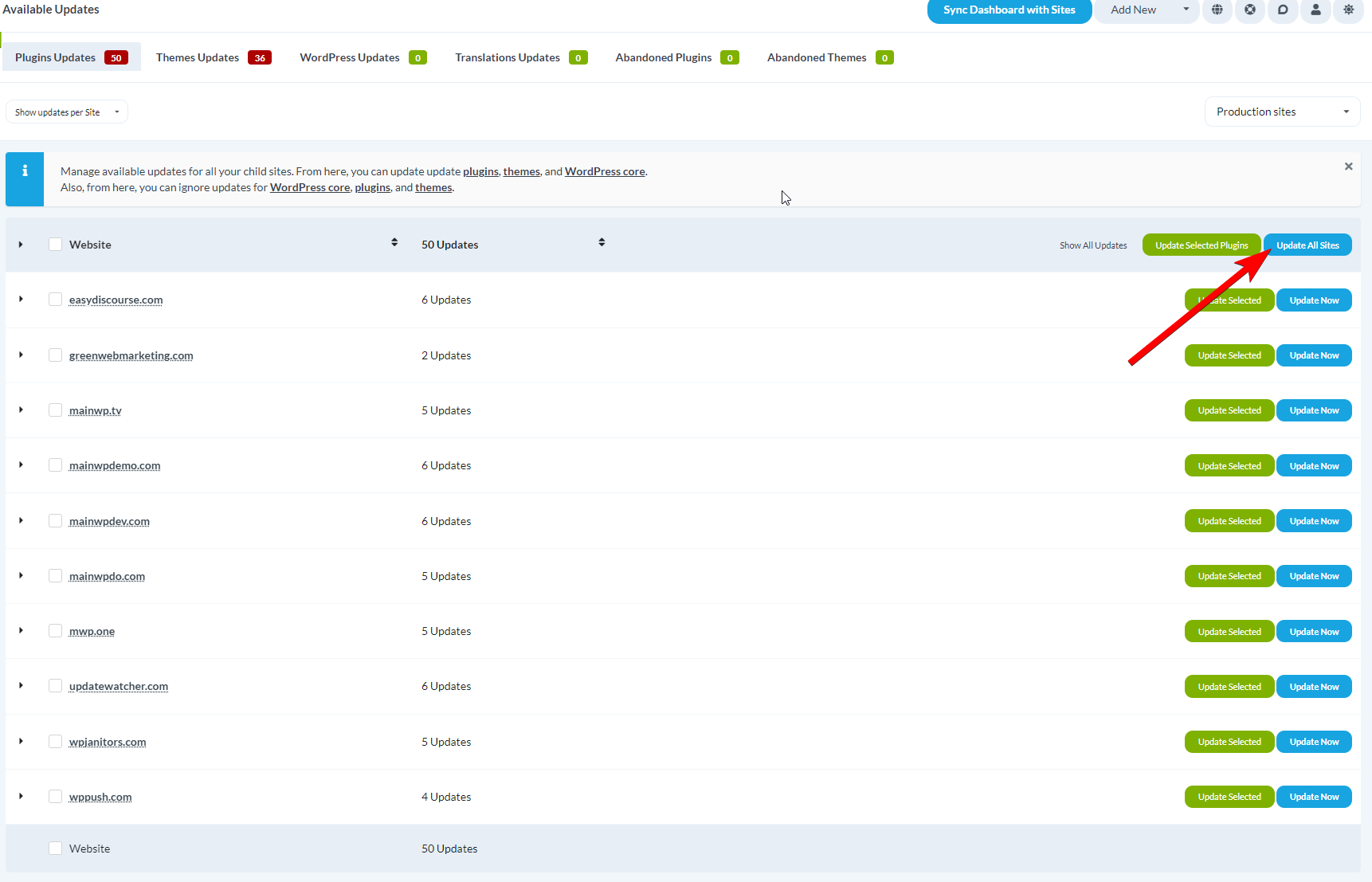
Confirm
Update a Single Plugin on All Sites
Navigate to Plugin Updates
/wp-admin/admin.php?page=UpdatesManage&tab=plugins-updates).Select view
Locate plugin
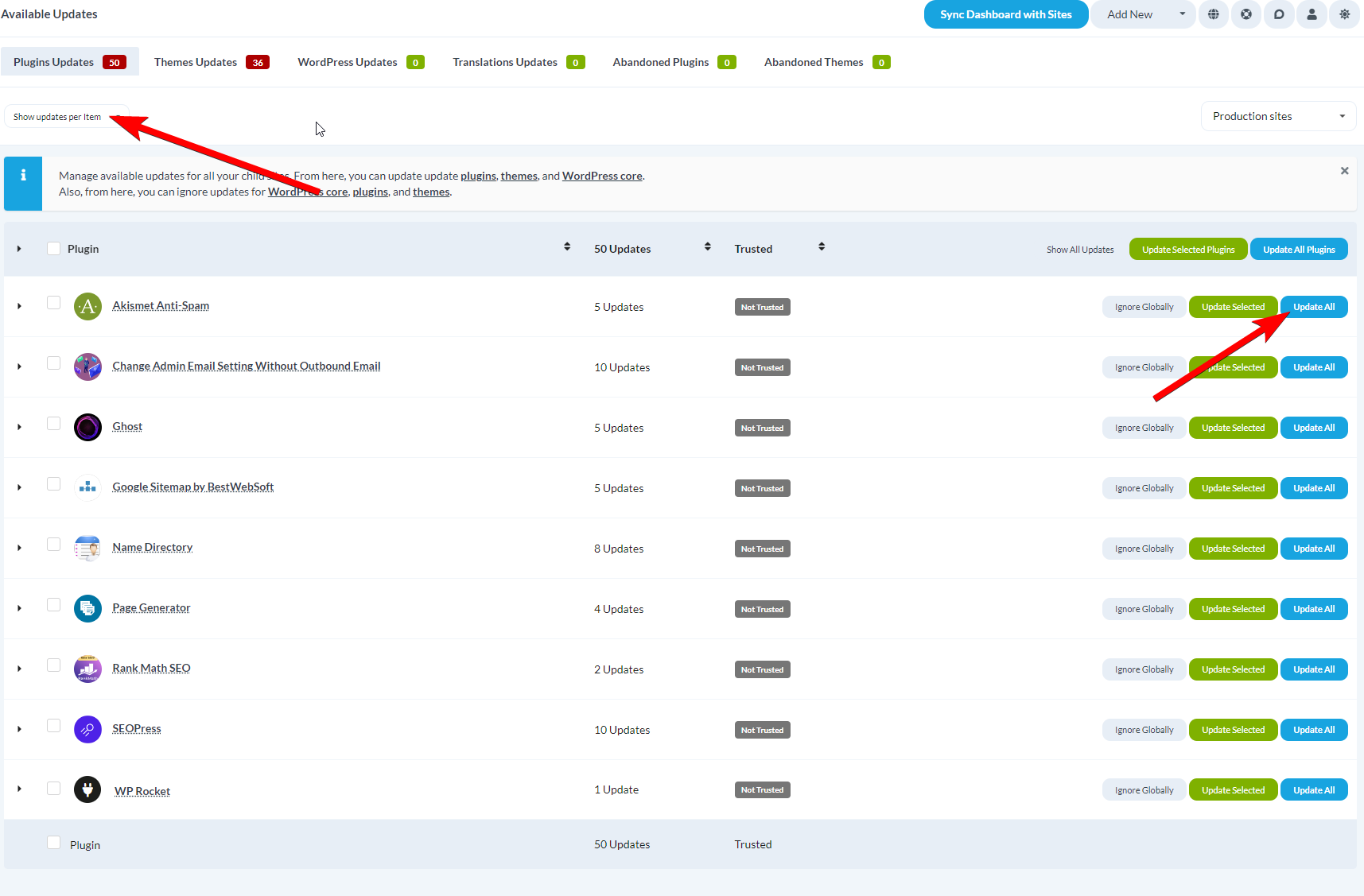
Update
Update All Plugins on a Single Site
Navigate to Plugin Updates
/wp-admin/admin.php?page=UpdatesManage&tab=plugins-updates).Select view
Locate site
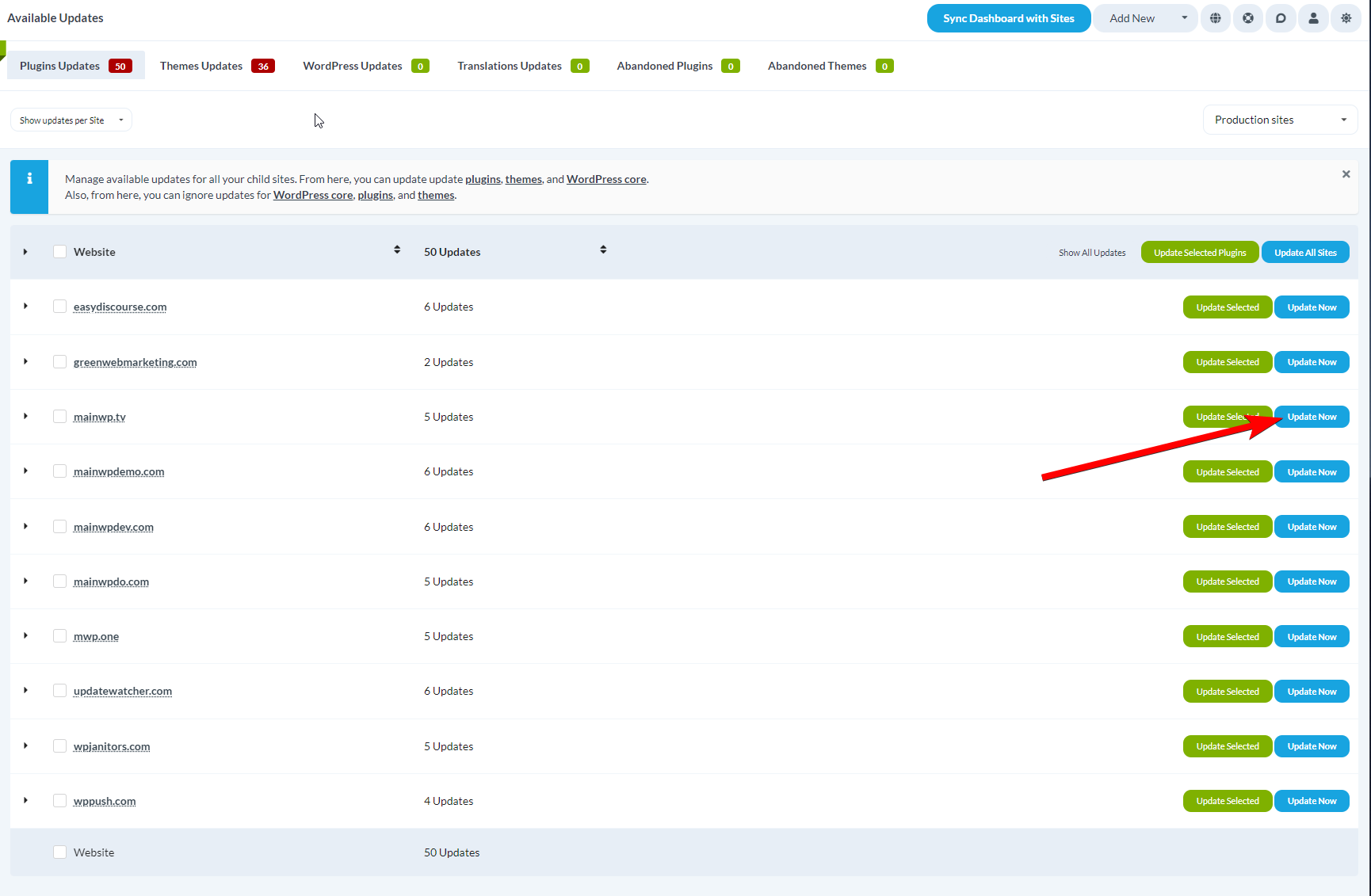
Update
Update a Single Plugin on a Single Site
Navigate to Plugin Updates
/wp-admin/admin.php?page=UpdatesManage&tab=plugins-updates).Select view
Locate site
Update plugin
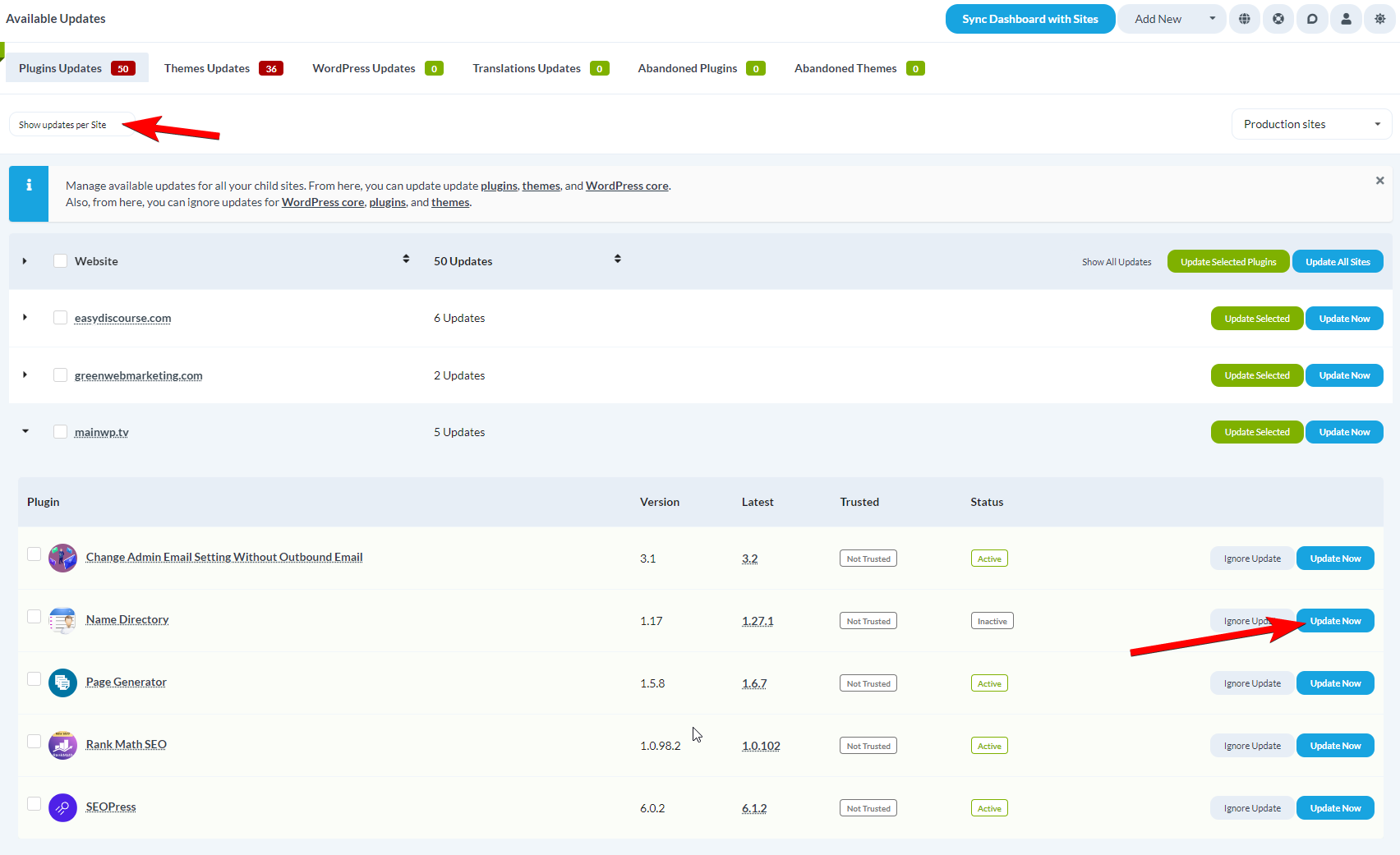
View Plugin History
The plugin update rows include a History action so you can review recent change activity before or after updates.Open a plugin row with History
/wp-admin/admin.php?page=UpdatesManage&tab=plugins-updates) and use the Site, Item, or Tag view. You can also use History in plugin rows in individual site update tables.Open the history modal
Review activity details
Switch history views
Load older records
Plugin Auto Updates
Enable Auto Updates
Navigate to Settings
/wp-admin/admin.php?page=Settings).Find Update Settings
Enable
Save
Mark Plugins as Trusted
Navigate to Advanced Auto Updates
/wp-admin/admin.php?page=PluginsAutoUpdate).Filter plugins
Search
Select and trust
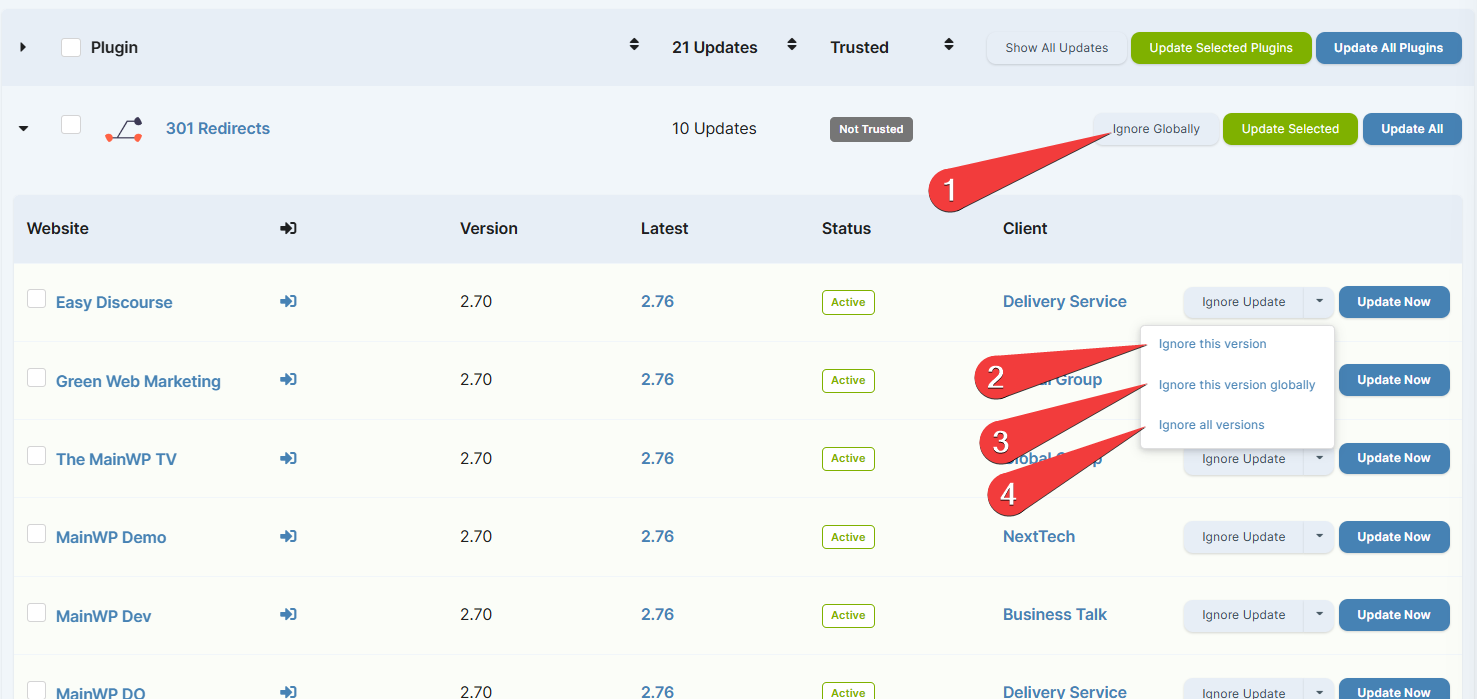
Ignore Plugin Updates
Navigate to Plugin Updates
/wp-admin/admin.php?page=UpdatesManage&tab=plugins-updates).Select view
Ignore
Un-ignore a Plugin
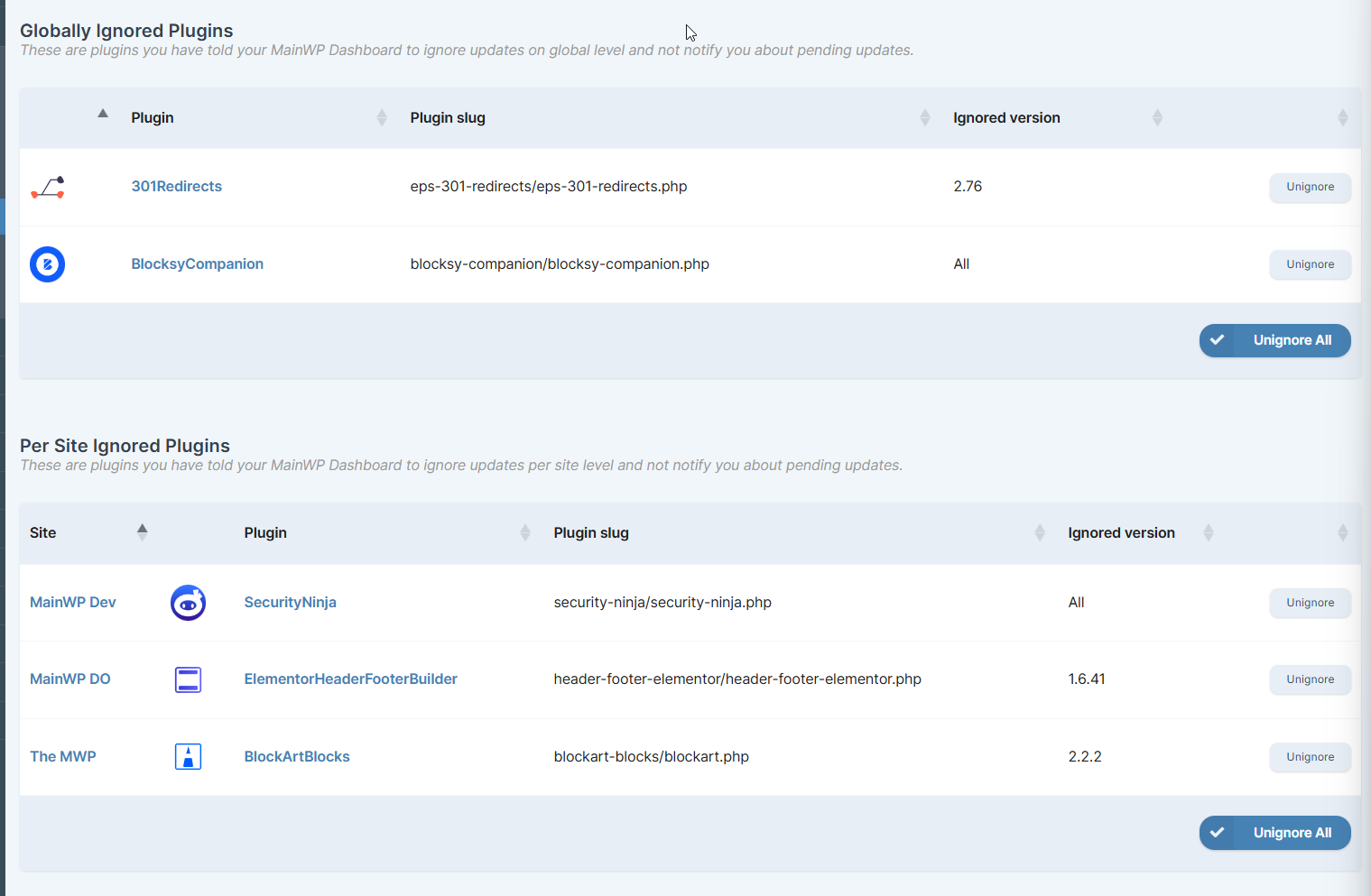
When ignored plugin updates exist, you can click View Ignored Updates on Sites > Updates > Plugins (/wp-admin/admin.php?page=UpdatesManage&tab=plugins-updates). You can also use the Plugins menu path below.
Navigate to Ignored Updates
/wp-admin/admin.php?page=PluginsIgnore).Un-ignore
Theme Updates
Update All Themes on All Sites
Navigate to Theme Updates
/wp-admin/admin.php?page=UpdatesManage&tab=themes-updates).Update all
Confirm
Update a Single Theme on All Sites
Navigate to Theme Updates
/wp-admin/admin.php?page=UpdatesManage&tab=themes-updates).Select view
Locate theme
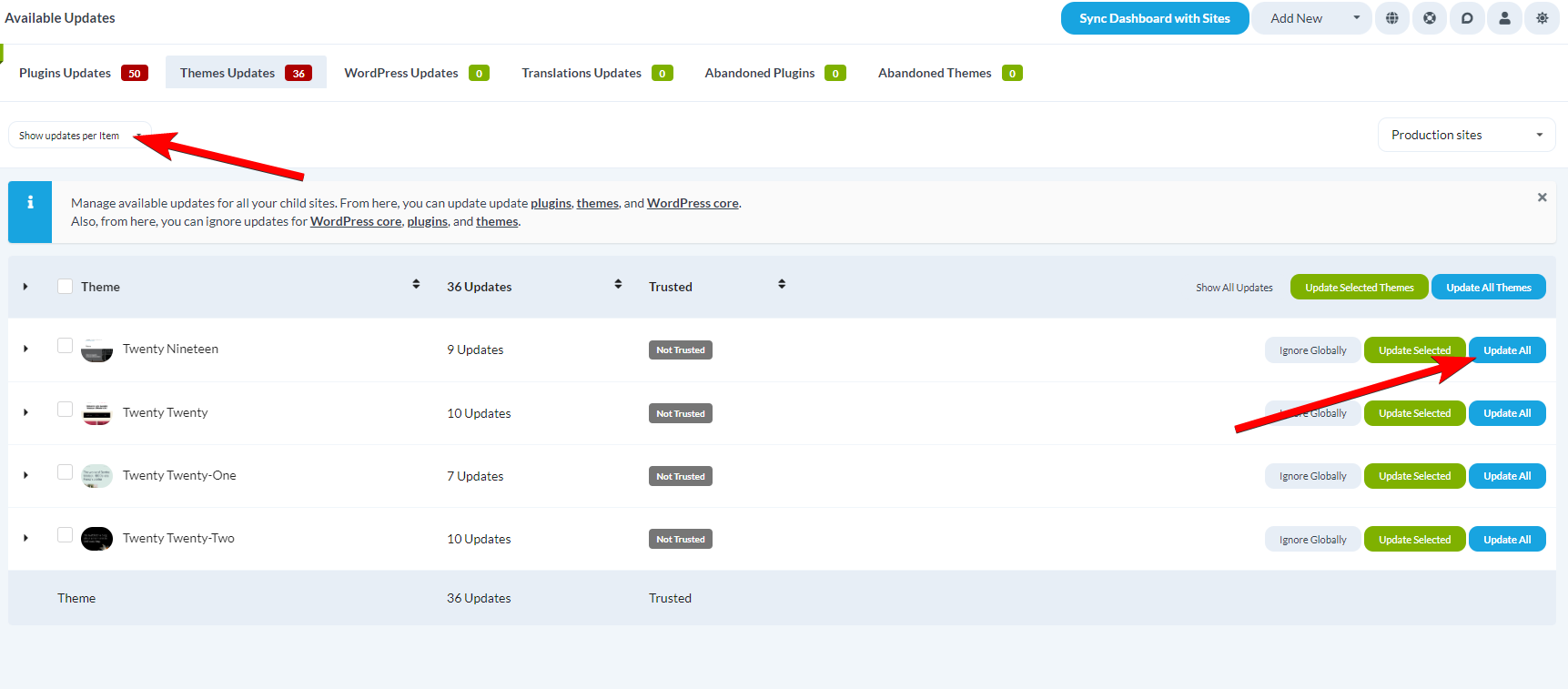
Update
Update All Themes on a Single Site
Navigate to Theme Updates
/wp-admin/admin.php?page=UpdatesManage&tab=themes-updates).Select view
Locate site
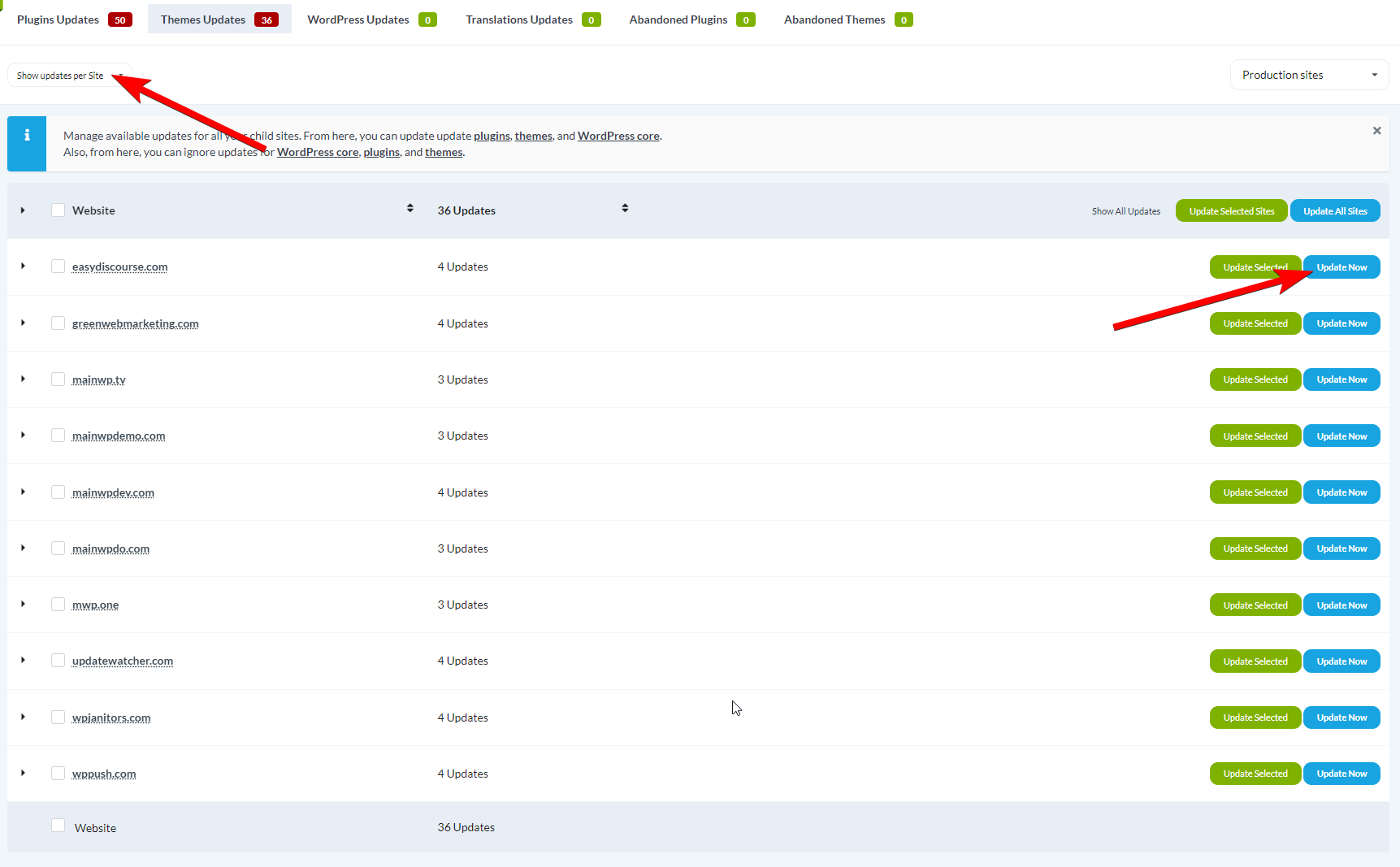
Update
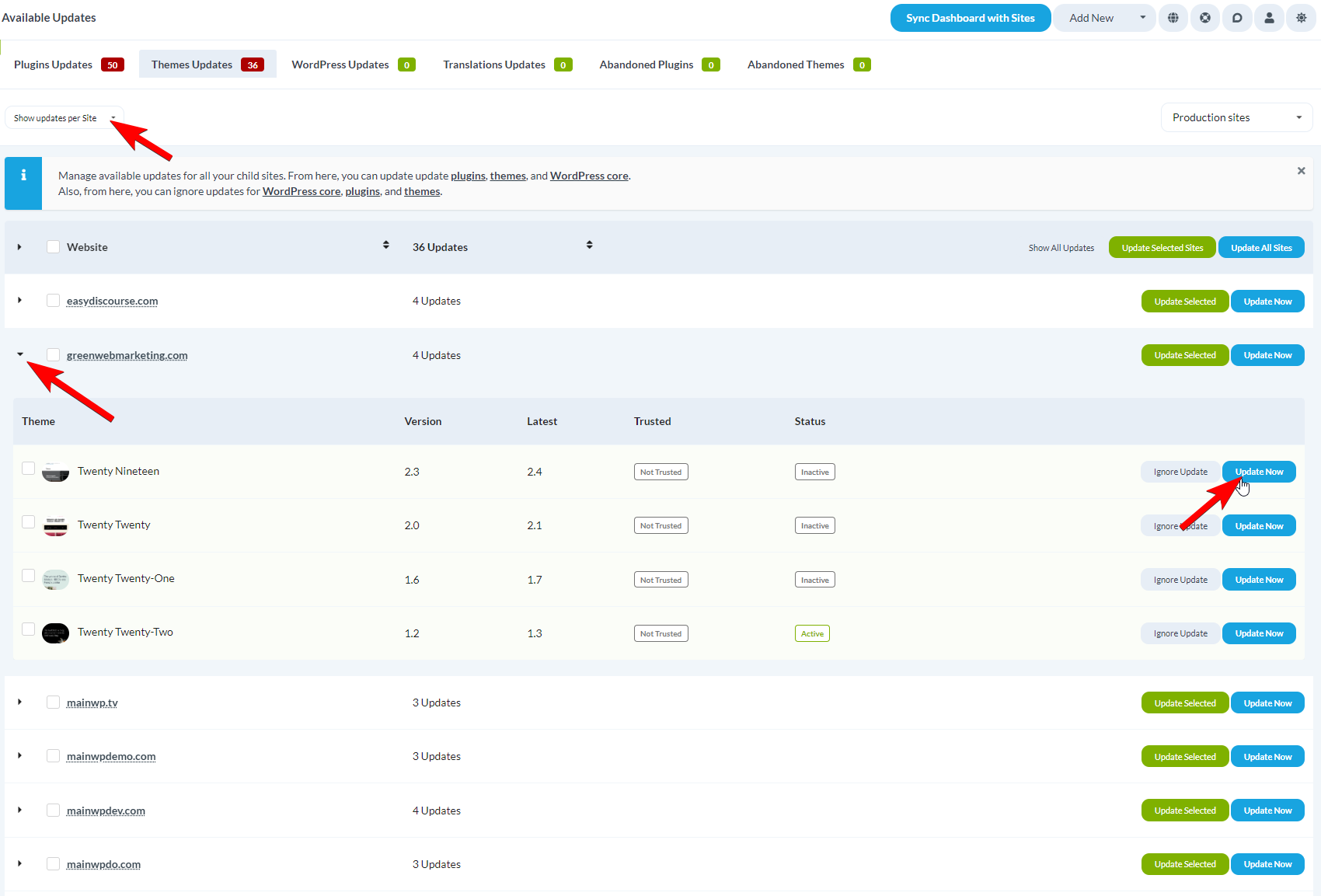
Update a Single Theme on a Single Site
Navigate to Theme Updates
/wp-admin/admin.php?page=UpdatesManage&tab=themes-updates).Select view
Locate site
Update theme
View Theme History
The theme update rows include a History action so you can review recent change activity before or after updates.Open a theme row with History
/wp-admin/admin.php?page=UpdatesManage&tab=themes-updates) and use the Site, Item, or Tag view. You can also use History in theme rows in individual site update tables.Open the history modal
Review activity details
Switch history views
Load older records
Theme Auto Updates
Enable Auto Updates
Navigate to Settings
/wp-admin/admin.php?page=Settings).Find Update Settings
Enable
Save
Mark Themes as Trusted
Navigate to Advanced Auto Updates
/wp-admin/admin.php?page=ThemesAutoUpdate).Filter themes
Search
Select and trust
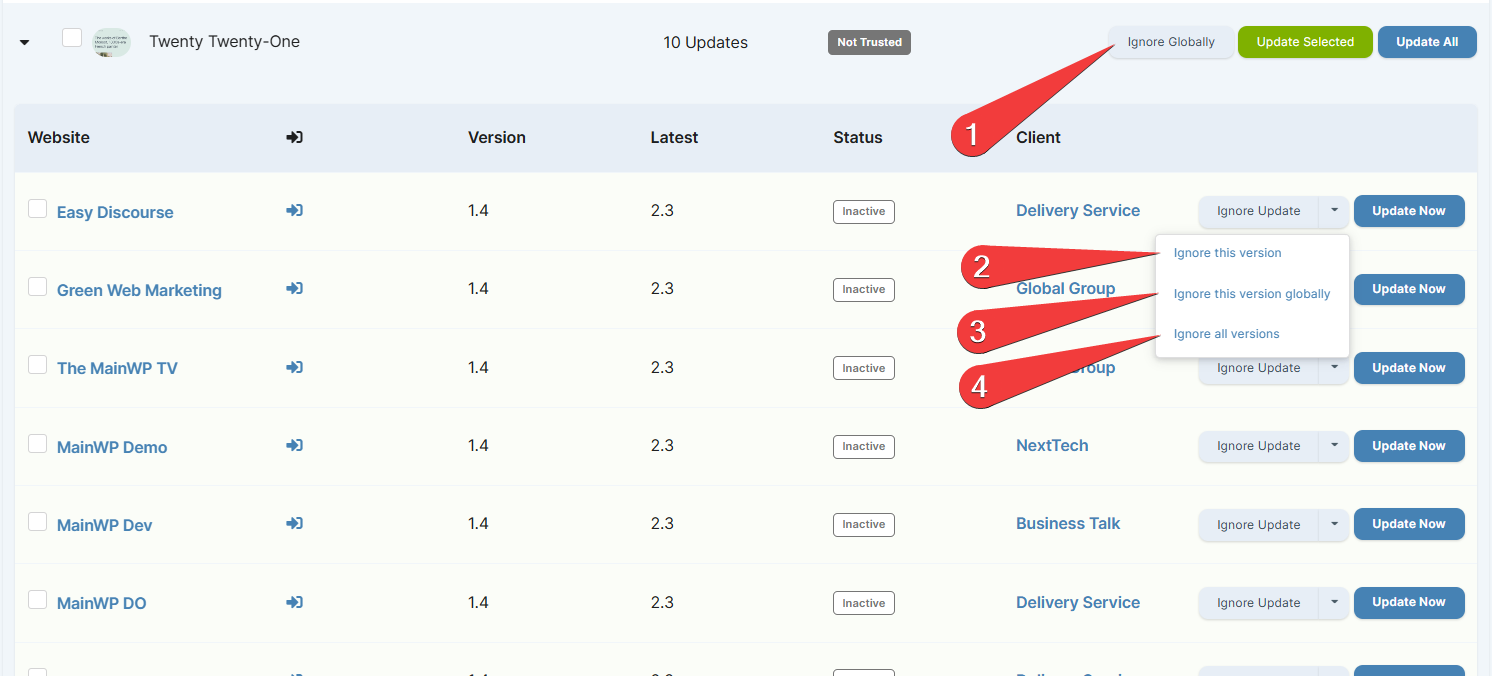
Ignore Theme Updates
Navigate to Theme Updates
/wp-admin/admin.php?page=UpdatesManage&tab=themes-updates).Select view
Ignore
Un-ignore a Theme
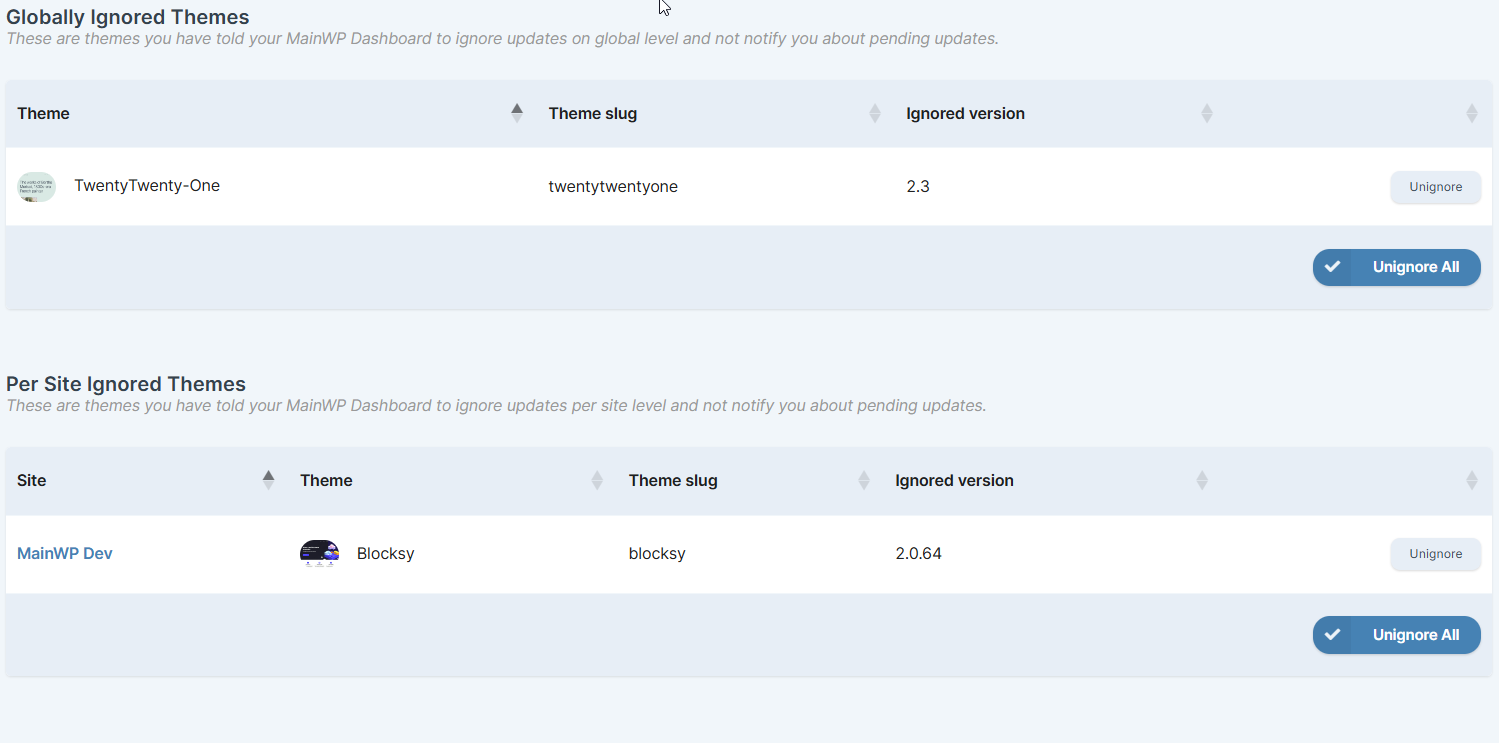
When ignored theme updates exist, you can click View Ignored Updates on Sites > Updates > Themes (/wp-admin/admin.php?page=UpdatesManage&tab=themes-updates). You can also use the Themes menu path below.
Navigate to Ignored Updates
/wp-admin/admin.php?page=ThemesIgnore).Un-ignore
Premium Plugin and Theme Updates
MainWP Dashboard 6.2 includes built-in update compatibility for many premium plugins and themes. Available premium updates still appear in the normal plugin and theme update screens described above. If a premium update is missing, check its license and update availability on the child site, then sync again. For products that need extra compatibility, go to top-right user menu > MainWP Settings > Premium Updates (/wp-admin/admin.php?page=PremiumUpdates) and add a Custom Identifier.

Translation Updates
Update All Translations on All Sites
Navigate to Translation Updates
/wp-admin/admin.php?page=UpdatesManage&tab=translations-updates).Update all
Update Translations on a Single Site
Navigate to Translation Updates
/wp-admin/admin.php?page=UpdatesManage&tab=translations-updates).Switch to Site view
Update the site
Translation Auto Updates
Configure translation auto-updates globally in top-right user menu > MainWP Settings > General Settings (/wp-admin/admin.php?page=Settings), under the Updates Settings section.
Navigate to Settings
/wp-admin/admin.php?page=Settings).Find Updates Settings
Enable translation auto updates
Save
Automatic Update Summary Emails
After an automatic update run finishes, MainWP Dashboard sends an Auto Updates Email summarizing successful updates, grouped by child site. The email is processed in the background, so it may arrive after the updates finish.- The summary includes successful updates only. It is not a complete report of failed or skipped updates.
- No summary is sent when the run has no successful updates to report.
Disable Auto Updates Email
- Go to top-right user menu > MainWP Settings > Email Settings (
/wp-admin/admin.php?page=SettingsEmail). - Click Manage beside Auto Updates Email.
- Turn Enable off and click Save Settings.
Safe Updates / Rollback
MainWP 5.1 introduced a rollback feature that integrates with the WordPress core rollback feature from WordPress 6.3.How Rollback Works
The rollback feature is active on all MainWP Dashboard pages where updates can be triggered, including the Updates page, Manage Plugins, Manage Themes, and add-on pages. It works for both individual and bulk updates.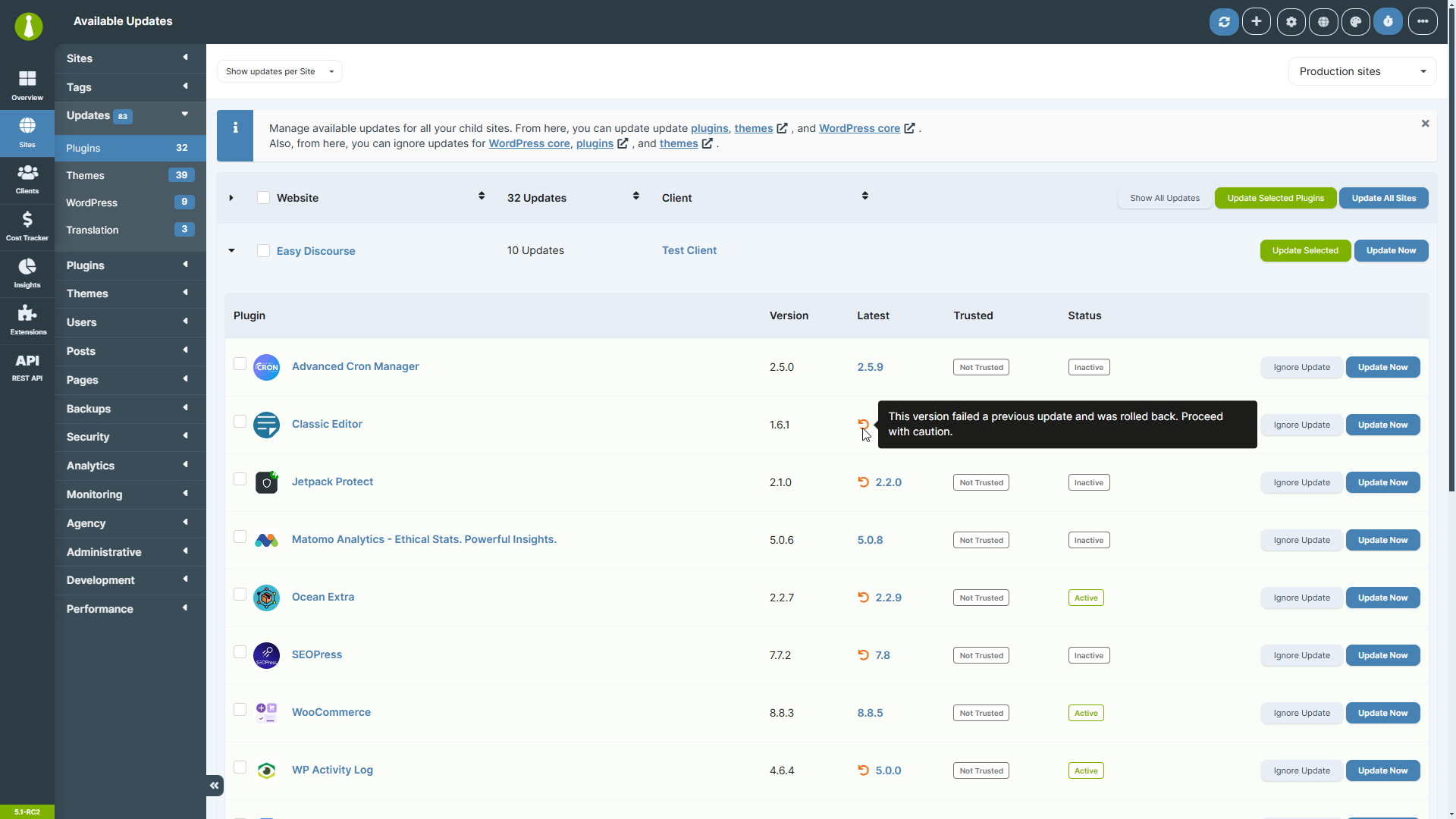
Rollback Notices
When a rollback occurs, an orange icon with a tooltip appears. This notice persists on relevant Dashboard pages until the plugin or theme is successfully updated.
Manual Rollback
During updates, WordPress stores the current version temporarily. If the update fails, that version is restored. There is no permanent storage for manual rollback to previous versions. To install a previous version of a WordPress.org plugin:Visit plugin page
Open Advanced
Download version
Install
Self-Check Checklist
- WordPress core updates complete successfully
- Plugin updates work for individual and bulk operations
- Theme updates work for individual and bulk operations
- Auto updates are configured for trusted items
- Ignored updates no longer appear in update lists
- Rollback feature functions on WordPress 6.3+ sites
Related Resources
- Does MainWP Have Safe Updates - Learn about update safety features
- Change Update Frequency - Adjust sync and update timing
- Manage Plugins - Full plugin management
- Manage Themes - Full theme management