> ## Documentation Index
> Fetch the complete documentation index at: https://docs.mainwp.com/llms.txt
> Use this file to discover all available pages before exploring further.
# Troubleshoot Jump to WP Admin issues
> Troubleshoot Jump to WP Admin issues with MainWP Dashboard URL detection, per-site URL locks, manual URL settings, and security plugin checks.
Jump to WP Admin lets you open a child site's WordPress admin area directly from your MainWP Dashboard, automatically logged in as the administrator account used during connection. When this feature doesn't work, security plugins or URL mismatches are typically the cause.
## What You'll Learn
* Identify why Jump to WP Admin fails
* Check automatic URL handling and per-site locks
* Correct remaining www or HTTP/HTTPS mismatches
* Resolve security plugin conflicts
## Prerequisites
* MainWP Dashboard with connected child sites
* MainWP Dashboard 6.2 or later for **Use detected** and **Lock site URL**
* Admin access to child sites (for security plugin adjustments)
***
## Automatic URL Handling
Starting with MainWP Dashboard 6.2, Jump to WP Admin can use the address last reported by the child site when the difference is a `www` variant or an HTTP-to-HTTPS change. A mismatch no longer necessarily means the jump will fail. A site can also sync successfully while its Jump to WP Admin login fails.
The **Auto-correct site URLs** setting in **top-right user menu > MainWP Settings > Advanced Settings > Miscellaneous Settings** (`/wp-admin/admin.php?page=SettingsAdvanced`) is enabled by default. It also allows MainWP to verify and update stored addresses in the background. Automatic handling does not switch HTTPS to HTTP or change the domain, port, or path.
A site's **Lock site URL** setting prevents both automatic changes to its stored URL and automatic address adjustment for Jump to WP Admin. Disabling the global setting alone stops background URL changes but still allows Jump to WP Admin to use a supported detected address.
## Check and Correct the Site URL
Go to **MainWP > Sites > Manage Sites**, open the site's actions menu, and click **Sync Data**. Then try Jump to WP Admin again. Syncing refreshes the reported address if the site recently changed its protocol or www prefix.
If the jump still fails, open the site's actions menu and click **Settings**. Under **General Settings**, review **Site URL** and **Lock site URL**.
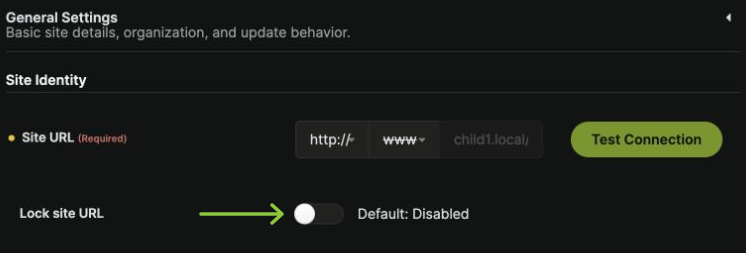 If the lock is enabled unintentionally, turn it off. Keep it enabled if your hosting setup requires MainWP to use the stored address. See [Lock Site URL](/sites/management/manage-child-sites#lock-site-url) for details.
For a protocol or www mismatch, MainWP shows **The child site reports its address as:** and a **Use detected** button. If the reported address is correct, click **Use detected** to fill the protocol and www selectors.
If this hint is absent, or you need a different address, adjust the selectors manually using the guidance below. **Use detected** does not save the settings or turn off an existing lock.
Click **Save Settings**, then try Jump to WP Admin again. Manually changing the URL to differ from the child-reported address automatically enables the URL lock, so review that setting if you later want automatic handling again.
### WWW Prefix Mismatch
In **Site URL**, choose **www** if the site's address uses that prefix, or the crossed-out **www** option if it does not. Save the settings after making a manual adjustment.
### HTTP/HTTPS Protocol Mismatch
In **Site URL**, select **https\://** or **http\://** to match the site's working address. Use HTTPS when the site supports it. MainWP does not automatically change an HTTPS address to HTTP; review such a difference before applying it manually.
***
## Security Plugin Conflicts
Security plugins that modify login behavior or hide WordPress admin URLs can interfere with Jump to WP Admin.
### Known Conflicting Plugins
* WPS Hide Login
* Solid Security (formerly iThemes Security)
* Hide My WP Ghost
* All-In-One WP Security
### Troubleshoot Security Plugins
Temporarily deactivate security plugins on the child site and test Jump to WP Admin.
If it works, re-enable plugins one at a time to identify which one causes the issue.
Look for settings that modify:
* Login URL or path
* Admin URL protection
* Session handling
* Auto-logout behavior
Adjust these settings to allow MainWP's login process.
***
## Self-Check Checklist
* [ ] Child site synced to refresh its reported address
* [ ] Site URL protocol and www prefix reviewed
* [ ] Lock site URL enabled only when the stored address is intentional
* [ ] Settings saved after adjustments
* [ ] Security plugin or custom login settings checked if the issue persists
* [ ] Jump to WP Admin works correctly
***
## Related Resources
* [Manage Child Site Settings](/sites/management/manage-child-sites#edit-child-site-settings) - Detected addresses and per-site URL locks
* [Use Jump to WP Admin with HTTP Basic Auth](/troubleshooting/use-of-jump-to-wp-admin-with-child-sites-protected-by-http-basic-authentication) - Special configuration for protected sites
* [Change WP Admin URL](/troubleshooting/am-i-allowed-to-change-wp-admin-and-wp-login-php-url) - Custom admin URL considerations
* [Troubleshoot Connection Problems](/troubleshooting/potential-issues) - General connection issues
This documentation is built and hosted on [Mintlify](https://mintlify.com), a developer documentation platform.
If the lock is enabled unintentionally, turn it off. Keep it enabled if your hosting setup requires MainWP to use the stored address. See [Lock Site URL](/sites/management/manage-child-sites#lock-site-url) for details.
For a protocol or www mismatch, MainWP shows **The child site reports its address as:** and a **Use detected** button. If the reported address is correct, click **Use detected** to fill the protocol and www selectors.
If this hint is absent, or you need a different address, adjust the selectors manually using the guidance below. **Use detected** does not save the settings or turn off an existing lock.
Click **Save Settings**, then try Jump to WP Admin again. Manually changing the URL to differ from the child-reported address automatically enables the URL lock, so review that setting if you later want automatic handling again.
### WWW Prefix Mismatch
In **Site URL**, choose **www** if the site's address uses that prefix, or the crossed-out **www** option if it does not. Save the settings after making a manual adjustment.
### HTTP/HTTPS Protocol Mismatch
In **Site URL**, select **https\://** or **http\://** to match the site's working address. Use HTTPS when the site supports it. MainWP does not automatically change an HTTPS address to HTTP; review such a difference before applying it manually.
***
## Security Plugin Conflicts
Security plugins that modify login behavior or hide WordPress admin URLs can interfere with Jump to WP Admin.
### Known Conflicting Plugins
* WPS Hide Login
* Solid Security (formerly iThemes Security)
* Hide My WP Ghost
* All-In-One WP Security
### Troubleshoot Security Plugins
Temporarily deactivate security plugins on the child site and test Jump to WP Admin.
If it works, re-enable plugins one at a time to identify which one causes the issue.
Look for settings that modify:
* Login URL or path
* Admin URL protection
* Session handling
* Auto-logout behavior
Adjust these settings to allow MainWP's login process.
***
## Self-Check Checklist
* [ ] Child site synced to refresh its reported address
* [ ] Site URL protocol and www prefix reviewed
* [ ] Lock site URL enabled only when the stored address is intentional
* [ ] Settings saved after adjustments
* [ ] Security plugin or custom login settings checked if the issue persists
* [ ] Jump to WP Admin works correctly
***
## Related Resources
* [Manage Child Site Settings](/sites/management/manage-child-sites#edit-child-site-settings) - Detected addresses and per-site URL locks
* [Use Jump to WP Admin with HTTP Basic Auth](/troubleshooting/use-of-jump-to-wp-admin-with-child-sites-protected-by-http-basic-authentication) - Special configuration for protected sites
* [Change WP Admin URL](/troubleshooting/am-i-allowed-to-change-wp-admin-and-wp-login-php-url) - Custom admin URL considerations
* [Troubleshoot Connection Problems](/troubleshooting/potential-issues) - General connection issues
This documentation is built and hosted on [Mintlify](https://mintlify.com), a developer documentation platform.