> ## Documentation Index
> Fetch the complete documentation index at: https://docs.mainwp.com/llms.txt
> Use this file to discover all available pages before exploring further.
# Network Activity
> Use Network Activity to review detailed event timelines across your MainWP Dashboard and child sites. Manage logging, retention, filters, and dismissal actions from shared settings.
Network Activity is a core MainWP Dashboard feature that records actions from both your MainWP Dashboard and child site WP Admin areas.
Dashboard Insights uses this same data source to provide analytics summaries, while Network Activity provides the detailed event timeline.
## What You'll Learn
* Where to access Network Activity and its shared settings page
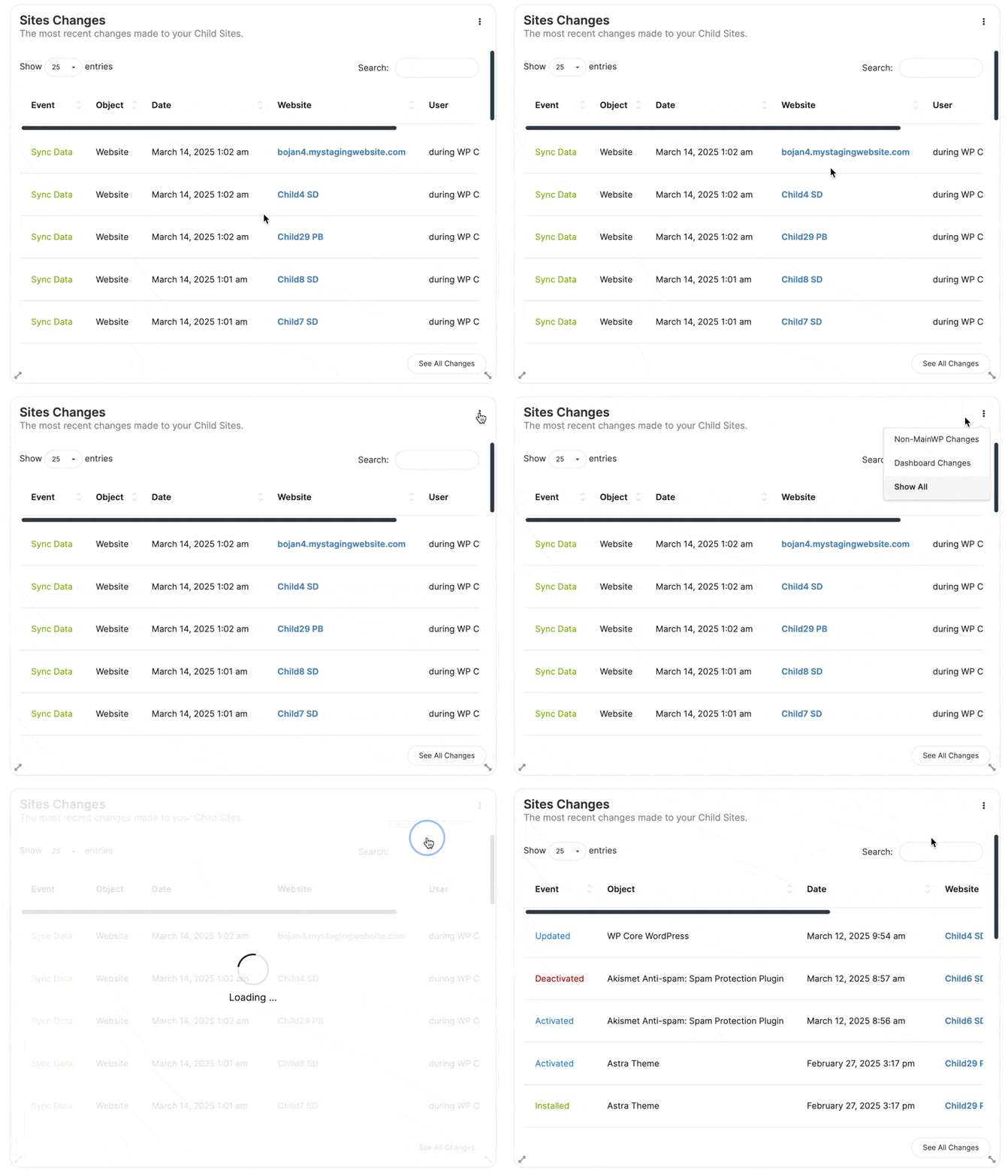
* Where the Network Activity widget appears
* How to filter activity by source, site, event, date, and user context
* How to dismiss events with required confirmation
* How to configure logging, auto-archiving, and retention
* How to view only Non-MainWP Changes
## Prerequisites
* MainWP Dashboard with connected child sites
* MainWP Child active on connected child sites for direct WP Admin activity tracking
* Network Activity logging enabled in settings
***
## Video Walkthrough
Watch this walkthrough to review activity sources, filter and dismiss logs, configure logging and retention, and use the Network Activity widget.
***
## Access Network Activity and Settings
Go to **MainWP > Sites > Network Activity** (`admin.php?page=InsightsManage`).
Go to **top-right user menu > MainWP Settings > Network Activity Settings** (`/wp-admin/admin.php?page=SettingsInsights`).
**Network Activity Settings** is a shared settings page.\
It configures the logs dataset used by both Network Activity and Dashboard Insights.
## Where the Network Activity Widget Appears
You can use the **Network Activity** widget in:
* **MainWP > Operations** (`admin.php?page=mainwp_tab`)
* Individual child site **Overview** pages (`admin.php?page=managesites&dashboard=`)
Replace `` with the child site ID.
## Understand Activity Sources
Network Activity includes events from two sources:
| Source | Meaning | Example Actions |
| - | - | - |
| Dashboard | Actions initiated from MainWP Dashboard | Bulk plugin updates, tag edits, user management |
| WP Admin (Non-MainWP Changes) | Actions made directly in child site WP Admin | Direct content edits, settings updates, manual plugin/theme actions |
***
## Version and Role Changes
MainWP Child 6.3 corrects the before-and-after details recorded for WordPress core updates and user role changes. Keep Child sites updated when reviewing these events. The fixes apply to newly recorded activity; they do not rewrite older entries.
## Filter Network Activity Data
Use filters on the Network Activity page to narrow results by:
* Date range
* Tags
* Clients
* Users
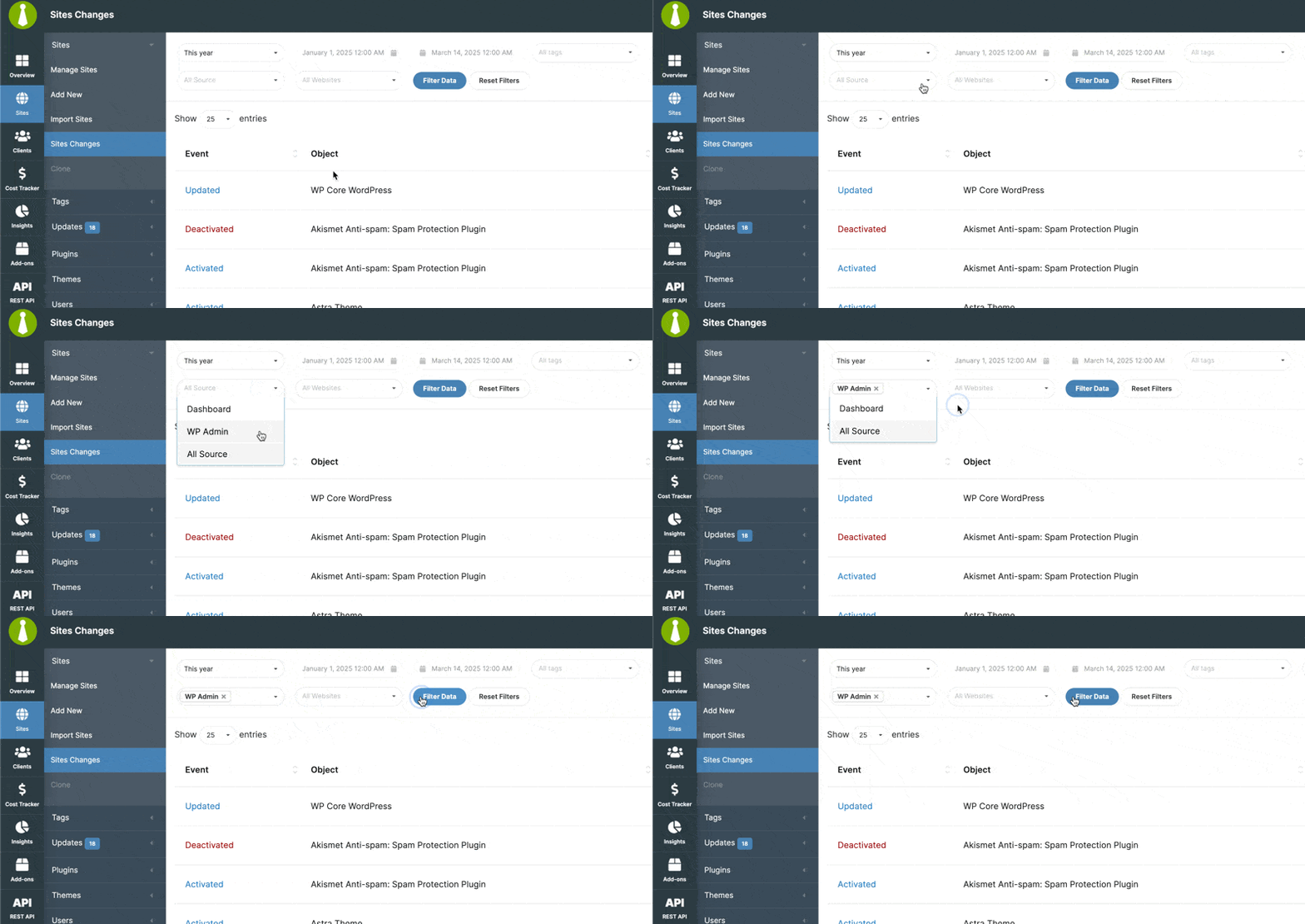
* Source (`Dashboard` or `WP Admin`)
* Sites
* Events
Filter selections are saved for your user account until you reset them.
***
## View Only Non-MainWP Changes
Non-MainWP Changes are a subset of Network Activity data. They show activity that did not originate from MainWP Dashboard.
### Filter in the Network Activity Widget
Open **MainWP > Operations** (`admin.php?page=mainwp_tab`) or an individual child site **Overview** (`admin.php?page=managesites&dashboard=`).
In the **Network Activity** widget, click the three-dot menu.
Choose **Non-MainWP Changes** to show WP Admin-originated events only.
### Filter on the Network Activity Page
Go to **MainWP > Sites > Network Activity** (`admin.php?page=InsightsManage`).
In the **Source** filter, select **WP Admin**.
Click **Filter** to show only Non-MainWP Changes.
***
## Dismiss Events in Bulk or Per Row
Network Activity supports three dismissal actions:
* **Dismiss** archives the event on that row.
* **Dismiss Selected Changes** archives only the rows you select using their checkboxes.
* **Dismiss All Changes** archives all active Network Activity logs across your Dashboard, including logs excluded by the current filters or not displayed on the current page.
To dismiss only specific logs, select their checkboxes and use **Dismiss Selected Changes**. Filters do not limit **Dismiss All Changes**.
Dismissal removes logs from the active activity list; it does not undo the original changes on your sites. All dismiss actions require confirmation before execution.
Dismissal actions are available on the Network Activity page. The Network Activity widget has no dismissal controls; click **View All Changes** to open the page and dismiss events.
***
## Configure Logging, Archiving, and Retention
Open **top-right user menu > MainWP Settings > Network Activity Settings** (`/wp-admin/admin.php?page=SettingsInsights`) to manage:
* **Enable Network Activity logging**
* **Automatically archive logs** (optional)
* **Data retention period** for active Dashboard logs before automatic archiving; **Forever** disables age-based archiving
* **Retention period for Network Activity Logs on child sites**, in days (default: 7); this controls local Child-site cleanup and does not change Dashboard retention
* **Select events to log** for Dashboard and Non-MainWP sources
Click **Save Settings** after making changes. Manually sync the child sites to send the logging, event-selection, and Child-site retention settings to them.
Dashboard logging and archiving settings affect both Network Activity and Dashboard Insights because both features use the same logs dataset.
## Delete Archived Network Activity Data
To remove archived records:
Go to **top-right user menu > MainWP Tools** (`/wp-admin/admin.php?page=MainWPTools`).
Click **Delete Archived Network Activity Data** and confirm. This permanently deletes all archived Network Activity records and their metadata from the Dashboard; active logs are not deleted.
***
## Self-Check Checklist
* [ ] Network Activity page opens from **MainWP > Sites > Network Activity**
* [ ] You can filter by source and isolate **Non-MainWP Changes**
* [ ] Dismiss actions require confirmation
* [ ] Shared settings are available under **top-right user menu > MainWP Settings > Network Activity Settings** (`/wp-admin/admin.php?page=SettingsInsights`)
***
## Related Resources
* [Dashboard Insights](/dashboard/overview/dashboard-insights) - Analyze activity trends
* [What Does Dashboard Insights Track?](/dashboard/overview/what-does-dashboard-insights-track) - Full event reference
* [Manage Child Sites](/sites/management/manage-child-sites) - Child site operations
This documentation is built and hosted on [Mintlify](https://mintlify.com), a developer documentation platform.