> ## Documentation Index
> Fetch the complete documentation index at: https://docs.mainwp.com/llms.txt
> Use this file to discover all available pages before exploring further.
# Uptime Monitoring
> Configure MainWP Dashboard Monitoring Settings for child sites, including built-in Uptime Monitoring, Site Health Monitoring, retention, status codes, and email notifications.
MainWP Dashboard Monitoring Settings include built-in Uptime Monitoring and Site Health Monitoring for connected child sites.
This page documents built-in Monitoring Settings in MainWP Dashboard. It is different from the [Advanced Uptime Monitor Add-on](/add-ons/monitoring/advanced-uptime-monitor-extension).
## What You'll Learn
* Access the Monitoring Settings page
* Configure Site Health Monitoring options
* Configure global uptime monitoring options
* Set data retention for monitoring history
* Review status code details in monitoring views
* Configure uptime email notifications, including recovery alerts
* Use the `[uptime.status]` token in uptime monitoring emails
* Override settings per site and add sub-monitors
## Prerequisites
* MainWP Dashboard plugin installed and activated
* MainWP Child plugin connected on the sites you want to monitor
* WP Cron or server cron configured for scheduled checks
* Access to MainWP Dashboard settings and email settings
***
## Access Monitoring Settings
Go to **top-right user menu > MainWP Settings > Monitoring Settings** (`/wp-admin/admin.php?page=MonitoringSettings`).
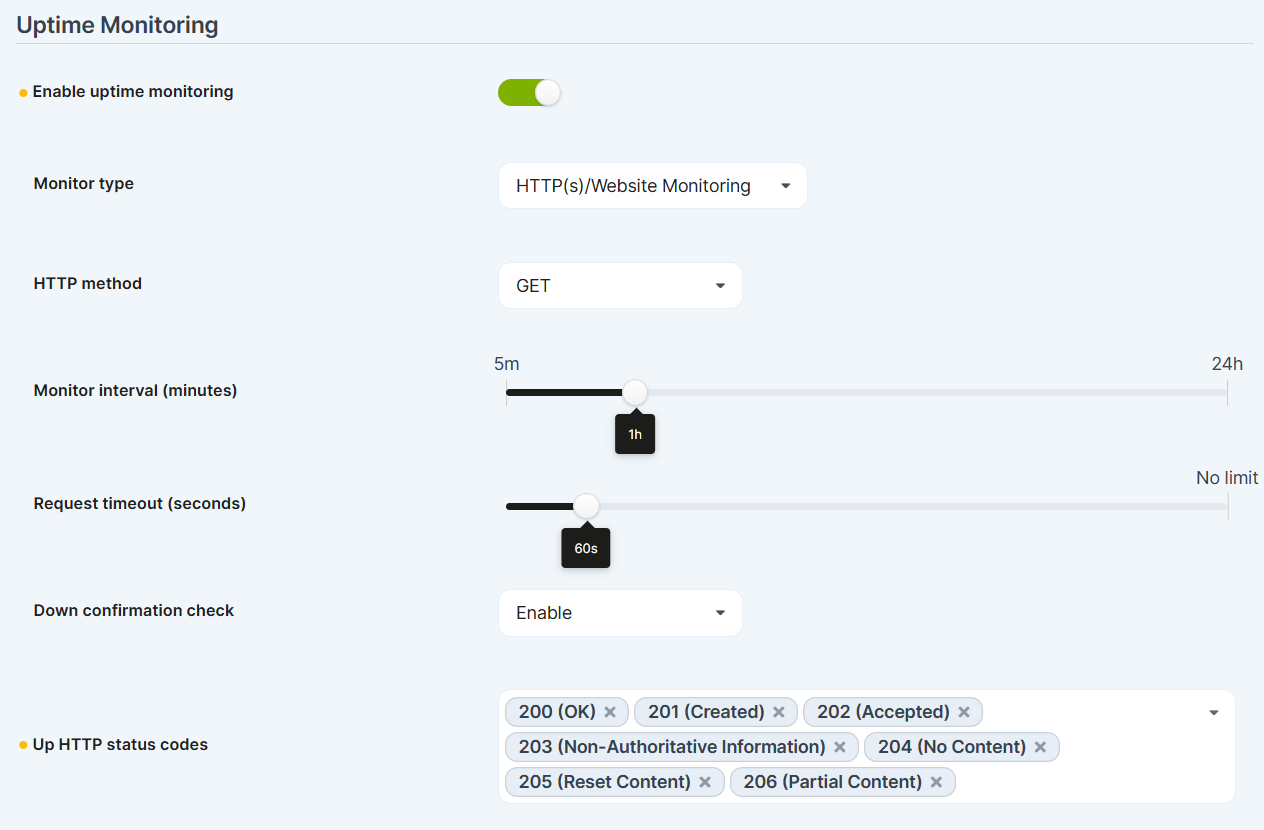
In the **Uptime Monitoring** section, configure global monitor behavior for all child sites.
In the **Site Health Monitoring** section, configure health monitoring behavior.
 ***
## Monitoring Settings Reference
### HTTP Response Check Settings
**Check site HTTP response after update** and **Check site HTTP response method** are global-only settings. Configure them under **top-right user menu > MainWP Settings > Monitoring Settings** (`/wp-admin/admin.php?page=MonitoringSettings`); they do not appear when editing an individual site's Uptime Monitoring settings. The status-code list is shared with Uptime Monitoring and can still be overridden per site.
| Setting | Default | Description |
| - | - | - |
| Check site HTTP response after update | Disabled | Checks site header response after update actions |
| Check site HTTP response method | HEAD | Method for post-update check: `HEAD (default)` or `GET` |
| Up HTTP Codes for HTTP Response and Uptime Monitoring | `200,201,202,203,204,205,206` | Status codes treated as UP for both features |
### Uptime Monitoring Settings
| Setting | Default | Description |
| - | - | - |
| Enable Uptime Monitoring | Disabled | Enables or disables built-in uptime monitoring globally |
| Monitor Type | HTTP(s) | `HTTP(s)`, `Ping`, or `Keyword Monitoring` |
| Method | HEAD | For HTTP(s) monitor type: `HEAD`, `GET`, `POST`, `PUSH`, `PATCH`, or `DELETE` |
| Keyword to Look For | Empty | Appears when Monitor Type is `Keyword Monitoring` |
| Monitor Interval (minutes) | 1h (60 minutes) | Slider from `5m`, `10m`, `15m`, `30m`, `45m`, then `1h` through `24h` |
| Timeout (seconds) | 60s | Slider values: `30s`, `45s`, `60s`, `90s`, `2-10min`, `15min`, `30min`, `45min`, `60min`, `90min`, `No limit` |
| Down Confirmation Check | Enabled | Confirms downtime before creating alerts |
| Attempt to bypass page cache | Disabled | Adds cache-control headers and a unique cache-busting value to each uptime request as a best-effort attempt to reach the origin server |
| Monitoring Data Retention | 180 days | Keeps history for selected duration before automatic cleanup |
Enable **Attempt to bypass page cache** when a caching layer may return a stored response instead of the current site response. Cache bypass is best effort and does not guarantee that a CDN, proxy, or page cache will forward the request to the origin server.
Monitoring Data Retention options:
* Keep forever (no automatic cleanup)
* 30 days
* 90 days (3 months)
* 180 days (6 months)
* 365 days (1 year)
Configure **Maximum simultaneous uptime monitoring requests** in **top-right user menu > MainWP Settings > Advanced Settings** (`/wp-admin/admin.php?page=SettingsAdvanced`).
### Site Health Monitoring Settings
| Setting | Default | Description |
| - | - | - |
| Enable Site Health monitoring | Disabled | Enables monitoring using WordPress Site Health |
| Site health threshold | Should be improved | Threshold options: `Should be improved` or `Good` |
WordPress Site Health is a WordPress core feature that evaluates the site's configuration and reports whether the site is in good condition or needs attention. It combines checks for areas such as performance, security, and recommended configuration, then presents the results in the built-in Site Health screen.
On each child site, you can review the same information directly in the site `wp-admin` under **Tools > Site Health**. The child site's Site Health screen includes the native WordPress **Status** and **Info** tabs.
Site Health Monitoring uses cached WordPress Site Health test counts collected by MainWP Child during synchronization. MainWP Dashboard calculates a health score from those counts, compares it against your configured threshold, and uses it for notifications. It does not run a fresh Site Health test with each uptime check, so its data can lag behind the child site.
Site Health Monitoring notification templates support the `[site.name]` token for dynamic site name insertion.
Use `[site.name]` in the email subject, heading, or template content for individual-site notifications. A combined administrator summary has no single child-site context for template token replacement.
***
## Monitoring Views and Status Codes
### Monitoring Table
Go to **MainWP > Sites > Monitoring** (`admin.php?page=MonitoringSites`) to review monitor status across sites.
The Monitoring table includes a **Status code** column so you can quickly see the latest HTTP response code for each monitor.
### Individual Site Uptime Widget
On the individual site **Overview** tab (`admin.php?page=managesites&dashboard=SITE_ID`), the Uptime Monitoring widget shows:
* Current status (UP, DOWN, PENDING, or DISABLED)
* Current HTTP status code
* Incidents and uptime ratio
* Response time history
Use **Check Now** from the Monitoring page actions for immediate checks on selected sites.
If the widget shows **Failed to create the primary monitor for this site**, open its **Settings** link and click **Save Settings** to retry creating the monitor.
### Site Health in Monitoring Views
When Site Health Monitoring is enabled, the Monitoring page includes a **Site Health** column so you can review health state alongside uptime data.
These indicators use the Site Health counts from the last synchronization. MainWP displays **Good** when its calculated score is at least 80 and there are no critical issues; otherwise, it displays **Should be improved**. To investigate, open **Tools > Site Health** (`site-health.php`) on the child site and synchronize again after refreshing its results.
***
## Uptime Monitoring Email Notifications
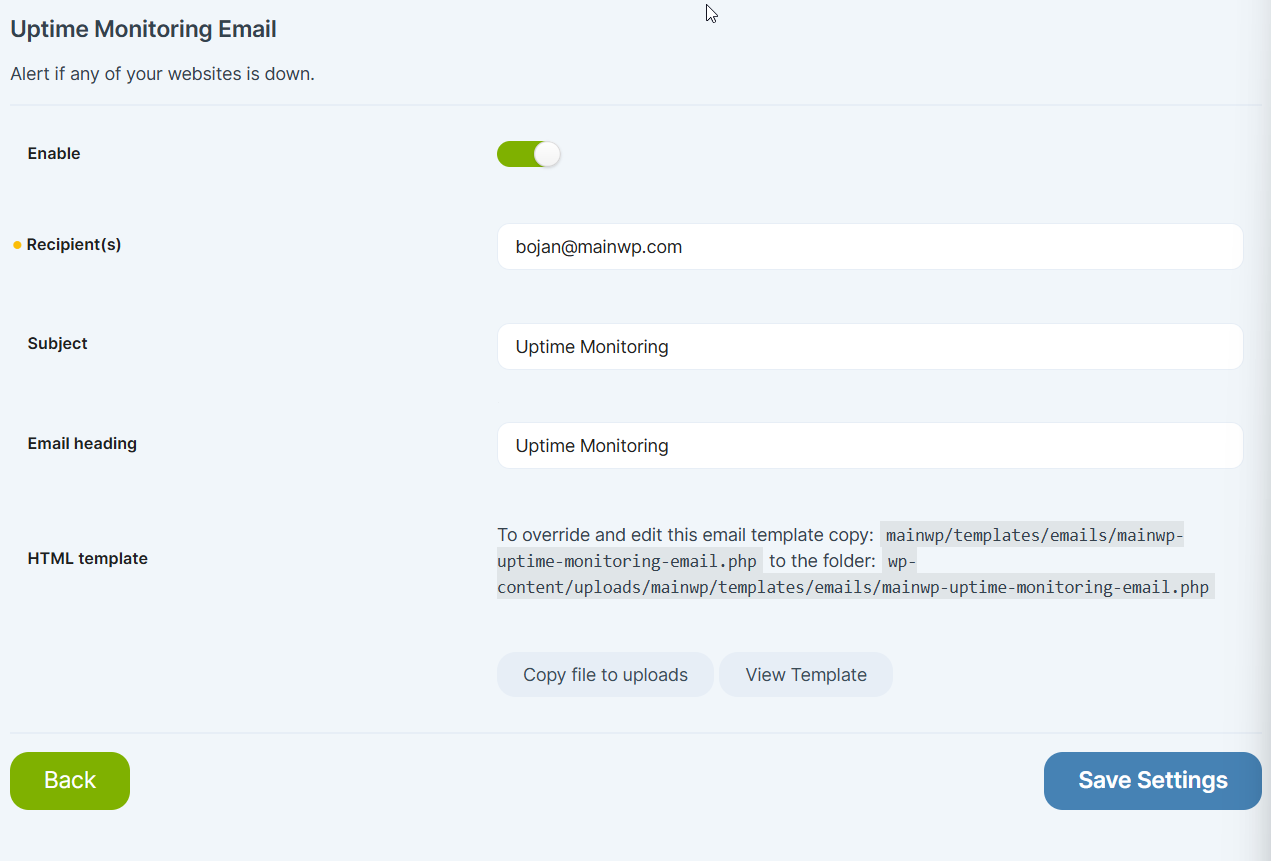
Go to **top-right user menu > MainWP Settings > Email Settings** (`/wp-admin/admin.php?page=SettingsEmail`) and select **Uptime Monitoring Email**.
***
## Monitoring Settings Reference
### HTTP Response Check Settings
**Check site HTTP response after update** and **Check site HTTP response method** are global-only settings. Configure them under **top-right user menu > MainWP Settings > Monitoring Settings** (`/wp-admin/admin.php?page=MonitoringSettings`); they do not appear when editing an individual site's Uptime Monitoring settings. The status-code list is shared with Uptime Monitoring and can still be overridden per site.
| Setting | Default | Description |
| - | - | - |
| Check site HTTP response after update | Disabled | Checks site header response after update actions |
| Check site HTTP response method | HEAD | Method for post-update check: `HEAD (default)` or `GET` |
| Up HTTP Codes for HTTP Response and Uptime Monitoring | `200,201,202,203,204,205,206` | Status codes treated as UP for both features |
### Uptime Monitoring Settings
| Setting | Default | Description |
| - | - | - |
| Enable Uptime Monitoring | Disabled | Enables or disables built-in uptime monitoring globally |
| Monitor Type | HTTP(s) | `HTTP(s)`, `Ping`, or `Keyword Monitoring` |
| Method | HEAD | For HTTP(s) monitor type: `HEAD`, `GET`, `POST`, `PUSH`, `PATCH`, or `DELETE` |
| Keyword to Look For | Empty | Appears when Monitor Type is `Keyword Monitoring` |
| Monitor Interval (minutes) | 1h (60 minutes) | Slider from `5m`, `10m`, `15m`, `30m`, `45m`, then `1h` through `24h` |
| Timeout (seconds) | 60s | Slider values: `30s`, `45s`, `60s`, `90s`, `2-10min`, `15min`, `30min`, `45min`, `60min`, `90min`, `No limit` |
| Down Confirmation Check | Enabled | Confirms downtime before creating alerts |
| Attempt to bypass page cache | Disabled | Adds cache-control headers and a unique cache-busting value to each uptime request as a best-effort attempt to reach the origin server |
| Monitoring Data Retention | 180 days | Keeps history for selected duration before automatic cleanup |
Enable **Attempt to bypass page cache** when a caching layer may return a stored response instead of the current site response. Cache bypass is best effort and does not guarantee that a CDN, proxy, or page cache will forward the request to the origin server.
Monitoring Data Retention options:
* Keep forever (no automatic cleanup)
* 30 days
* 90 days (3 months)
* 180 days (6 months)
* 365 days (1 year)
Configure **Maximum simultaneous uptime monitoring requests** in **top-right user menu > MainWP Settings > Advanced Settings** (`/wp-admin/admin.php?page=SettingsAdvanced`).
### Site Health Monitoring Settings
| Setting | Default | Description |
| - | - | - |
| Enable Site Health monitoring | Disabled | Enables monitoring using WordPress Site Health |
| Site health threshold | Should be improved | Threshold options: `Should be improved` or `Good` |
WordPress Site Health is a WordPress core feature that evaluates the site's configuration and reports whether the site is in good condition or needs attention. It combines checks for areas such as performance, security, and recommended configuration, then presents the results in the built-in Site Health screen.
On each child site, you can review the same information directly in the site `wp-admin` under **Tools > Site Health**. The child site's Site Health screen includes the native WordPress **Status** and **Info** tabs.
Site Health Monitoring uses cached WordPress Site Health test counts collected by MainWP Child during synchronization. MainWP Dashboard calculates a health score from those counts, compares it against your configured threshold, and uses it for notifications. It does not run a fresh Site Health test with each uptime check, so its data can lag behind the child site.
Site Health Monitoring notification templates support the `[site.name]` token for dynamic site name insertion.
Use `[site.name]` in the email subject, heading, or template content for individual-site notifications. A combined administrator summary has no single child-site context for template token replacement.
***
## Monitoring Views and Status Codes
### Monitoring Table
Go to **MainWP > Sites > Monitoring** (`admin.php?page=MonitoringSites`) to review monitor status across sites.
The Monitoring table includes a **Status code** column so you can quickly see the latest HTTP response code for each monitor.
### Individual Site Uptime Widget
On the individual site **Overview** tab (`admin.php?page=managesites&dashboard=SITE_ID`), the Uptime Monitoring widget shows:
* Current status (UP, DOWN, PENDING, or DISABLED)
* Current HTTP status code
* Incidents and uptime ratio
* Response time history
Use **Check Now** from the Monitoring page actions for immediate checks on selected sites.
If the widget shows **Failed to create the primary monitor for this site**, open its **Settings** link and click **Save Settings** to retry creating the monitor.
### Site Health in Monitoring Views
When Site Health Monitoring is enabled, the Monitoring page includes a **Site Health** column so you can review health state alongside uptime data.
These indicators use the Site Health counts from the last synchronization. MainWP displays **Good** when its calculated score is at least 80 and there are no critical issues; otherwise, it displays **Should be improved**. To investigate, open **Tools > Site Health** (`site-health.php`) on the child site and synchronize again after refreshing its results.
***
## Uptime Monitoring Email Notifications
Go to **top-right user menu > MainWP Settings > Email Settings** (`/wp-admin/admin.php?page=SettingsEmail`) and select **Uptime Monitoring Email**.
 | Setting | Description |
| - | - |
| Enable | Turns uptime email notifications on or off |
| Recipient(s) | One or more email addresses for alerts, separated by commas |
| Subject and Email heading | Customizes the notification subject and heading |
| HTML Template | Uses default template or custom copy in `wp-content/uploads/mainwp/templates/emails/` |
Uptime notifications are sent on important status changes, including when a site goes down and when it comes back online. Emails include the monitor URL, status code, and event timestamp.
### `[uptime.status]` Token Support
You can use `[uptime.status]` in the email subject and heading, and in template content for individual-site uptime emails. In a combined administrator summary, the subject and heading use the first included event's status; a token in the template body is not replaced for each listed monitor.
Supported values include:
* `UP`
* `DOWN`
* `PENDING`
* `DISABLED`
These are token values, not four separate alert types. Automatic uptime alerts are triggered by confirmed downtime and recovery; `PENDING` and `DISABLED` do not trigger their own alerts.
***
## Per-Site Uptime Settings
You can override global settings for specific sites.
| Setting | Description |
| - | - |
| Enable | Turns uptime email notifications on or off |
| Recipient(s) | One or more email addresses for alerts, separated by commas |
| Subject and Email heading | Customizes the notification subject and heading |
| HTML Template | Uses default template or custom copy in `wp-content/uploads/mainwp/templates/emails/` |
Uptime notifications are sent on important status changes, including when a site goes down and when it comes back online. Emails include the monitor URL, status code, and event timestamp.
### `[uptime.status]` Token Support
You can use `[uptime.status]` in the email subject and heading, and in template content for individual-site uptime emails. In a combined administrator summary, the subject and heading use the first included event's status; a token in the template body is not replaced for each listed monitor.
Supported values include:
* `UP`
* `DOWN`
* `PENDING`
* `DISABLED`
These are token values, not four separate alert types. Automatic uptime alerts are triggered by confirmed downtime and recovery; `PENDING` and `DISABLED` do not trigger their own alerts.
***
## Per-Site Uptime Settings
You can override global settings for specific sites.
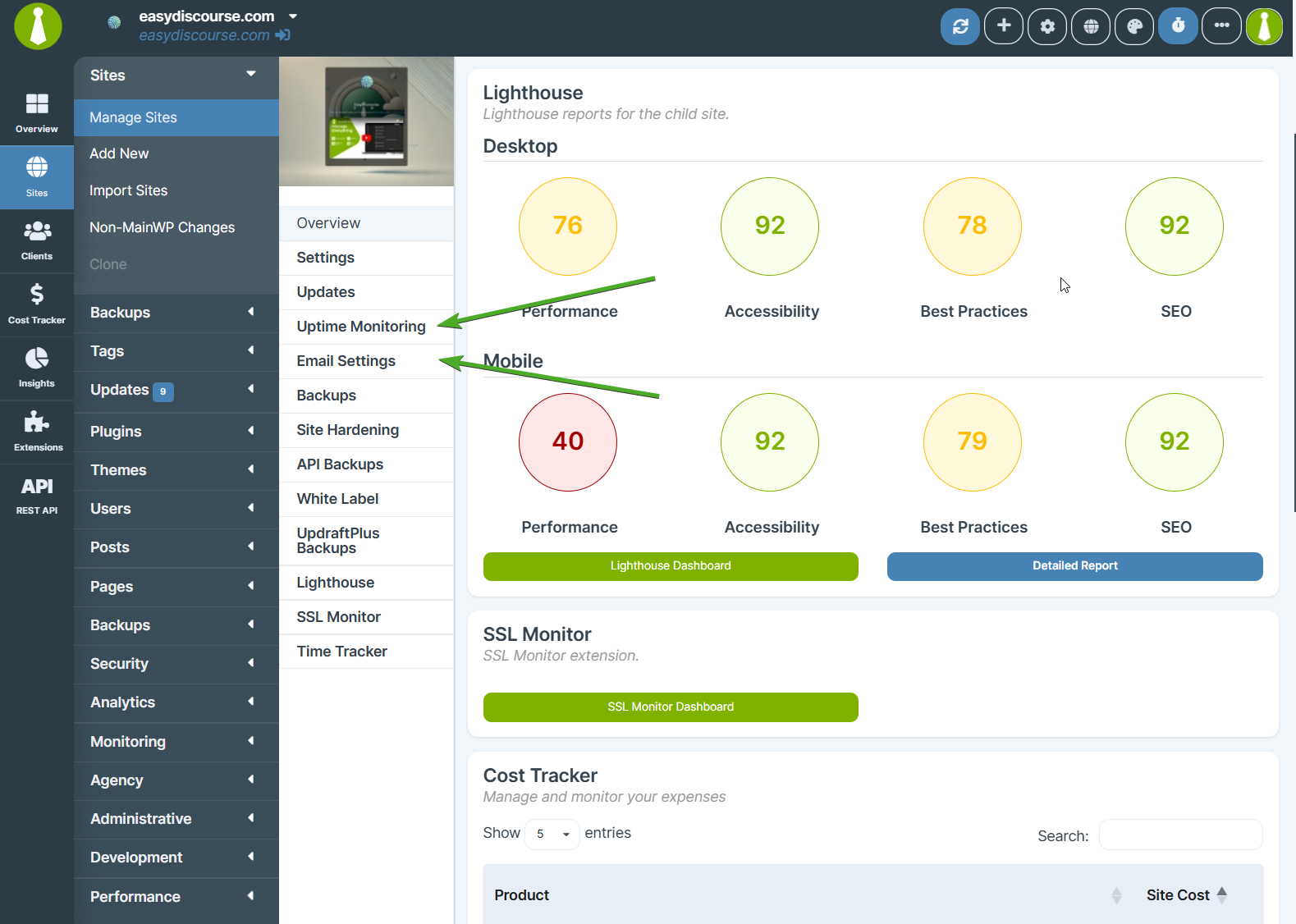 In MainWP Dashboard, open the child site's **Settings** tab (`admin.php?page=managesites&id=SITE_ID`) and expand **Site Monitoring Settings**. Replace `SITE_ID` with the child site's MainWP ID. Click **Save Settings** after making changes.
Per-site options support `Use global setting` for applicable fields.
The post-update HTTP response toggle and request method cannot be overridden per site. Configure both options in the global Monitoring Settings.
| Option | Description |
| - | - |
| Enable Uptime Monitoring | `Use global setting`, `Enable`, or `Disable` |
| Monitor Type | `Use global setting`, `HTTP(s)`, `Ping`, or `Keyword Monitoring` |
| Method | `Use global settings` or HTTP methods (`HEAD`, `GET`, `POST`, `PUSH`, `PATCH`, `DELETE`) |
| Keyword to Look For | Site-specific keyword for keyword monitoring |
| Monitor Interval (minutes) | Site-specific interval slider or global value |
| Timeout (seconds) | Site-specific timeout slider or global value |
| Down Confirmation Check | `Use global setting`, `Enable`, or `Disable` |
| Attempt to bypass page cache | `Use global setting`, `Enable`, or `Disable`; available for the primary site monitor, not sub-monitors |
| Up HTTP Codes for HTTP Response and Uptime Monitoring | Site-specific code list or global value |
| Sub-Monitors | Add extra monitored paths with **Create Sub-Monitor** |
| Monitor actions | Use **Disable Monitor** for the primary monitor or **Delete** in a sub-monitor's edit dialog |
When adding a sub-monitor, enter only the path segment (excluding the main site URL).
***
## Related Resources
* [Manage Sites](/sites/management/manage-child-sites) - Manage child site connections and operations
* [MainWP Dashboard Settings](/sites/management/mainwp-dashboard-settings) - Reference for all Dashboard settings
* [Disable WP Cron](/customization/disable-wp-cron) - Configure server cron for reliable schedules
* [Advanced Uptime Monitor Add-on](/add-ons/monitoring/advanced-uptime-monitor-extension) - Third-party API-based uptime monitoring
This documentation is built and hosted on [Mintlify](https://mintlify.com), a developer documentation platform.
In MainWP Dashboard, open the child site's **Settings** tab (`admin.php?page=managesites&id=SITE_ID`) and expand **Site Monitoring Settings**. Replace `SITE_ID` with the child site's MainWP ID. Click **Save Settings** after making changes.
Per-site options support `Use global setting` for applicable fields.
The post-update HTTP response toggle and request method cannot be overridden per site. Configure both options in the global Monitoring Settings.
| Option | Description |
| - | - |
| Enable Uptime Monitoring | `Use global setting`, `Enable`, or `Disable` |
| Monitor Type | `Use global setting`, `HTTP(s)`, `Ping`, or `Keyword Monitoring` |
| Method | `Use global settings` or HTTP methods (`HEAD`, `GET`, `POST`, `PUSH`, `PATCH`, `DELETE`) |
| Keyword to Look For | Site-specific keyword for keyword monitoring |
| Monitor Interval (minutes) | Site-specific interval slider or global value |
| Timeout (seconds) | Site-specific timeout slider or global value |
| Down Confirmation Check | `Use global setting`, `Enable`, or `Disable` |
| Attempt to bypass page cache | `Use global setting`, `Enable`, or `Disable`; available for the primary site monitor, not sub-monitors |
| Up HTTP Codes for HTTP Response and Uptime Monitoring | Site-specific code list or global value |
| Sub-Monitors | Add extra monitored paths with **Create Sub-Monitor** |
| Monitor actions | Use **Disable Monitor** for the primary monitor or **Delete** in a sub-monitor's edit dialog |
When adding a sub-monitor, enter only the path segment (excluding the main site URL).
***
## Related Resources
* [Manage Sites](/sites/management/manage-child-sites) - Manage child site connections and operations
* [MainWP Dashboard Settings](/sites/management/mainwp-dashboard-settings) - Reference for all Dashboard settings
* [Disable WP Cron](/customization/disable-wp-cron) - Configure server cron for reliable schedules
* [Advanced Uptime Monitor Add-on](/add-ons/monitoring/advanced-uptime-monitor-extension) - Third-party API-based uptime monitoring
This documentation is built and hosted on [Mintlify](https://mintlify.com), a developer documentation platform.