> ## Documentation Index
> Fetch the complete documentation index at: https://docs.mainwp.com/llms.txt
> Use this file to discover all available pages before exploring further.
# Manage Sites
> Connect and manage Child Sites on your MainWP Dashboard. Add single or multiple sites, import via CSV, sync data, edit settings, manage tags, run security scans, and configure site health monitoring.
The Manage Sites feature lets you connect WordPress sites to your MainWP Dashboard and control them from a single location. From here, you can add new sites, synchronize data, edit site settings, organize sites with tags, run security scans, and monitor site health.
## What You'll Accomplish
After following this guide, you will be able to:
* Connect single or multiple WordPress sites to your Dashboard
* Import sites in bulk using CSV files
* Synchronize site data between Dashboard and child sites
* Edit site settings and manage tags
* Run security scans and fix detected issues
* Configure site health monitoring
## Prerequisites
* MainWP Dashboard plugin installed and activated on your Dashboard site
* MainWP Child plugin installed and activated on each site you want to connect
* Administrator access to both Dashboard and child sites
* Valid SSL certificates recommended for secure connections
***
***
## Connect Sites to Your Dashboard
### Connect a Single Site
After installing the MainWP Child plugin on your website, add it to your Dashboard.
Log in to your Dashboard site and go to **MainWP > Sites > Add New**.
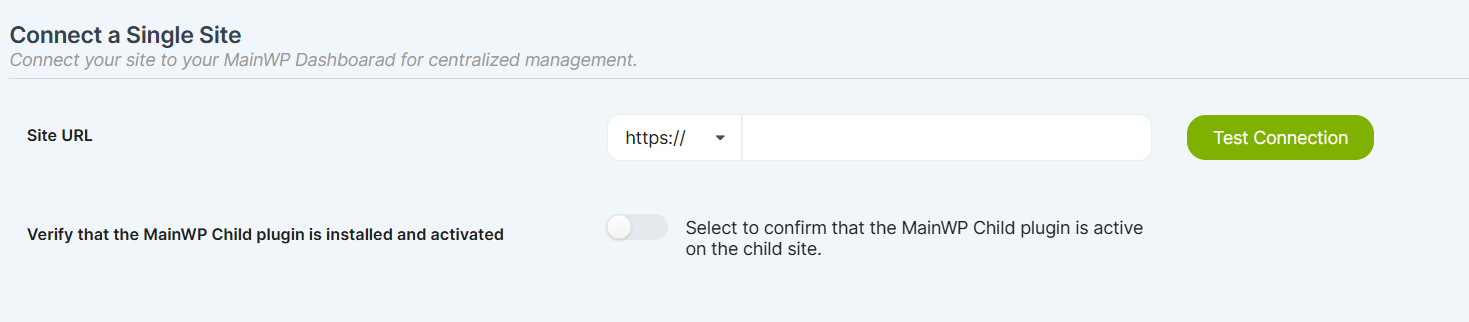
On the **Single Site** tab:
| Field | Description |
| - | - |
| Site URL | Your website URL |
| Confirm the MainWP Child plugin is active on this site | Toggle on to reveal additional fields |
| Administrator Username | Admin username on the child site |
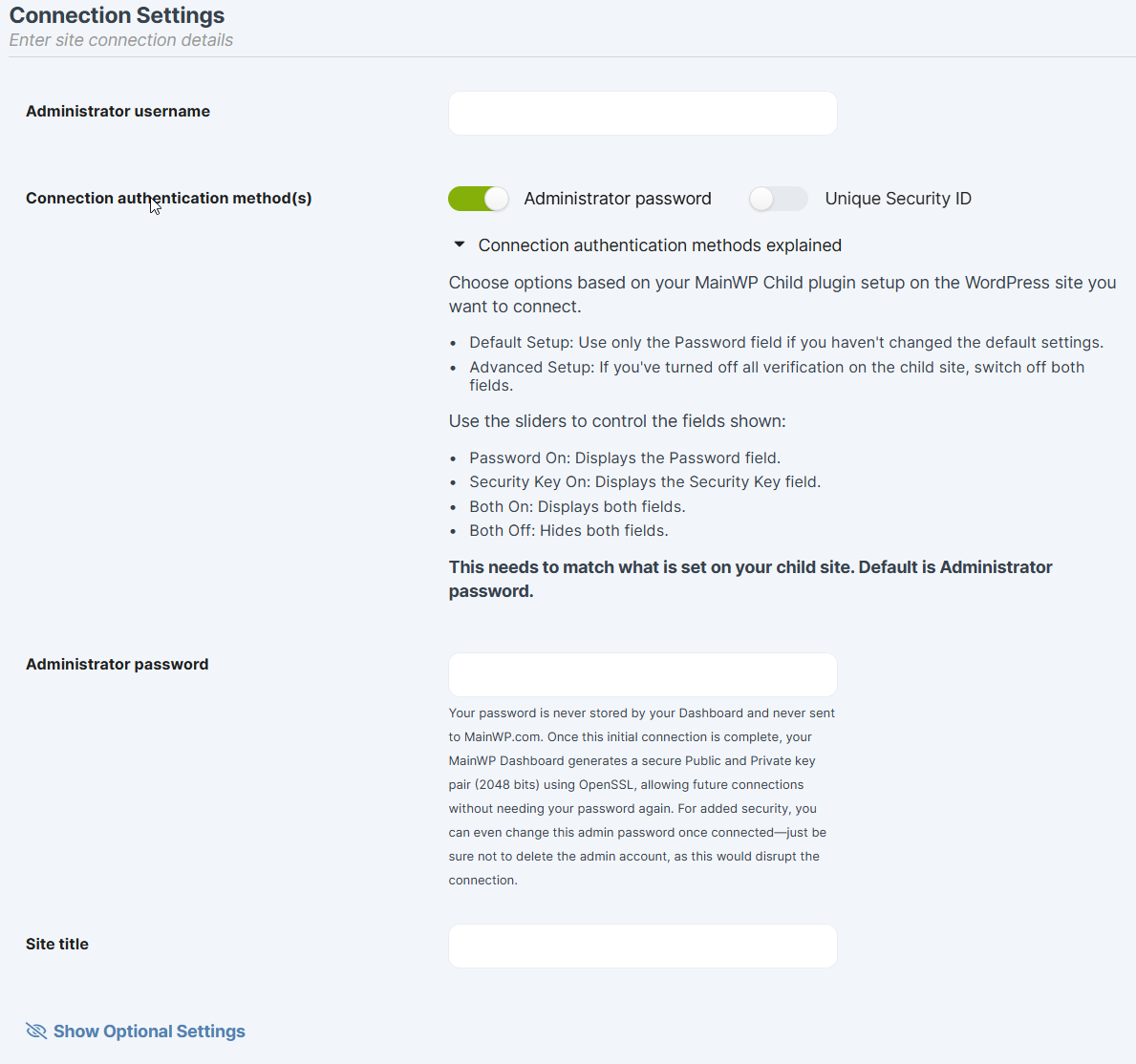
| Option | Description | Default |
| - | - | - |
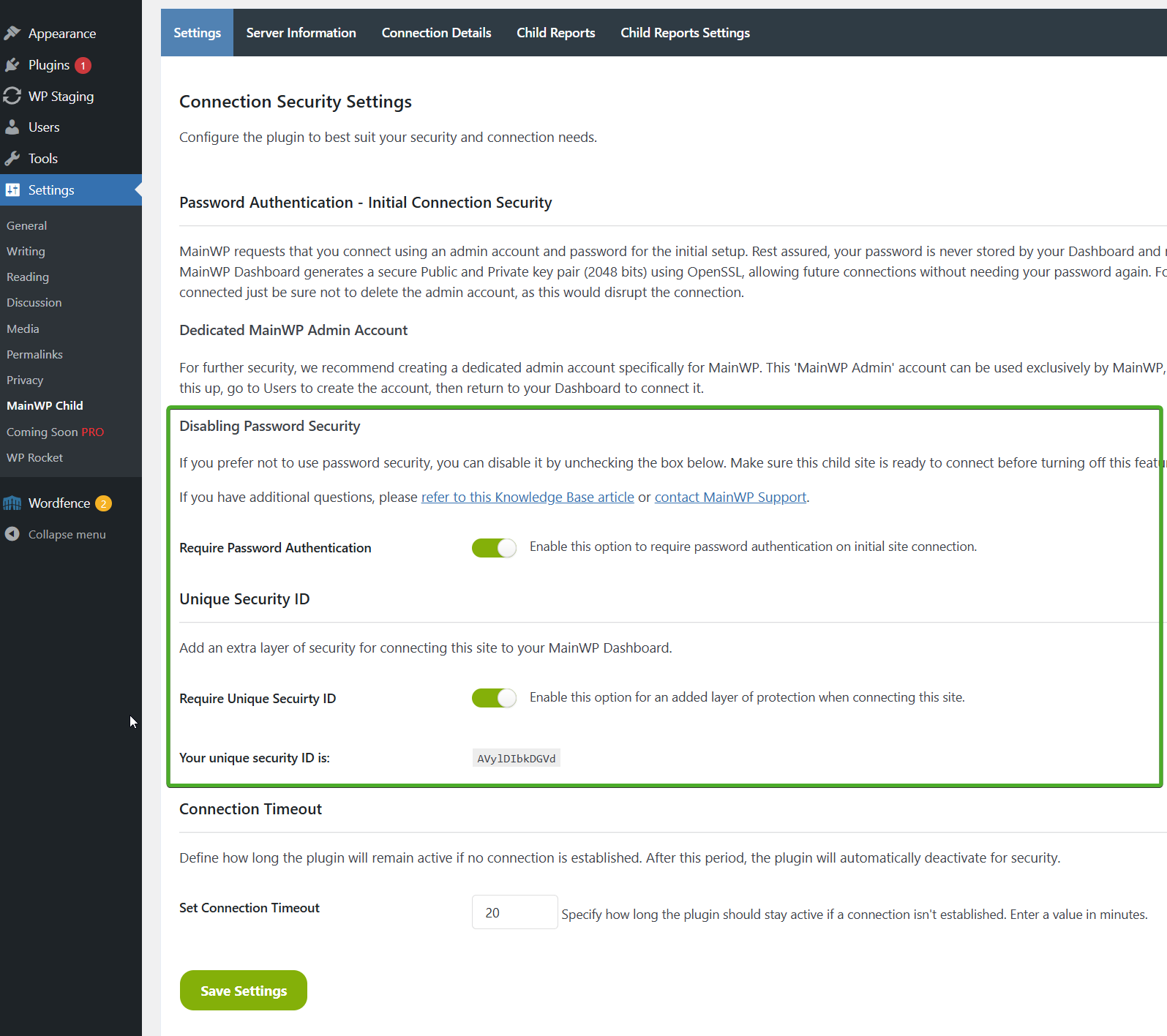
| Administrator Password | Uses the administrator password for initial authentication. See [connection security](/advanced/miscellaneous/mainwp-connection-security#password-authentication) | Enabled |
| Unique Security ID | Uses the Unique Security ID as an alternative or additional connection check. Configure in MainWP Child settings | Disabled |
MainWP Child requires at least one connection authentication method. You can use Administrator Password only, Unique Security ID only, or both, but you cannot disable both in MainWP Child settings. If both methods are enabled, enter both values when connecting.
Find both options at: `your-child-site.com/wp-admin/options-general.php?page=mainwp_child_tab`
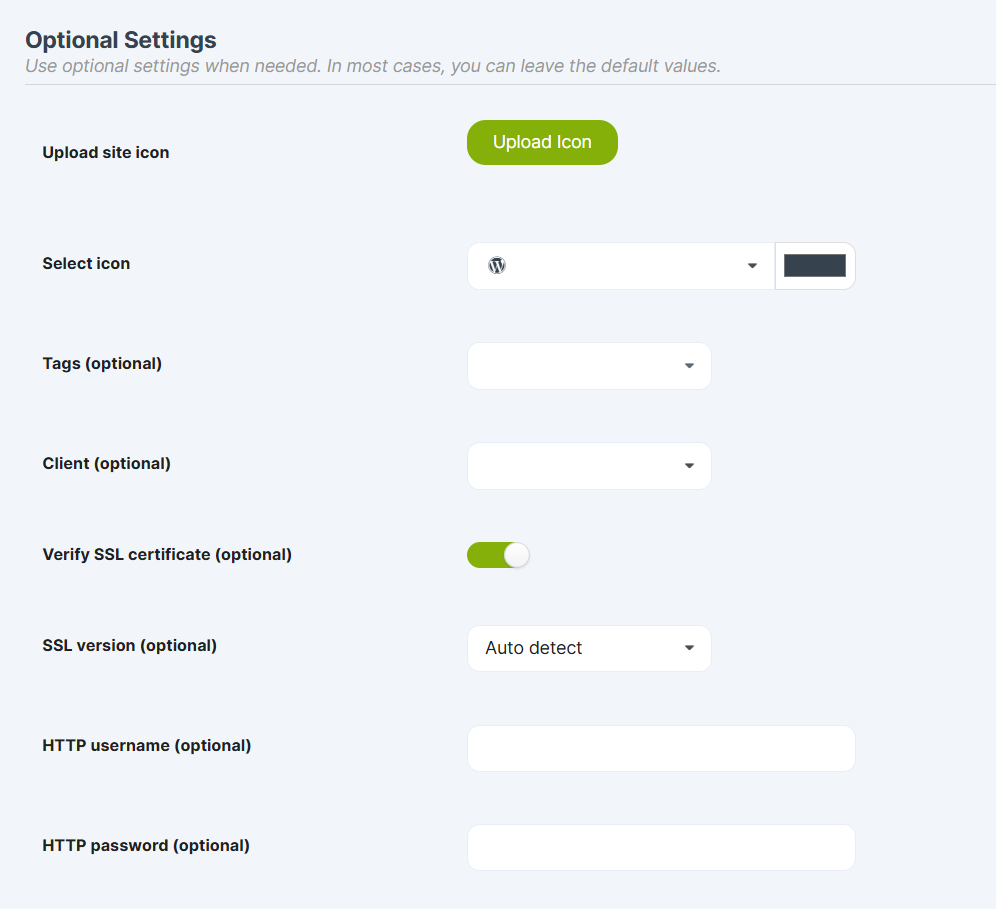
Click **Show Optional Settings**.
| Option | Description |
| - | - |
| Site icon | Upload custom icon (site favicon used if empty) |
| Select icon | Choose from built-in icons (uploaded icon takes priority) |
| Tags | Add to existing tags or create new ones |
| Client | Associate with a client |
| Verify SSL certificate | Enable for sites with valid SSL. Disable for self-signed or outdated certificates |
| SSL version | Leave **Auto detect** unless the site requires a specific version |
| HTTP username/password | Required if site uses HTTP Basic Authentication |
Click **Add Site**.
#### Add-on Settings Synchronization
For installed [MainWP Add-ons](https://mainwp.com/mainwp-add-ons/) that support settings synchronization, the available options depend on the add-on:
| Add-on Type | What Happens |
| - | - |
| Requires third-party plugin | Option to install the plugin and, where supported, apply its settings |
| Standalone add-on | Option to sync add-on default settings only |
If you experience connection issues, use **Test Connection** to verify Dashboard-to-site communication. Check [Potential Issues](/troubleshooting/potential-issues) for solutions or [submit a support ticket](https://mainwp.com/mainwp-support/).
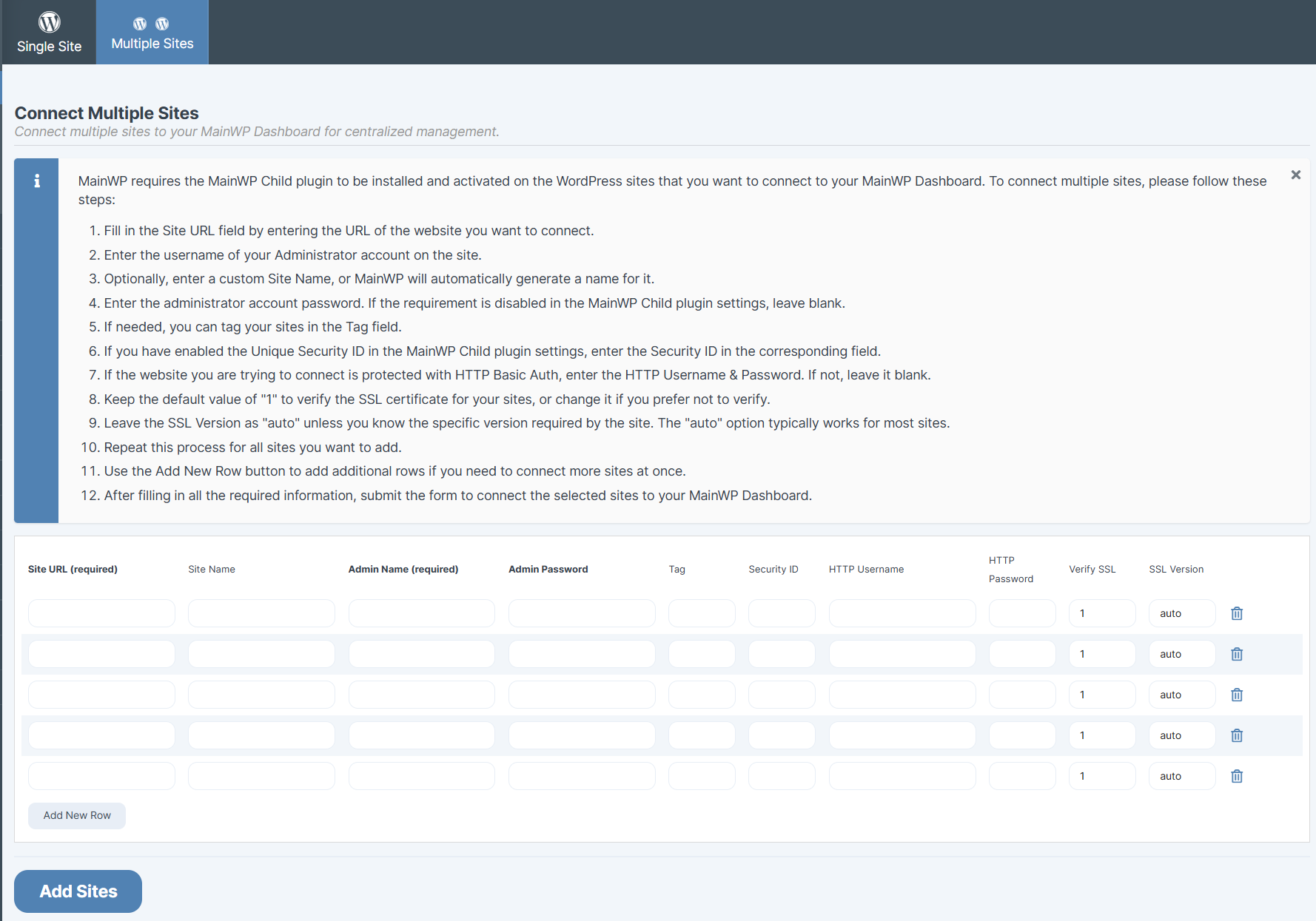
### Connect Multiple Sites
Add several sites simultaneously using the Multiple Sites table.
**Prerequisite:** Install and activate MainWP Child plugin on each site before connecting.
Navigate to **MainWP > Sites > Add New > Multiple Sites**.
| Field | Required | Description |
| - | - | - |
| Site URL | Yes | Full URL of each site |
| Admin Name | Yes | Administrator username for each site |
| Site Name | Yes | Display name, initially filled from the URL |
| Admin Password | If Password Authentication is enabled | Administrator password for each site |
Click the eye icon at the end of a row to show the additional fields.
| Field | Description |
| - | - |
| Tag | Assign tag for organization |
| Unique Security ID | Required if enabled on the site; required when Password Authentication is disabled |
| HTTP Username/Password | For sites with HTTP Basic Authentication |
| Verify SSL | 1 = enabled, 0 = disabled |
| SSL Version | Leave `auto`; the bulk connection does not apply a custom value. Set a specific version in the site settings after connecting if needed |
Click **Add New Row** for additional sites. When ready, click **Add Sites**.
***
## Import Sites (CSV Import)
Import multiple sites using a CSV file.
Install and activate MainWP Child Plugin on all sites you want to import.
Go to **MainWP > Sites > Add New > Import Sites** and download the Sample CSV file.
Open in a text editor and replace the example site rows below the header with your site details.
Use comma-separated values in this order:
| Position | Field | Notes |
| - | - | - |
| 1 | Site Name | Required display name |
| 2 | Site URL | Required full URL |
| 3 | Administrator Username | Required |
| 4 | Admin Password | Required if Password Authentication is enabled |
| 5 | Tag name | Optional |
| 6 | Unique Security ID | Required if enabled; required when Password Authentication is disabled |
| 7 | HTTP Username | If using Basic Auth |
| 8 | HTTP Password | If using Basic Auth |
| 9 | Verify Certificate | Use `1` to enable verification or `0` to disable it |
| 10 | SSL Version | Keep `auto`; custom values are read from the CSV but are not applied when connecting. Change the site settings after import if needed |
For each imported site, include the credential required by that site's MainWP Child settings. Use Admin Password when Password Authentication is enabled, Unique Security ID when Unique Security ID is enabled, or both when both methods are enabled.
The CSV importer reads each line with `str_getcsv()` and maps the fifth column (`wpgroups`) into the import payload, so anything you place in that column becomes the raw tag list for a site. When the importer creates a site, it splits that tag list with `preg_split('/[;,]/', $params['groupnames_import'])`, which means commas and semicolons are treated as tag separators. Because the CSV itself is comma-delimited, the simplest way to import multiple tags is to separate them with semicolons (for example, `Tag A;Tag B;Tag C`).
Save the CSV, upload it to your Dashboard, check **CSV file contains a header** if applicable, and click **Import Sites**.
MainWP requires CSV format. TXT and other text formats will not work.
***
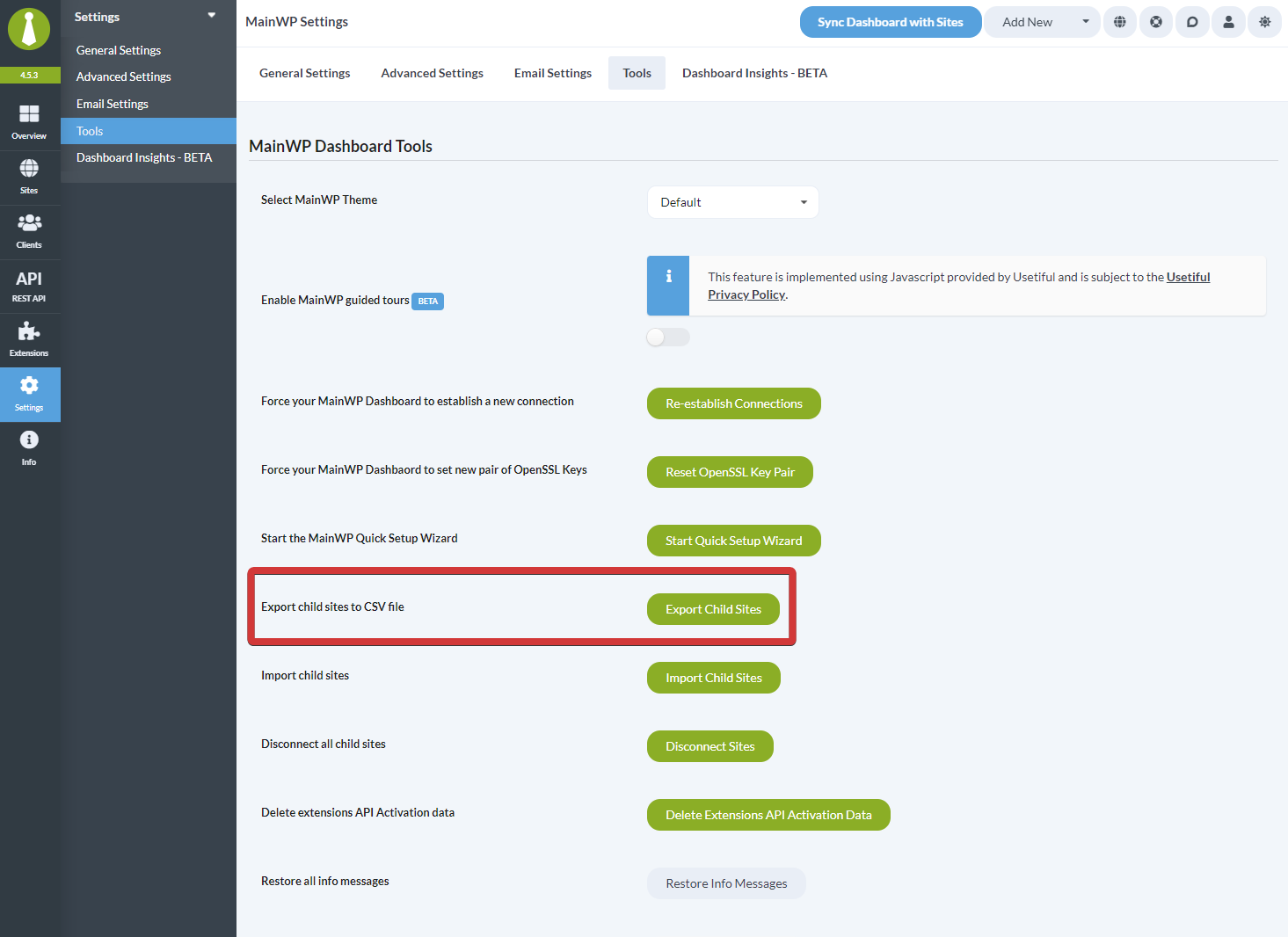
## Export Sites
Go to **top-right user menu > MainWP Tools** (`/wp-admin/admin.php?page=MainWPTools`).
Click **Export Child Sites**.
Sites export to a CSV file.
***
## Synchronize a Child Site
Regular synchronization keeps your Dashboard current with child site data.
### Global Synchronization
Open **MainWP > Sites > Manage Sites** and click **Sync** in the header. On an individual site page, this button syncs only that site.
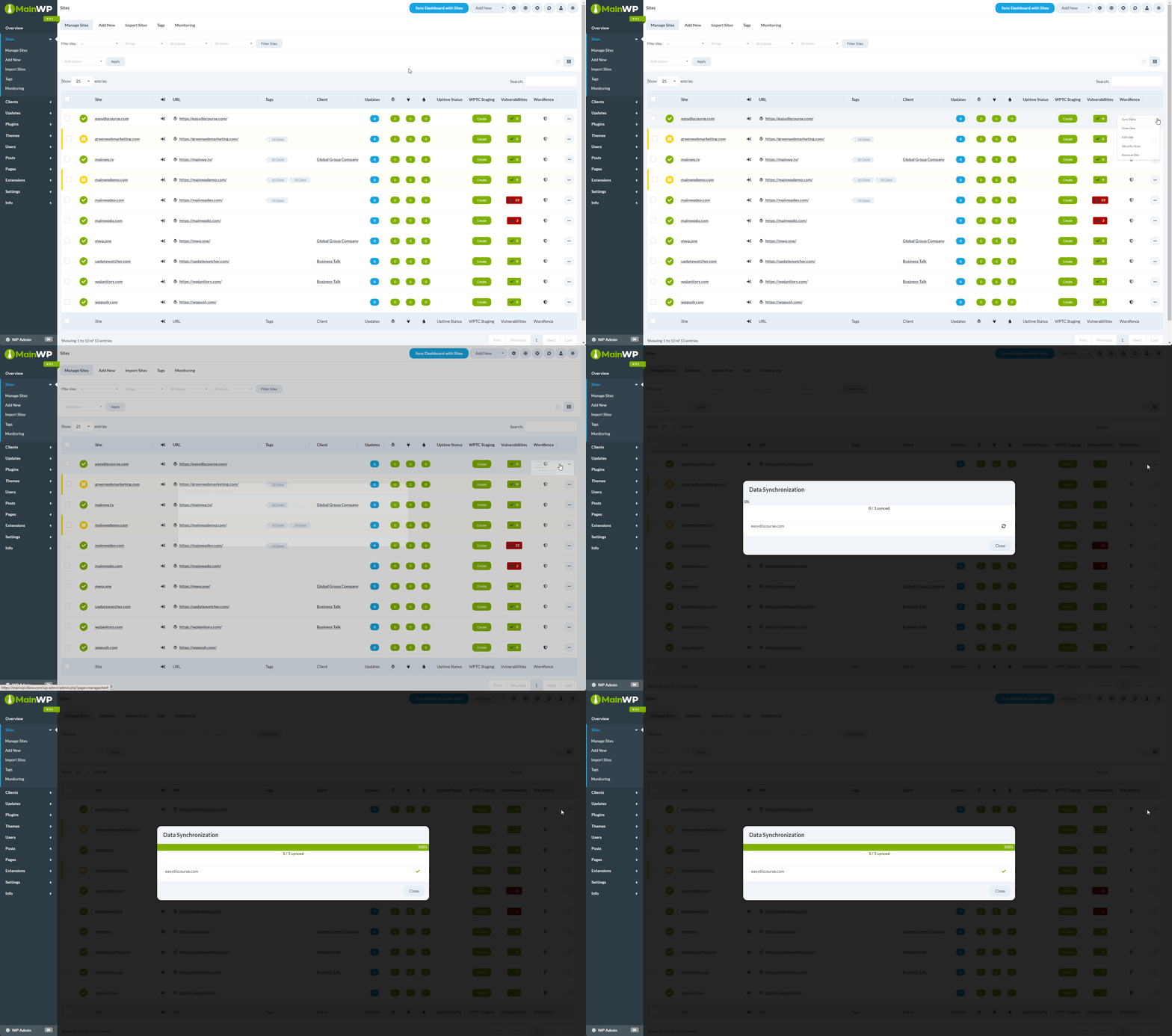
### Individual Site Synchronization
Go to **MainWP > Sites > Manage Sites**.
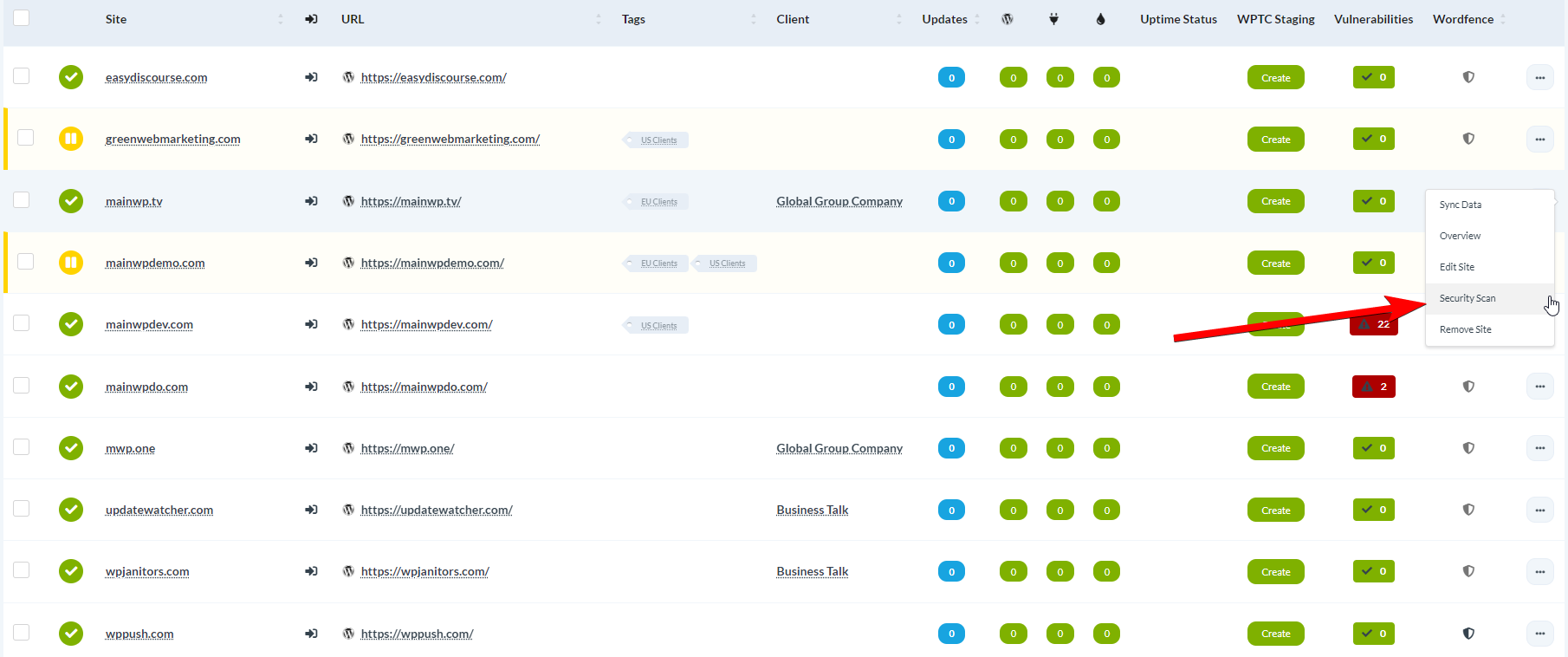
Locate the site, open the actions menu, and click **Sync Data**.
MainWP schedules automatic syncs using **Daily sync time** and **Frequency of auto sync** in **top-right user menu > MainWP Settings > General Settings** (`/wp-admin/admin.php?page=Settings`). The default frequency is twice per day. Scheduled syncs require working WP-Cron or an external cron job. For reliable cron execution, follow [Manage WP Cron on a Low-Traffic MainWP Dashboard](/customization/manage-wp-cron-on-low-traffic-mainwp-dashboard).
### Child Site Cron Warnings
An individual site's **Overview** can show **Child site scheduled tasks have not run recently.** This means the child site reported an overdue scheduled monitoring check. It concerns scheduling on that child site, and the Dashboard displays the report received during the last sync.
1. Open **MainWP > Sites > Manage Sites**, find the site, and select **Overview** from its actions menu to read the warning. You can also check **Settings > MainWP Child > Server Information** in the child site's WordPress admin area.
2. Check the affected child's cron configuration or ask its host to verify scheduled execution. If WordPress's page-triggered cron is disabled, confirm that the child's external cron job is working.
3. After scheduling recovers and the child's monitoring check runs again, use **Sync Data** to refresh its report in the Dashboard.
Child-site warnings have no dismiss control. See [Understand Cron Warnings](/customization/manage-wp-cron-on-low-traffic-mainwp-dashboard#understand-cron-warnings) for warning meanings and troubleshooting guidance.
***
## Edit Child Site Settings
Access per-site settings to update site name, administrator username, tags, and other options.
Go to **MainWP > Sites > Manage Sites**, locate the site, and click **Settings** in the actions menu.
### General Settings
| Setting | Description |
| - | - |
| Site URL | Adjust the HTTP/HTTPS protocol and www prefix to match the site's address |
| Lock site URL | Keep MainWP from automatically correcting this site's URL or adjusting the address used for Jump to WP Admin |
| Administrator Username | Update the connected user |
| Site Title | Update friendly name |
| Unique Security ID | Update if changed on the site |
| Tags | Add or remove tags |
| Auto update WP Core | Enable automatic WordPress core updates |
| Ignore core updates | Ignore WordPress core updates for this site |
| Ignore plugin updates | Mark all plugin updates as ignored |
| Ignore theme updates | Mark all theme updates as ignored |
| Ignore translation updates | Ignore translation updates for this site |
Per-site settings provide translation ignore control. Configure automatic translation updates globally in [MainWP Dashboard Settings](/sites/management/mainwp-dashboard-settings#settings-reference).
### Site URL and Detected Address
Starting with MainWP Dashboard 6.2, MainWP can automatically correct supported `www` and HTTP-to-HTTPS differences using the address reported by the child site. The global **Auto-correct site URLs** setting is enabled by default in **top-right user menu > MainWP Settings > Advanced Settings** (`/wp-admin/admin.php?page=SettingsAdvanced`), under **Miscellaneous Settings**.
When the stored address differs from the reported address only by protocol or `www`, the site's settings show **The child site reports its address as:** and a **Use detected** button. The hint is not shown for a different domain or port, or for a path-only difference.
Check that the reported address is the one you intend to use. If the site's address recently changed, sync the site and reopen its settings to refresh the reported information.
Click **Use detected** to fill the protocol and **www** selectors. You can also adjust these selectors manually. The button does not save the change or turn off an existing URL lock.
Review the selected address and **Lock site URL** state, then click **Save Settings**.
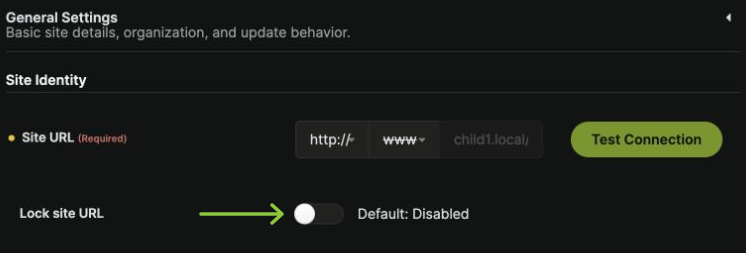
### Lock Site URL
**Lock site URL** is disabled by default. Enable it when you deliberately need MainWP to keep using a particular address, such as an alternate address required by your hosting setup.
When locked, MainWP keeps the stored URL and uses it unchanged for **Jump to WP Admin**, even if the child site reports a different protocol or `www` variant. You can still change the URL manually.
If you manually change the URL to differ from the address reported by the child site, MainWP enables the lock automatically when you save. Saving an unrelated setting does not enable it. To allow automatic URL handling again, turn off **Lock site URL** and click **Save Settings**.
Turning off the global **Auto-correct site URLs** setting stops background changes to stored URLs. Jump to WP Admin can still use the reported address for supported mismatches. Use the per-site lock when you also want Jump to WP Admin to keep using the stored address.
See [Jump to WP Admin troubleshooting](/troubleshooting/troubleshooting-issues-with-jump-to-the-site-wp-admin-functionality) if opening the site's admin area still fails.
### Advanced Options
| Setting | Description |
| - | - |
| SSL verification | Adjust if experiencing certificate issues |
| SSL Version | Leave Auto Detect unless specific version needed |
| HTTP username/password | Configure if site uses HTTP Basic Authentication |
***
## Suspend or Unsuspend a Child Site
When a site is suspended, it stays connected in MainWP Dashboard, but MainWP pauses actions for that site without disconnecting it.
* Suspended sites are excluded from sync and update operations.
* Suspended sites show the yellow pause icon in MainWP Dashboard.
* Suspended sites can be filtered with the **Suspended** status filter in **Manage Sites**.
* Unsuspending a site returns it to normal MainWP operations.
### Suspend or Unsuspend a Single Site
Go to **MainWP > Sites > Manage Sites**, locate the site, and click **Settings** in the actions menu.
In **Site Status**, enable **Suspend Site** to suspend the site or disable it to unsuspend the site. Click **Save Settings**.
### Suspend or Unsuspend Multiple Sites
Go to **MainWP > Sites > Manage Sites** and select the sites you want to change.
Select **Suspend** or **Unsuspend** from **Bulk Actions** and click **Apply**.
***
## Access Child Site WP Admin
MainWP provides one-click access to child site admin areas.
Go to **MainWP > Sites > Manage Sites**.
Locate the site and click the **Login** icon.
***
## Security Issues
MainWP scans child sites for known security issues and provides tools to fix them.
### Detected Security Issues
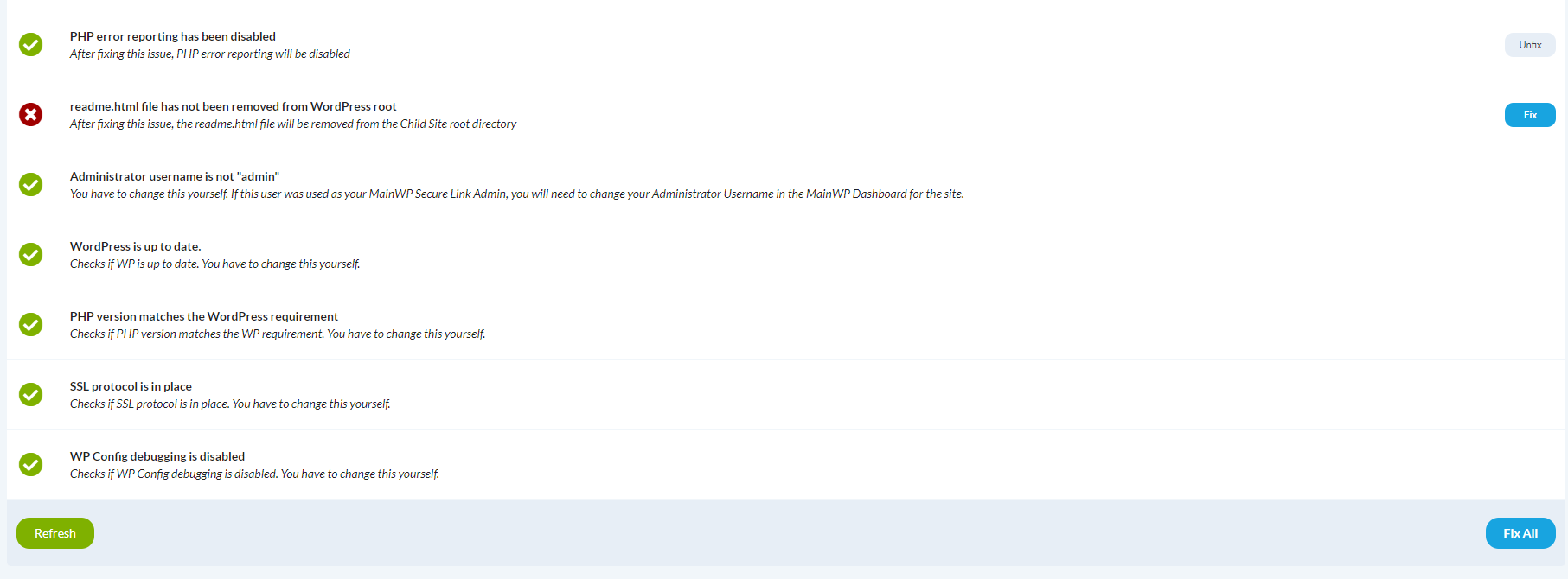
| Issue | Description | Fix Action |
| - | - | - |
| WordPress Version | Checks whether WordPress core is up to date | **Update WordPress** |
| PHP Version | Checks whether PHP is version 8.0 or later; this is a fixed check, not a live support-status lookup | No direct action in this table |
| PHP Error Reporting | Checks whether PHP error reporting is disabled | **Disable PHP Error Reporting** / **Reenable PHP Error Reporting** |
| Database Error Reporting | Checks whether database error reporting is disabled | **Disable DB Error Reporting** / **Reenable DB Error Reporting** |
| SSL Protocol | Checks whether SSL is enabled | No direct action in this table |
| Debug Mode | Checks whether WordPress debug mode is disabled | No direct action in this table |
| Outdated Plugins | Checks for outdated plugins | **Manage Updates** |
| Inactive Plugins | Checks for inactive plugins | **Manage Plugins** |
| Outdated Themes | Checks for outdated themes | **Manage Updates** |
| Inactive Themes | Checks for inactive themes | **Manage Themes** |
MainWP Dashboard 5.4 removed outdated Site Hardening checks. Some current checks are informational and do not include a **Fix** button; available actions appear only when applicable.
If security issues are fixed by another plugin, MainWP detects them as fixed but cannot use the Unfix function.
### Site Hardening Scan
Go to **MainWP > Sites > Manage Sites**.
Locate the site, open the actions menu, and click **Site Hardening**.
On the Site Hardening page, click **Scan Site**.
Use the row actions to address detected issues, such as **Update WordPress**, **Disable PHP Error Reporting**, **Disable DB Error Reporting**, **Manage Updates**, **Manage Plugins**, or **Manage Themes**.
***
## Reconnect a Child Site
### Single Site Reconnection
Go to **MainWP > Sites > Manage Sites**.
Locate the disconnected site and click **Reconnect** in the actions menu.
### Bulk Reconnection
Go to **MainWP > Sites > Manage Sites** and check disconnected sites.
Select **Reconnect** from Bulk Actions and click **Apply**.
***
## Delete a Child Site
### Delete Single Site
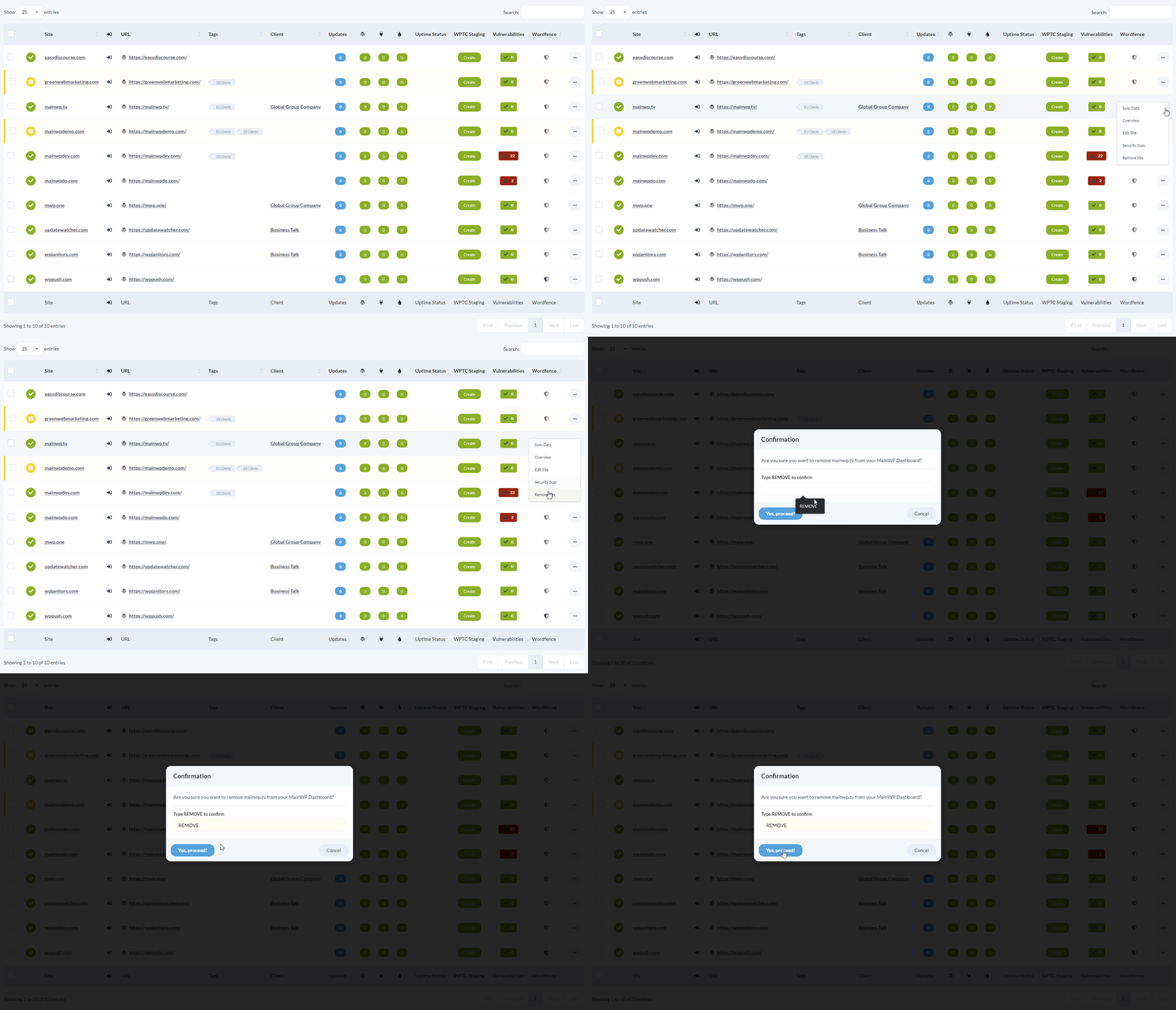
Go to **MainWP > Sites > Manage Sites**.
Locate the site and click **Remove Site** in the actions menu.
### Delete Multiple Sites
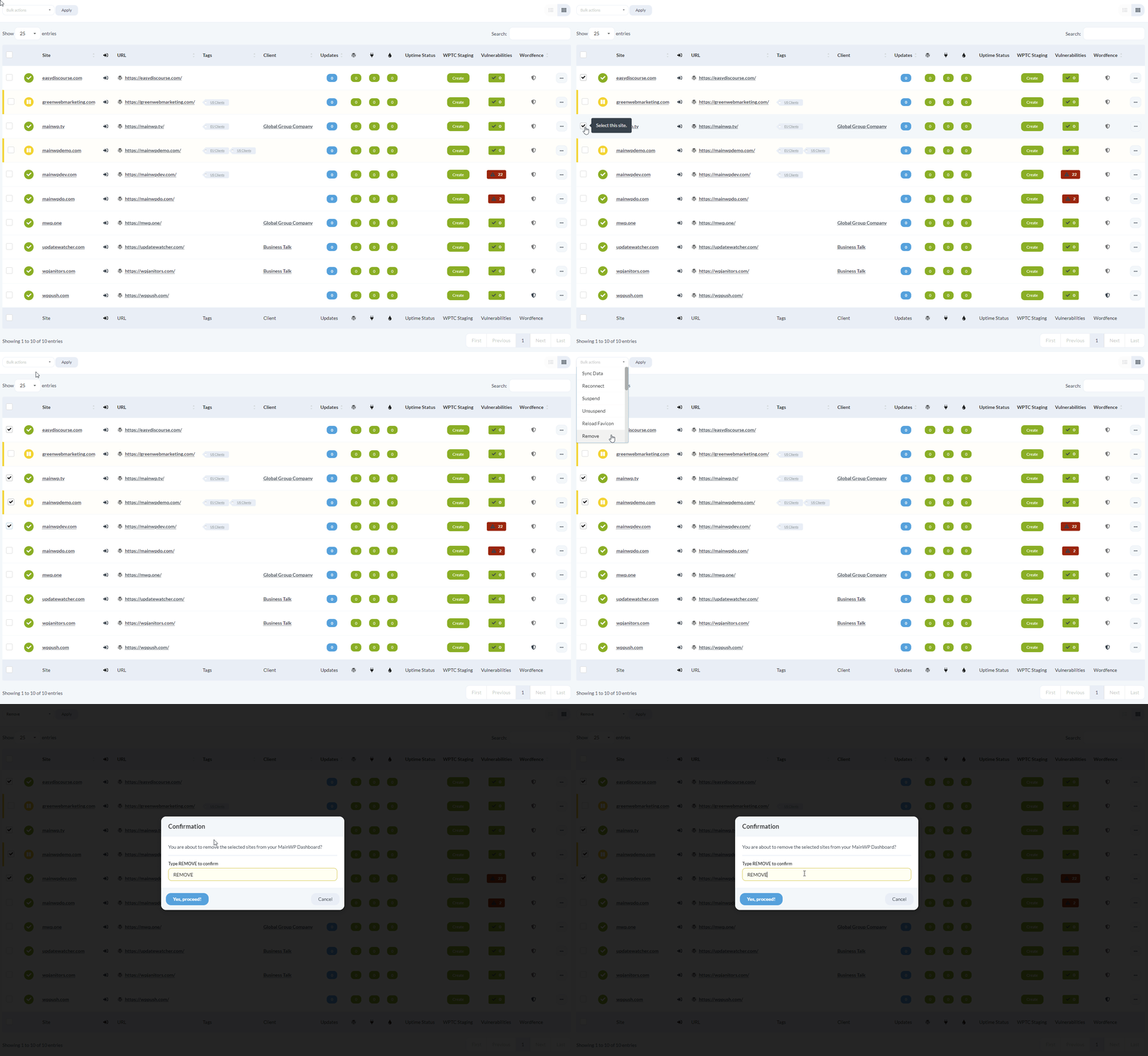
Go to **MainWP > Sites > Manage Sites** and check sites to delete.
Select **Remove** from Bulk Actions and click **Apply**.
Removing a site removes its record from MainWP Dashboard, not the WordPress website. MainWP attempts to deactivate MainWP Child on a connected live site; it skips deactivation for staging sites. If deactivation fails or the site is disconnected, manually deactivate MainWP Child on the site.
***
## Manage Child Site Notes
### Create a Note
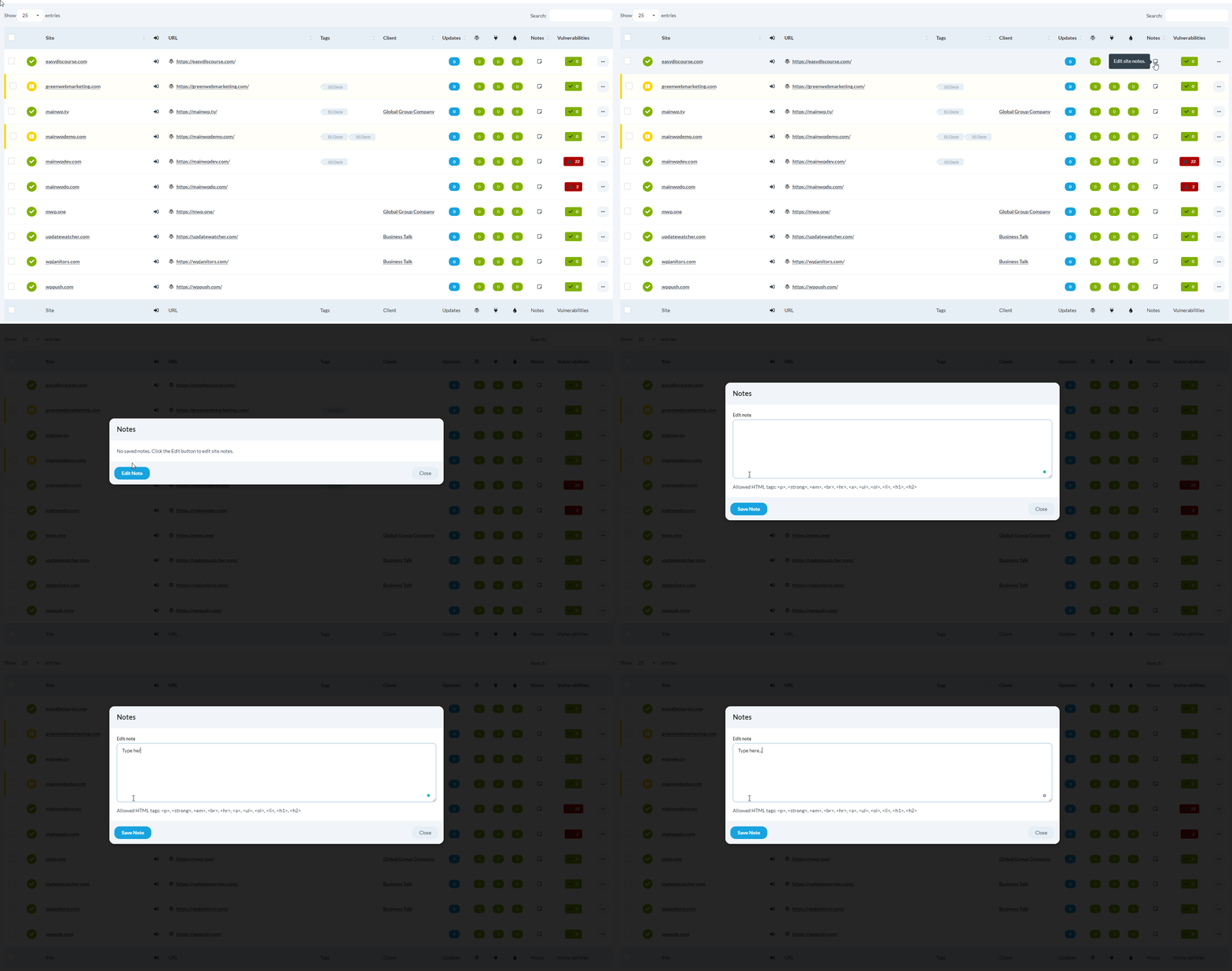
Go to **MainWP > Sites > Manage Sites** and click the Note icon for the site.
Click **Edit Note**, add content, and click **Save Note**.
### View Notes
View notes through the Notes column or the Notes widget on the Individual Child Site Dashboard.
***
## Manage Child Site Tags
Tags (formerly Groups) help organize sites for easier selection and management. Multiple tags can be applied to any site.
### Filter the Manage Sites Table
Use the filter row on **Manage Sites** to narrow results by tags, statuses, and clients.
| Filter | Purpose |
| - | - |
| Is / Is not | Include matches or invert selected criteria |
| Tags | Filter by one or more tags, including **No Tags** |
| Tag logic | Choose **Match any (OR)** or **Match all (AND)** when multiple tags are selected |
| Status | Filter by **Connected**, **Disconnected**, **Available update**, **Site Health needs improvement**, **PHP \< 8.0**, **PHP \< 8.1**, **PHP \< 8.2**, **PHP \< 8.3**, **PHP \< 8.4**, or **Suspended** |
| Clients | Filter by one or more clients, including **No Client** |
Go to **MainWP > Sites > Manage Sites** and click **Show Filters**.
Select tags, tag logic (**Match any (OR)** or **Match all (AND)**), status, and clients as needed.
Click **Filter** to apply the criteria, or click **Reset** to return to default filters.
### Create a Tag
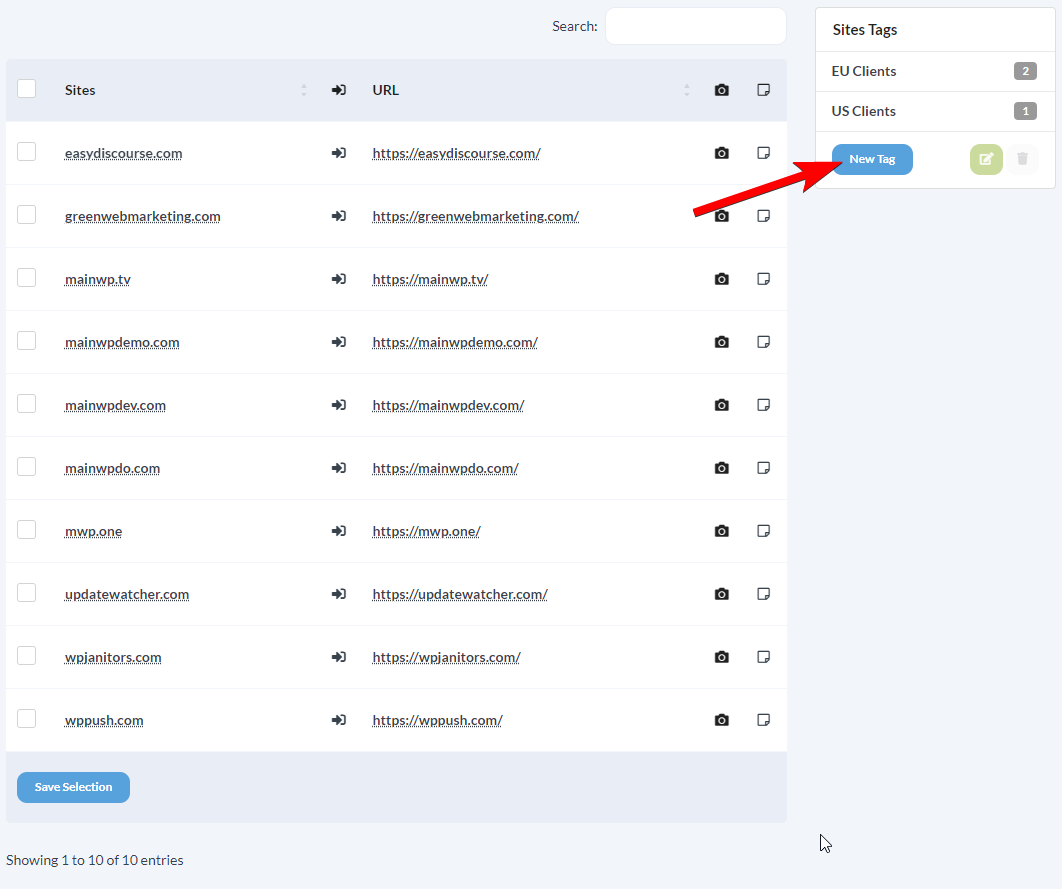
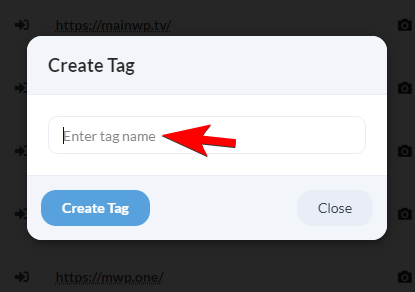
Go to **MainWP > Sites > Tags > Manage Tags** and click **Create Tag**.
Enter a tag name and click **Create Tag**.
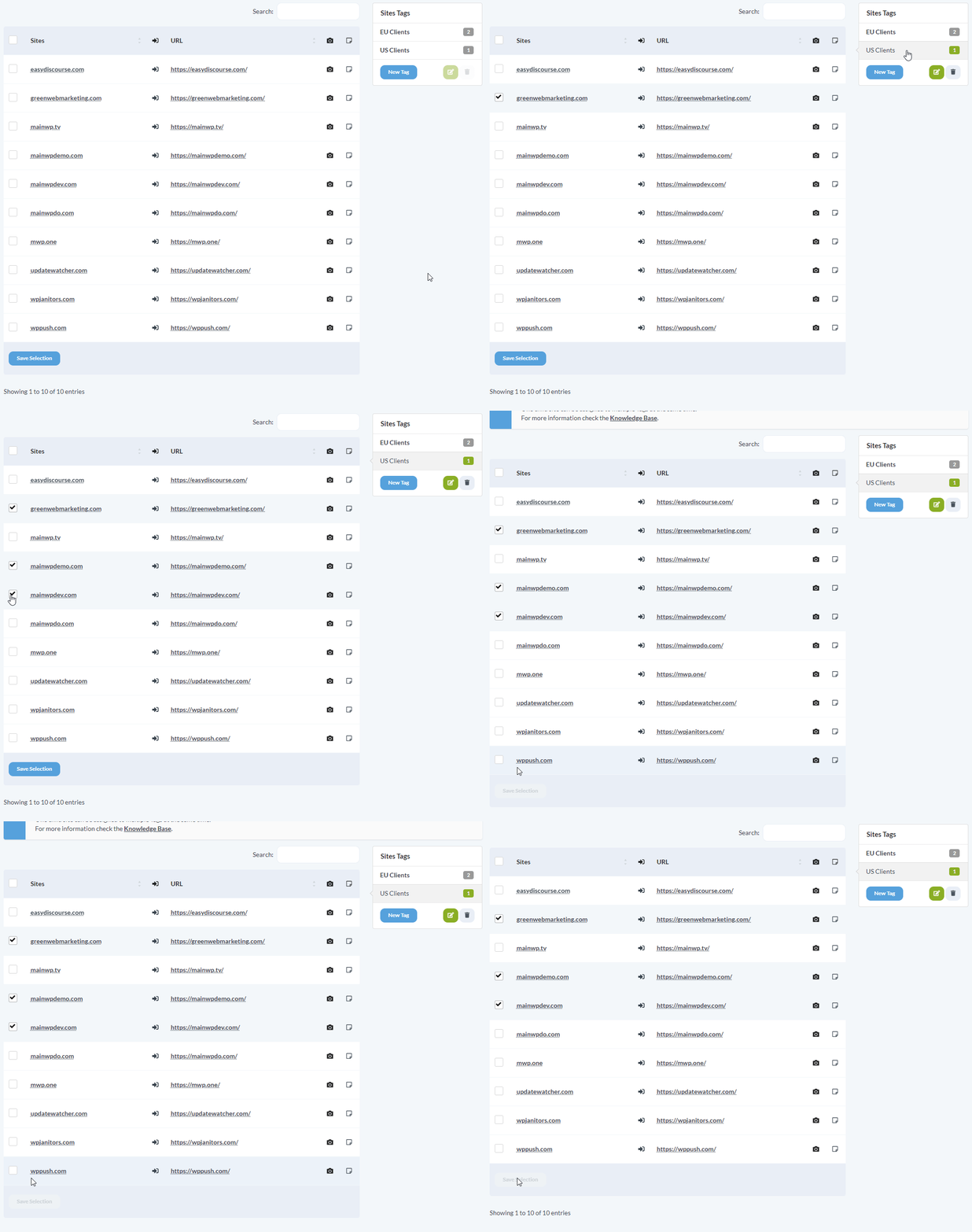
Click the tag name, select sites, and click **Save Selection**.
### Edit a Tag
Go to **MainWP > Sites > Tags > Manage Tags**, click the tag name, add or remove sites, and click **Save Selection**.
### Delete a Tag
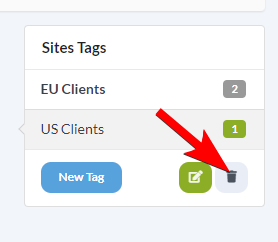
Go to **MainWP > Sites > Tags > Manage Tags**, select the tag, and click the **Trash** icon below the tag list.
***
## Site Health Monitoring
WordPress Site Health checks security and performance. MainWP monitors child site health status and alerts you when sites need attention.
Monitoring configuration now lives in the dedicated [Uptime Monitoring](/sites/management/uptime-monitoring) guide, including **Site Health Monitoring** settings.
***
## Common Problems and Fixes
| Problem | Likely Cause | Fix |
| - | - | - |
| Site won't connect | MainWP Child plugin not activated | Verify the Child plugin is installed and activated on the site |
| Connection fails with SSL error | Invalid or self-signed SSL certificate | Disable **Verify SSL certificate** in the site's connection settings |
| Site shows as disconnected | Connection settings changed or the connected administrator account is unavailable | Check the site URL and administrator username in **Settings**, then use **Reconnect**. Changing only the administrator password does not break an established connection |
| Sync fails for a site | Firewall or security plugin blocking requests | Whitelist your Dashboard IP in the site's firewall settings |
| Security scan shows issues already fixed | Another plugin fixed the issue | MainWP detects the fix; no action needed |
| CSV import fails | Wrong file format or missing required fields | Ensure the file is CSV format and includes site name, URL, administrator username, and the required authentication credential for each site |
***
## Self-Check Checklist
After working through this guide, confirm:
* [ ] Sites appear in the Manage Sites table with green status indicators
* [ ] Sync completes without errors
* [ ] You can access child site WP Admin via the Login icon
* [ ] Manage Sites filtering works for tags, statuses, and clients
* [ ] Multi-tag filtering works with both **Match any (OR)** and **Match all (AND)**
* [ ] Security scan runs and shows results
* [ ] Site Health monitoring is enabled if needed ([Uptime Monitoring](/sites/management/uptime-monitoring#site-health-monitoring-settings))
***
## Related Resources
* [MainWP User Interface: Tables](/getting-started/mainwp-user-interface#tables) - Learn common table controls used across MainWP pages
* [MainWP Dashboard Settings](/sites/management/mainwp-dashboard-settings) - Configure global dashboard settings
* [Uptime Monitoring](/sites/management/uptime-monitoring) - Configure Monitoring Settings (Uptime + Site Health)
* [Potential Issues](/troubleshooting/potential-issues) - Troubleshoot common connection problems
* [Connection Security](/advanced/miscellaneous/mainwp-connection-security) - Learn about MainWP's security model
This documentation is built and hosted on [Mintlify](https://mintlify.com), a developer documentation platform.
 | Field | Description |
| - | - |
| Site URL | Your website URL |
| Confirm the MainWP Child plugin is active on this site | Toggle on to reveal additional fields |
| Administrator Username | Admin username on the child site |
| Field | Description |
| - | - |
| Site URL | Your website URL |
| Confirm the MainWP Child plugin is active on this site | Toggle on to reveal additional fields |
| Administrator Username | Admin username on the child site |
 | Option | Description | Default |
| - | - | - |
| Administrator Password | Uses the administrator password for initial authentication. See [connection security](/advanced/miscellaneous/mainwp-connection-security#password-authentication) | Enabled |
| Unique Security ID | Uses the Unique Security ID as an alternative or additional connection check. Configure in MainWP Child settings | Disabled |
MainWP Child requires at least one connection authentication method. You can use Administrator Password only, Unique Security ID only, or both, but you cannot disable both in MainWP Child settings. If both methods are enabled, enter both values when connecting.
Find both options at: `your-child-site.com/wp-admin/options-general.php?page=mainwp_child_tab`
| Option | Description | Default |
| - | - | - |
| Administrator Password | Uses the administrator password for initial authentication. See [connection security](/advanced/miscellaneous/mainwp-connection-security#password-authentication) | Enabled |
| Unique Security ID | Uses the Unique Security ID as an alternative or additional connection check. Configure in MainWP Child settings | Disabled |
MainWP Child requires at least one connection authentication method. You can use Administrator Password only, Unique Security ID only, or both, but you cannot disable both in MainWP Child settings. If both methods are enabled, enter both values when connecting.
Find both options at: `your-child-site.com/wp-admin/options-general.php?page=mainwp_child_tab`
 | Option | Description |
| - | - |
| Site icon | Upload custom icon (site favicon used if empty) |
| Select icon | Choose from built-in icons (uploaded icon takes priority) |
| Tags | Add to existing tags or create new ones |
| Client | Associate with a client |
| Verify SSL certificate | Enable for sites with valid SSL. Disable for self-signed or outdated certificates |
| SSL version | Leave **Auto detect** unless the site requires a specific version |
| HTTP username/password | Required if site uses HTTP Basic Authentication |
| Option | Description |
| - | - |
| Site icon | Upload custom icon (site favicon used if empty) |
| Select icon | Choose from built-in icons (uploaded icon takes priority) |
| Tags | Add to existing tags or create new ones |
| Client | Associate with a client |
| Verify SSL certificate | Enable for sites with valid SSL. Disable for self-signed or outdated certificates |
| SSL version | Leave **Auto detect** unless the site requires a specific version |
| HTTP username/password | Required if site uses HTTP Basic Authentication |
 ### Individual Site Synchronization
 1. Open **MainWP > Sites > Manage Sites**, find the site, and select **Overview** from its actions menu to read the warning. You can also check **Settings > MainWP Child > Server Information** in the child site's WordPress admin area.
2. Check the affected child's cron configuration or ask its host to verify scheduled execution. If WordPress's page-triggered cron is disabled, confirm that the child's external cron job is working.
3. After scheduling recovers and the child's monitoring check runs again, use **Sync Data** to refresh its report in the Dashboard.
Child-site warnings have no dismiss control. See [Understand Cron Warnings](/customization/manage-wp-cron-on-low-traffic-mainwp-dashboard#understand-cron-warnings) for warning meanings and troubleshooting guidance.
***
## Edit Child Site Settings
Access per-site settings to update site name, administrator username, tags, and other options.
1. Open **MainWP > Sites > Manage Sites**, find the site, and select **Overview** from its actions menu to read the warning. You can also check **Settings > MainWP Child > Server Information** in the child site's WordPress admin area.
2. Check the affected child's cron configuration or ask its host to verify scheduled execution. If WordPress's page-triggered cron is disabled, confirm that the child's external cron job is working.
3. After scheduling recovers and the child's monitoring check runs again, use **Sync Data** to refresh its report in the Dashboard.
Child-site warnings have no dismiss control. See [Understand Cron Warnings](/customization/manage-wp-cron-on-low-traffic-mainwp-dashboard#understand-cron-warnings) for warning meanings and troubleshooting guidance.
***
## Edit Child Site Settings
Access per-site settings to update site name, administrator username, tags, and other options.
 When locked, MainWP keeps the stored URL and uses it unchanged for **Jump to WP Admin**, even if the child site reports a different protocol or `www` variant. You can still change the URL manually.
If you manually change the URL to differ from the address reported by the child site, MainWP enables the lock automatically when you save. Saving an unrelated setting does not enable it. To allow automatic URL handling again, turn off **Lock site URL** and click **Save Settings**.
When locked, MainWP keeps the stored URL and uses it unchanged for **Jump to WP Admin**, even if the child site reports a different protocol or `www` variant. You can still change the URL manually.
If you manually change the URL to differ from the address reported by the child site, MainWP enables the lock automatically when you save. Saving an unrelated setting does not enable it. To allow automatic URL handling again, turn off **Lock site URL** and click **Save Settings**.
 | Filter | Purpose |
| - | - |
| Is / Is not | Include matches or invert selected criteria |
| Tags | Filter by one or more tags, including **No Tags** |
| Tag logic | Choose **Match any (OR)** or **Match all (AND)** when multiple tags are selected |
| Status | Filter by **Connected**, **Disconnected**, **Available update**, **Site Health needs improvement**, **PHP \< 8.0**, **PHP \< 8.1**, **PHP \< 8.2**, **PHP \< 8.3**, **PHP \< 8.4**, or **Suspended** |
| Clients | Filter by one or more clients, including **No Client** |
| Filter | Purpose |
| - | - |
| Is / Is not | Include matches or invert selected criteria |
| Tags | Filter by one or more tags, including **No Tags** |
| Tag logic | Choose **Match any (OR)** or **Match all (AND)** when multiple tags are selected |
| Status | Filter by **Connected**, **Disconnected**, **Available update**, **Site Health needs improvement**, **PHP \< 8.0**, **PHP \< 8.1**, **PHP \< 8.2**, **PHP \< 8.3**, **PHP \< 8.4**, or **Suspended** |
| Clients | Filter by one or more clients, including **No Client** |
 ***
## Site Health Monitoring
WordPress Site Health checks security and performance. MainWP monitors child site health status and alerts you when sites need attention.
***
## Site Health Monitoring
WordPress Site Health checks security and performance. MainWP monitors child site health status and alerts you when sites need attention.