> ## Documentation Index
> Fetch the complete documentation index at: https://docs.mainwp.com/llms.txt
> Use this file to discover all available pages before exploring further.
# Quickstart
> Connect an AI client through guided MainWP MCP setup or manual Claude Desktop configuration, then run your first prompt.
Choose the guide for your application:
* **Claude Code CLI in your terminal:** [Install in Claude Code CLI](/mcp-server/claude-code-plugin#install-in-claude-code-cli).
* **Claude Desktop chat app:** [Install in Claude Desktop with the MCP Bundle](/mcp-server/claude-desktop-bundle).
* **Another AI client:** [Connect Your AI Client](/mcp-server/clients).
MainWP Dashboard 6.3 also provides the guided setup below. Manual config-file instructions for Claude Desktop follow it.
## Before you start
You need:
* A MainWP Dashboard on version 6.0 or later, reachable over HTTPS, with WordPress 6.9 or later for the Abilities API. Abilities with a required input that may be null need Dashboard 6.2 or later. Knowledge tools, Dashboard-side update confirmation, and the guided AI setup pages require Dashboard 6.3.
* Admin access to the WordPress site that runs your Dashboard
* [Node.js](https://nodejs.org) 20.19 or later on the computer where your AI tool runs. Node.js is the free runtime the server runs on; if you don't have it, the standard installer from nodejs.org is all you need.
* [Claude Desktop](https://claude.ai/download), or another AI tool that supports MCP
## Guided Setup in MainWP Dashboard
Open **MainWP > AI > MainWP MCP**. The setup page has four steps: **Credentials**, **Connect**, **Test**, and **Finish**. Access to this page requires a WordPress administrator account with `manage_options`.
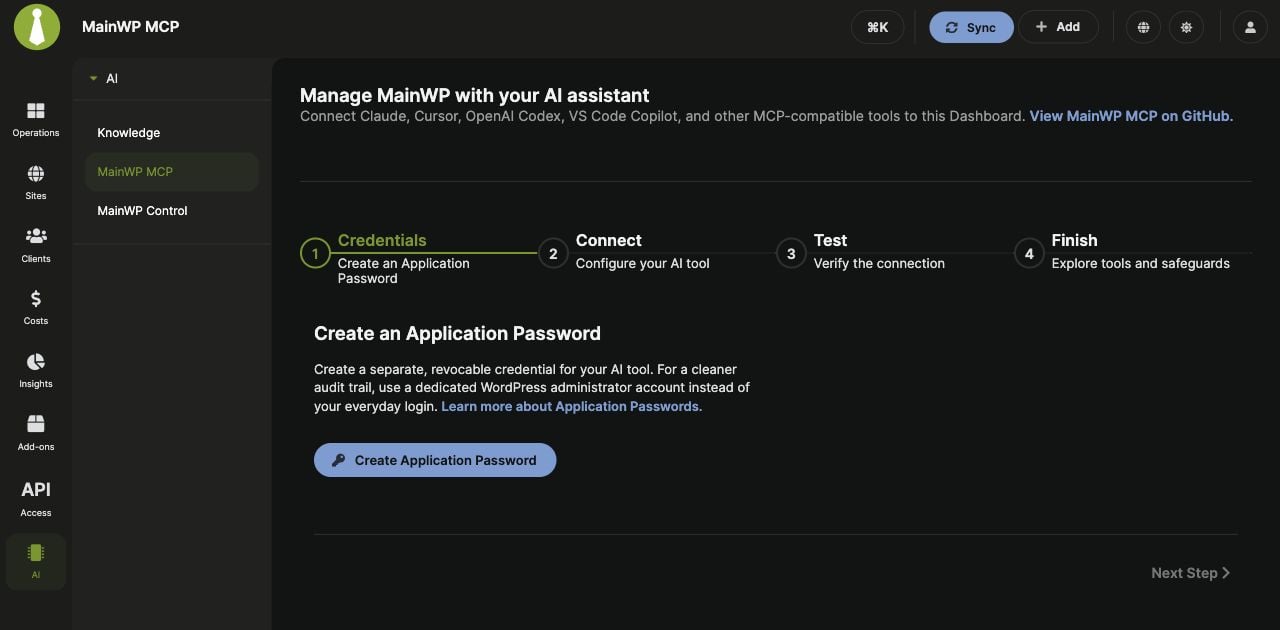 In **Credentials**, click **Create Application Password**. Review the prefilled name and click **Create**. Save the password while its success dialog is open.
The dialog's **Connect an AI tool** panel provides configurations for **Claude Code**, **Cursor**, and **VS Code**. Claude Code and Cursor include the newly created password; VS Code prompts for it when the server starts. See [Application Passwords](/api-reference/rest-api/application-passwords#connect-an-ai-tool) for where to place each format.
Select **Connect**. The editable configuration contains your Dashboard URL and current WordPress username. A password created on this page replaces `paste-application-password-here` while the page remains open. If you use an existing password or reload the page, replace that placeholder yourself.
Click **Copy to clipboard**, then use the [instructions for your AI client](/mcp-server/clients). The generic `mcpServers` JSON must be adapted for clients that use another format, such as VS Code or OpenAI Codex. The success dialog already provides the VS Code format.
Select **Test** for the suggested prompt, **List all my sites**. Restart your client after configuring it and run that prompt there. The Dashboard page does not run the test or establish the connection itself.
Select **Finish** for an overview of site management, updates, Knowledge, confirmation, safe mode, and tool restrictions.
Creating a password does not install the MCP server or your AI client. The server starts on your computer when the configured client launches it.
## Manual Setup for Claude Desktop
An Application Password is a separate password WordPress issues for tools like this one. It never changes your login password and you can revoke it at any time.
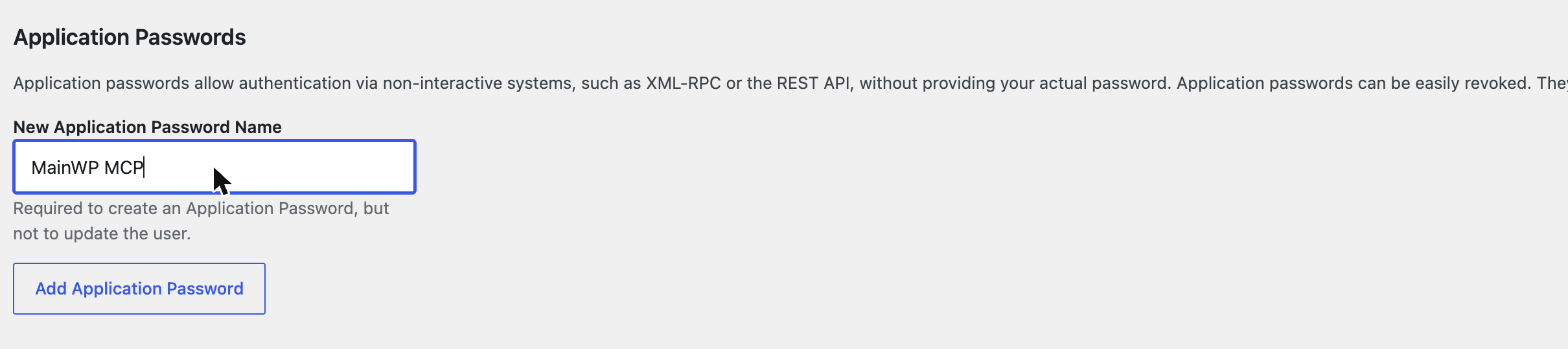
In MainWP Dashboard, open **API Access > Application Passwords** and create a password for your current user. Alternatively, in the WordPress admin of your Dashboard site, go to **Users > Profile** and scroll to **Application Passwords**. Enter a name you will recognize later, such as **MainWP MCP**, and click **Add Application Password**.
In **Credentials**, click **Create Application Password**. Review the prefilled name and click **Create**. Save the password while its success dialog is open.
The dialog's **Connect an AI tool** panel provides configurations for **Claude Code**, **Cursor**, and **VS Code**. Claude Code and Cursor include the newly created password; VS Code prompts for it when the server starts. See [Application Passwords](/api-reference/rest-api/application-passwords#connect-an-ai-tool) for where to place each format.
Select **Connect**. The editable configuration contains your Dashboard URL and current WordPress username. A password created on this page replaces `paste-application-password-here` while the page remains open. If you use an existing password or reload the page, replace that placeholder yourself.
Click **Copy to clipboard**, then use the [instructions for your AI client](/mcp-server/clients). The generic `mcpServers` JSON must be adapted for clients that use another format, such as VS Code or OpenAI Codex. The success dialog already provides the VS Code format.
Select **Test** for the suggested prompt, **List all my sites**. Restart your client after configuring it and run that prompt there. The Dashboard page does not run the test or establish the connection itself.
Select **Finish** for an overview of site management, updates, Knowledge, confirmation, safe mode, and tool restrictions.
Creating a password does not install the MCP server or your AI client. The server starts on your computer when the configured client launches it.
## Manual Setup for Claude Desktop
An Application Password is a separate password WordPress issues for tools like this one. It never changes your login password and you can revoke it at any time.
In MainWP Dashboard, open **API Access > Application Passwords** and create a password for your current user. Alternatively, in the WordPress admin of your Dashboard site, go to **Users > Profile** and scroll to **Application Passwords**. Enter a name you will recognize later, such as **MainWP MCP**, and click **Add Application Password**.
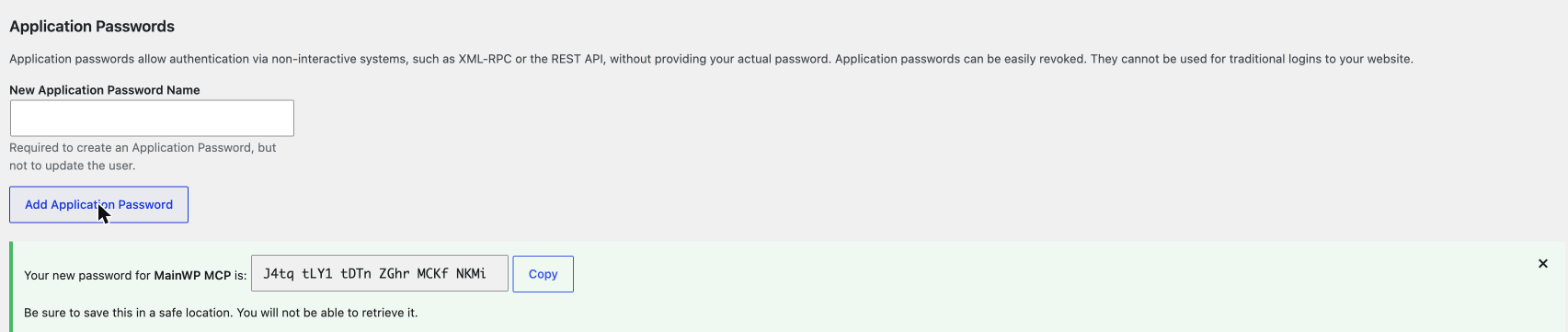
 WordPress shows the generated password once. Copy it now; you cannot view it again later (you can always create a new one).
 Edit the Claude Desktop configuration file:
* **macOS**: `~/Library/Application Support/Claude/claude_desktop_config.json`
* **Windows**: `%APPDATA%\Claude\claude_desktop_config.json`
Add the MainWP server to the `mcpServers` block (create the file if it does not exist):
```json theme={null} theme={null} theme={null}
{
"mcpServers": {
"mainwp": {
"command": "npx",
"args": ["-y", "@mainwp/mcp"],
"env": {
"MAINWP_URL": "https://your-dashboard.com",
"MAINWP_USER": "admin",
"MAINWP_APP_PASSWORD": "xxxx xxxx xxxx xxxx xxxx xxxx"
}
}
}
}
```
Replace the URL with your Dashboard address, the username with the WordPress user that owns the Application Password, and the password with the one WordPress generated. Spaces in the password are fine either way, WordPress accepts it with or without them.
Quit and reopen Claude Desktop so it picks up the new configuration. The MainWP tools load automatically when the app starts.
Ask:
> List all my sites
A working setup returns your child sites by name and URL. From there, try "What sites need updates?" or anything from the [Prompt Cookbook](/mcp-server/prompt-cookbook).
Consider creating a dedicated WordPress user for AI access instead of using your main admin account. It keeps the audit trail clean and is easy to revoke later. More on this in the [Security Model](/mcp-server/reference/security).
## If something didn't work
* Nothing happens or the tools are missing: recheck the config file location and JSON syntax, then restart the app again.
* Errors mentioning 401 or authentication: the username must exactly match the user that owns the Application Password.
* Anything else: the [Troubleshooting](/mcp-server/troubleshooting) page covers the common failures with fixes.
## Next steps
Claude Code, Cursor, VS Code Copilot, OpenAI Codex, ZenCoder, and more.
Deletions require your approval by default. See how that works.
This documentation is built and hosted on [Mintlify](https://mintlify.com), a developer documentation platform.
Edit the Claude Desktop configuration file:
* **macOS**: `~/Library/Application Support/Claude/claude_desktop_config.json`
* **Windows**: `%APPDATA%\Claude\claude_desktop_config.json`
Add the MainWP server to the `mcpServers` block (create the file if it does not exist):
```json theme={null} theme={null} theme={null}
{
"mcpServers": {
"mainwp": {
"command": "npx",
"args": ["-y", "@mainwp/mcp"],
"env": {
"MAINWP_URL": "https://your-dashboard.com",
"MAINWP_USER": "admin",
"MAINWP_APP_PASSWORD": "xxxx xxxx xxxx xxxx xxxx xxxx"
}
}
}
}
```
Replace the URL with your Dashboard address, the username with the WordPress user that owns the Application Password, and the password with the one WordPress generated. Spaces in the password are fine either way, WordPress accepts it with or without them.
Quit and reopen Claude Desktop so it picks up the new configuration. The MainWP tools load automatically when the app starts.
Ask:
> List all my sites
A working setup returns your child sites by name and URL. From there, try "What sites need updates?" or anything from the [Prompt Cookbook](/mcp-server/prompt-cookbook).
Consider creating a dedicated WordPress user for AI access instead of using your main admin account. It keeps the audit trail clean and is easy to revoke later. More on this in the [Security Model](/mcp-server/reference/security).
## If something didn't work
* Nothing happens or the tools are missing: recheck the config file location and JSON syntax, then restart the app again.
* Errors mentioning 401 or authentication: the username must exactly match the user that owns the Application Password.
* Anything else: the [Troubleshooting](/mcp-server/troubleshooting) page covers the common failures with fixes.
## Next steps
Claude Code, Cursor, VS Code Copilot, OpenAI Codex, ZenCoder, and more.
Deletions require your approval by default. See how that works.
This documentation is built and hosted on [Mintlify](https://mintlify.com), a developer documentation platform.