> ## Documentation Index
> Fetch the complete documentation index at: https://docs.mainwp.com/llms.txt
> Use this file to discover all available pages before exploring further.
# Install in Claude Desktop with the MCP Bundle
> Install the MainWP MCP server in Claude Desktop from the mainwp-mcp.mcpb bundle, without editing a config file.
Use this guide for the **Claude Desktop chat app** on macOS or Windows. To connect **Claude Code CLI** in your terminal, follow [Install in Claude Code CLI](/mcp-server/claude-code-plugin#install-in-claude-code-cli).
Claude Desktop installs the MainWP MCP server from a single `mainwp-mcp.mcpb` extension file. You enter your Dashboard URL, username, and Application Password under **Configure**, so you don't edit `claude_desktop_config.json`. This installs the MCP server for Desktop chats; the Claude Code plugin's agent skill and `/mainwp:*` commands belong to the separate CLI installation.
## Before you start
You need:
* A MainWP Dashboard reachable over HTTPS from the computer that runs Claude Desktop. The server refuses `http://` Dashboard URLs, and the bundle has no setting to allow them. The Dashboard version requirements are the same as for any other setup; see the [Quickstart](/mcp-server/quickstart#before-you-start).
* An Application Password for the WordPress user the server should act as. That user needs the `manage_options` capability, which administrators have. Create the password on your Dashboard under **Access → Application Passwords** (the **API Access** page) with **Add Application Password**, or in the WordPress profile of that user under **Users → Profile**. WordPress shows the password once, so copy it before you close the dialog. [Application Passwords](/api-reference/rest-api/application-passwords) has the full steps.
* [Claude Desktop](https://claude.ai/download) for macOS or Windows.
The bundle declares Node.js 20.19 or later. By default the extension runs on Claude Desktop's built-in Node.js, and Claude Desktop reports **All requirements met** for it, so you don't need to install Node.js separately.
## Install the bundle
Download [mainwp-mcp.mcpb](https://github.com/mainwp/mainwp-mcp/releases/latest/download/mainwp-mcp.mcpb) from the official MainWP release. Save the file on the computer that runs Claude Desktop.
Open Claude Desktop's **Settings**. On macOS, choose **Claude → Settings…** from the menu bar. Go to **Extensions → Advanced settings → Install extension**.
Select `mainwp-mcp.mcpb`. In the macOS file picker, click **Preview** to open the extension details.
Check that the extension is named **MainWP** and shows **All requirements met**. Review the extension notice, click **Install**, and confirm **Install** in the next dialog. If MainWP is already installed, the first button is **Update**.
Under **Settings → Extensions → Installed on your computer**, find **MainWP** and click **Configure**. Enter:
* **Dashboard URL (required)**: your Dashboard's full HTTPS address, such as `https://your-dashboard.com`.
* **WordPress username (required)**: the login name of the user who owns the Application Password.
* **WordPress Application Password (required)**: that user's Application Password.
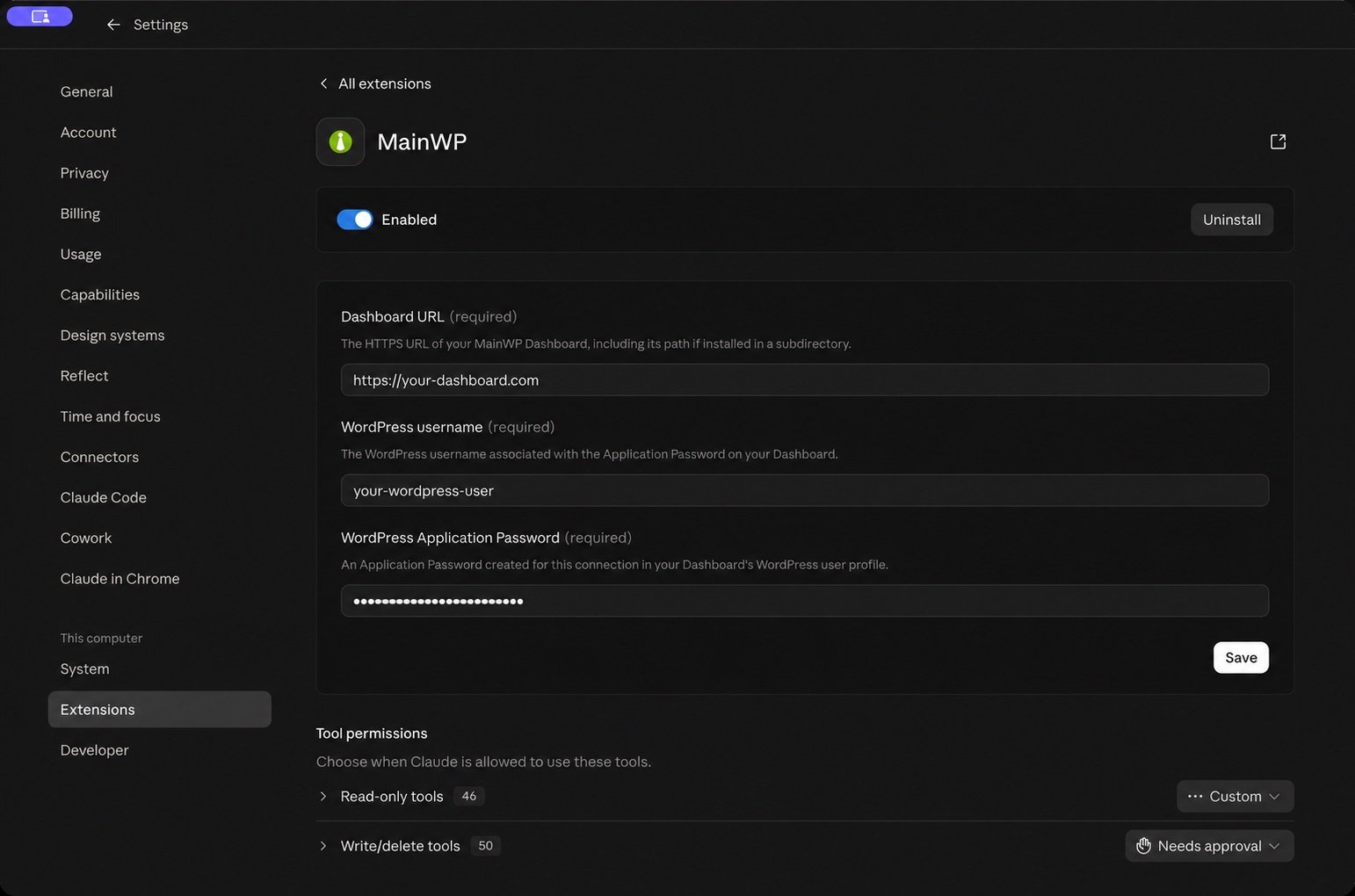 Click **Save** and check that the MainWP extension is enabled. If you changed an existing connection, turn the extension off and on again.
On the MainWP configuration page, scroll to **Tool permissions**. Claude Desktop separates **Read-only tools** from **Write/delete tools**.
Click **Save** and check that the MainWP extension is enabled. If you changed an existing connection, turn the extension off and on again.
On the MainWP configuration page, scroll to **Tool permissions**. Claude Desktop separates **Read-only tools** from **Write/delete tools**.
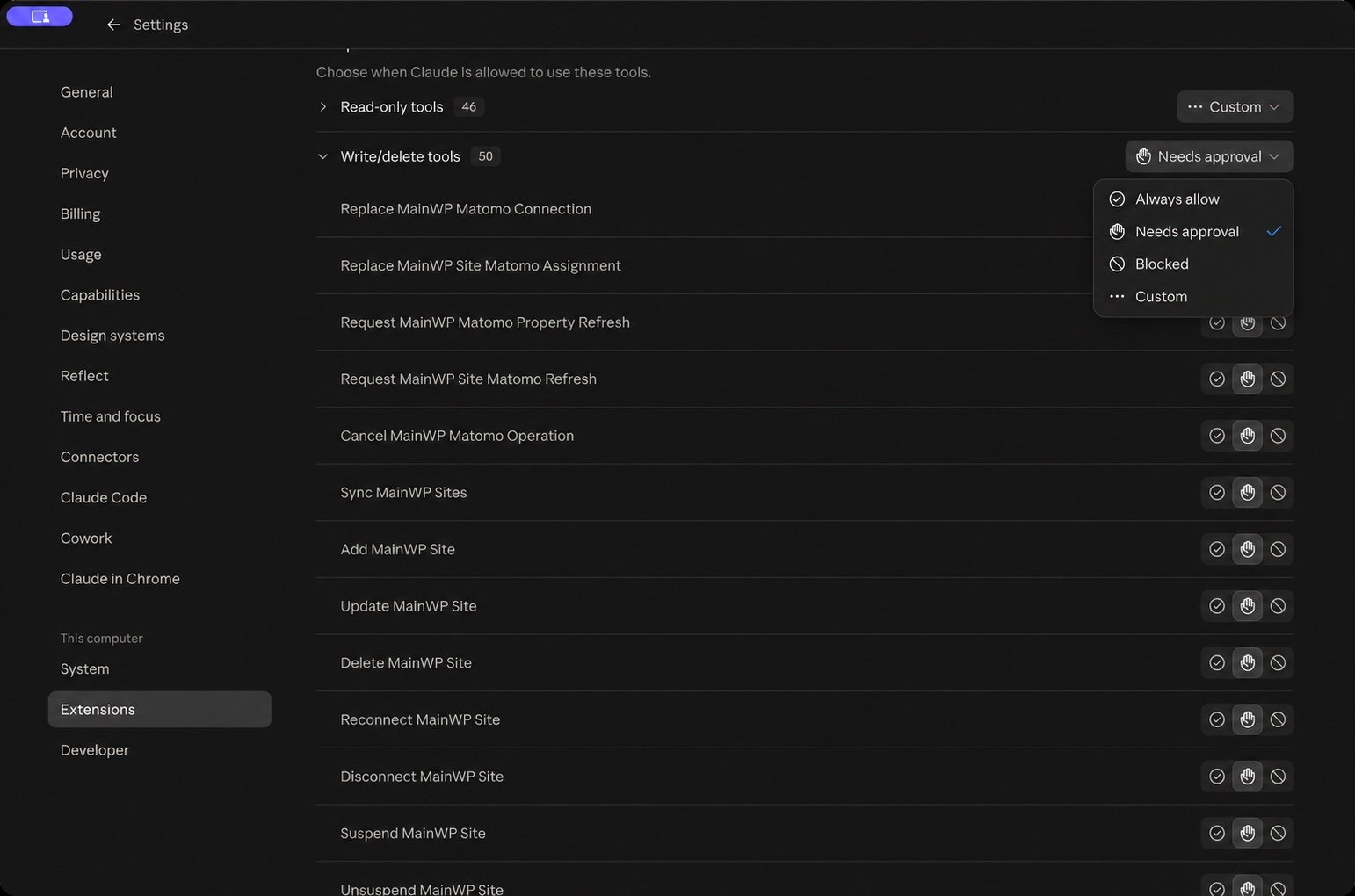 For changes you review before execution, keep the relevant tools on **Needs approval**. For a Desktop connection restricted to reading, set the **Write/delete tools** group to **Blocked** and check the individual tools for exceptions.
Return to Claude and start a new chat. Ask:
> Use MainWP to list all my sites. Do not change anything.
If Desktop asks to use a MainWP tool, click **Allow once**. A working connection returns your child sites. If Claude reports a connection problem, correct it under **MainWP → Configure**; see the [Desktop troubleshooting guide](/mcp-server/claude-desktop-bundle#troubleshooting).
## Make changes from Claude Desktop
Claude Desktop can make WordPress site changes through MainWP when the required write tool is available and permitted. A read-only connection can inspect sites and prepare recommendations; it cannot apply those changes.
1. Open **Settings → Extensions → MainWP → Configure → Tool permissions**.
2. Under **Write/delete tools**, find the operation you need and select **Needs approval**. A tool set to **Blocked** cannot run.
3. In a new Desktop chat, name the child site and the exact change. For example, if Hello Dolly is installed but inactive on a test site:
> Activate Hello Dolly on Example Test Site. Leave every other plugin unchanged.
Replace “Example Test Site” with your child site's name.
4. Review the requested tool and its inputs. Click **Allow once** to permit that call. This allows one call; **Always allow** changes the tool's permission for future calls.
5. Hello Dolly activation is classified as non-destructive, so this example has no separate MainWP confirmation. If MainWP returns a confirmation for a destructive operation, review it and explicitly approve the stated change in the chat. Desktop's tool approval and MainWP's server confirmation are separate steps.
6. Ask Claude to check the result, then verify it on the child site.
| Desktop tool permission | What happens |
| - | - |
| **Needs approval** | Claude asks before using that tool. **Allow once** permits the pending call. |
| **Blocked** | Claude cannot call the tool. Change the permission before asking it to apply that operation. |
| **Always allow** | Claude can call that tool without asking for Desktop approval each time. MainWP's server policies still apply. |
Desktop approval does not override MainWP's server settings. A read-only tool allowlist removes write tools; safe mode blocks operations classified as destructive. Safe mode alone is not read-only because some permitted operations still change sites. Keep MainWP's `requireUserConfirmation` enabled. See [Safety & Permissions](/mcp-server/safety) and [Restrict Tools](/mcp-server/guides/restrict-tools).
For the Desktop bundle, put `safeMode`, `allowedTools`, `blockedTools`, and `requireUserConfirmation` in `~/.config/mainwp-mcp/settings.json`. The bundle's **Configure** form has only the three connection fields. Turn the extension off and on after changing the file; see the [configuration file instructions](/mcp-server/reference/configuration#configuration-file).
After installation, MainWP appears under **Installed on your computer** in **Settings → Extensions**. Use **Configure** to edit the connection and tool permissions.
If you previously added a `mainwp` entry to `claude_desktop_config.json`, remove that entry and restart Claude Desktop to avoid running two copies. Preserve any optional server settings you still need before removing it.
## About the install warning
The install dialog shows this warning:
> Installing will grant this extension access to everything on your computer. Any developer information shown has not been verified by Anthropic. Ensure you trust the source of this extension before installation.
Claude Desktop shows this warning for extensions installed from a file, outside Anthropic's directory, so you see it for MainWP as you would for any other extension installed this way. It does not mean Claude Desktop found a problem with the file. It says two things:
* **Access to your computer.** The extension runs as a program on your computer with the same permissions as your user account, like any application you install. The MainWP server uses that access to connect to your Dashboard. Its source code is public in the [mainwp-mcp repository](https://github.com/mainwp/mainwp-mcp).
* **Not verified by Anthropic.** The name, author, and links in the dialog come from the bundle file. Anthropic has not reviewed them, so the dialog cannot prove that MainWP made the file.
Because the dialog cannot prove where the file came from, download it only from the MainWP releases page, and use the checks below if you want to confirm it yourself.
## Check the download
Each release publishes two ways to check `mainwp-mcp.mcpb` before you install it.
### Compare the checksum
The release includes a [mainwp-mcp.mcpb.sha256](https://github.com/mainwp/mainwp-mcp/releases/latest/download/mainwp-mcp.mcpb.sha256) file with the SHA-256 hash of the bundle. Download it into the same folder as the bundle. If your browser renamed the bundle, for example to `mainwp-mcp (1).mcpb`, rename it back to `mainwp-mcp.mcpb` first.
On macOS, run this in Terminal from that folder:
```bash theme={null}
shasum -a 256 -c mainwp-mcp.mcpb.sha256
```
It prints `mainwp-mcp.mcpb: OK` when the file matches.
On Windows, run this in PowerShell from that folder:
```powershell theme={null}
$expected = ((Get-Content .\mainwp-mcp.mcpb.sha256 -Raw).Trim() -split '\s+')[0]
if ((Get-FileHash .\mainwp-mcp.mcpb -Algorithm SHA256).Hash -eq $expected) { 'OK' } else { 'MISMATCH' }
```
It prints `OK` when the file matches and `MISMATCH` when it does not.
A checksum catches a damaged or incomplete download. It comes from the same release page as the bundle, so it does not prove who built the file. The attestation does.
### Verify the build attestation
Each bundle also has a build attestation: a signed record, created by the release workflow on GitHub when it builds the file, that ties the file to the `mainwp/mainwp-mcp` repository and the workflow run that produced it. To check it, install the [GitHub CLI](https://cli.github.com/), sign in with `gh auth login`, and run this from the folder that holds the bundle:
```bash theme={null}
gh attestation verify mainwp-mcp.mcpb --repo mainwp/mainwp-mcp
```
The command fails if the file was changed after the build or was not built in the `mainwp/mainwp-mcp` repository.
## Change the connection values
1. In **Settings → Extensions**, find **MainWP** under **Installed on your computer** and click **Configure**.
2. Change the Dashboard URL, username, or Application Password.
3. Click **Save**.
4. Turn the extension off and on again so the server restarts with the new values.
## What each field means
| Field | What to enter |
| - | - |
| **Dashboard URL** | The HTTPS address of your MainWP Dashboard, for example `https://your-dashboard.com`. If WordPress is installed in a subdirectory, include the path, for example `https://your-dashboard.com/wp`. A trailing slash is fine. |
| **WordPress username** | The login name or email address of the WordPress user that owns the Application Password. The display name does not work. |
| **WordPress Application Password** | The Application Password you created for this connection, not the user's login password. Spaces between the groups are fine. Claude Desktop marks this field as sensitive and stores it in the operating system's secure storage: Keychain on macOS, Credential Manager on Windows. |
The server acts with that user's WordPress permissions. MainWP tools require the `manage_options` capability, which WordPress administrators have, so a user without it gets a permission error on every MainWP tool call. A dedicated WordPress user for AI access keeps the Dashboard's audit trail clear and is easy to revoke; see the [Security Model](/mcp-server/reference/security).
The bundle passes these values to the server as `MAINWP_URL`, `MAINWP_USER`, and `MAINWP_APP_PASSWORD`. The bundle has no fields for other options. To turn on safe mode or filter tools, put those settings in `~/.config/mainwp-mcp/settings.json`; the connection values from the bundle take precedence over any connection values in that file. See the [Configuration Reference](/mcp-server/reference/configuration#configuration-file).
The server checks `./settings.json` in its working directory before the central file and uses only the first file it finds; the files are not merged.
## Update the bundle
Claude Desktop does not update bundles installed from a file. When a new version of the server is released:
1. Download `mainwp-mcp.mcpb` from the newest release on the [releases page](https://github.com/mainwp/mainwp-mcp/releases).
2. Install it the same way you installed the first one.
3. Click **Configure** on the **MainWP** extension and check that the three fields still hold your Dashboard URL, username, and Application Password, then ask Claude to list your sites.
## Remove the bundle
1. In Claude Desktop, go to **Settings → Extensions**, open the **⋯** menu of the **MainWP** extension under **Installed on your computer**, and choose **Uninstall**.
2. On your Dashboard, go to **Access → Application Passwords** and click **Revoke** on the password you created for Claude Desktop. Revoking it stops any copy of that password from working, wherever it is stored.
## Troubleshooting
To read the server's startup messages and errors, go to **Settings → Developer**, select **MainWP** under **Local MCP servers**, and click **View logs**.
The full message is:
```text theme={null}
dashboardUrl uses HTTP which transmits credentials in plain text. Use HTTPS, or set allowHttp=true to allow insecure connections (not recommended).
```
The Dashboard URL starts with `http://`, so the server stops at startup instead of sending your Application Password unencrypted. Enable HTTPS on the Dashboard and change the **Dashboard URL** field to the `https://` address.
The `allowHttp` setting in the message is not a field in the bundle. It exists for isolated local development, where it can be set in `~/.config/mainwp-mcp/settings.json`. Don't use it for a Dashboard reached over a network; see [SSL](/mcp-server/reference/configuration#ssl).
The **Dashboard URL** field does not hold a complete URL. Enter the full address including `https://`, for example `https://your-dashboard.com`.
The server started but could not connect, so it is in setup mode with the MainWP tools hidden. Ask Claude to check the MainWP connection status. It calls `mainwp_get_setup_status`, which reports one of these states:
* `credentials_rejected`: the Dashboard refused the username or Application Password. The report names the user and explains the likely cause, for example `The Dashboard has no user "..." (invalid_username)` when a display name was entered instead of the login name, or `The Dashboard rejected the application password for user "..." (incorrect_password)` when the account's login password was entered. If the username looks like an Application Password, the report says the two fields may be swapped. Correct the values under **Configure**, then turn the extension off and on again.
* `degraded`: the Dashboard could not be reached or answered with an error that is not a credential rejection, such as a TLS error, an HTTP 5xx, or a bare HTTP 403 from a firewall. Check that the Dashboard is up and reachable from this computer, then ask Claude to check the connection again. The server retries with the credentials it already has.
Chat-based setup with `mainwp_configure` does not apply to the bundle. The bundle supplies the connection values as environment variables, and `mainwp_configure` refuses to save credentials that environment variables would override. Fix the values under **Configure** instead. Details are in [Rejected credentials](/mcp-server/reference/configuration#rejected-credentials).
Errors such as `UNABLE_TO_VERIFY_LEAF_SIGNATURE` mean the server could not verify the Dashboard's certificate. Install the full certificate chain on the Dashboard and check that the certificate matches the domain and has not expired.
The bundle verifies the Dashboard certificate by default. A Dashboard whose certificate is self-signed or issued by a local certificate authority, such as a local development site, fails to connect, and the logs show `fetch failed` or a certificate error code.
For an isolated local development Dashboard, the bundle can read the `skipSslVerify` setting from the central configuration file described under [SSL](/mcp-server/reference/configuration#ssl). Use it only for an isolated development environment. A production Dashboard should have a publicly trusted certificate.
For other errors, see [Troubleshooting](/mcp-server/troubleshooting).
This documentation is built and hosted on [Mintlify](https://mintlify.com), a developer documentation platform.
For changes you review before execution, keep the relevant tools on **Needs approval**. For a Desktop connection restricted to reading, set the **Write/delete tools** group to **Blocked** and check the individual tools for exceptions.
Return to Claude and start a new chat. Ask:
> Use MainWP to list all my sites. Do not change anything.
If Desktop asks to use a MainWP tool, click **Allow once**. A working connection returns your child sites. If Claude reports a connection problem, correct it under **MainWP → Configure**; see the [Desktop troubleshooting guide](/mcp-server/claude-desktop-bundle#troubleshooting).
## Make changes from Claude Desktop
Claude Desktop can make WordPress site changes through MainWP when the required write tool is available and permitted. A read-only connection can inspect sites and prepare recommendations; it cannot apply those changes.
1. Open **Settings → Extensions → MainWP → Configure → Tool permissions**.
2. Under **Write/delete tools**, find the operation you need and select **Needs approval**. A tool set to **Blocked** cannot run.
3. In a new Desktop chat, name the child site and the exact change. For example, if Hello Dolly is installed but inactive on a test site:
> Activate Hello Dolly on Example Test Site. Leave every other plugin unchanged.
Replace “Example Test Site” with your child site's name.
4. Review the requested tool and its inputs. Click **Allow once** to permit that call. This allows one call; **Always allow** changes the tool's permission for future calls.
5. Hello Dolly activation is classified as non-destructive, so this example has no separate MainWP confirmation. If MainWP returns a confirmation for a destructive operation, review it and explicitly approve the stated change in the chat. Desktop's tool approval and MainWP's server confirmation are separate steps.
6. Ask Claude to check the result, then verify it on the child site.
| Desktop tool permission | What happens |
| - | - |
| **Needs approval** | Claude asks before using that tool. **Allow once** permits the pending call. |
| **Blocked** | Claude cannot call the tool. Change the permission before asking it to apply that operation. |
| **Always allow** | Claude can call that tool without asking for Desktop approval each time. MainWP's server policies still apply. |
Desktop approval does not override MainWP's server settings. A read-only tool allowlist removes write tools; safe mode blocks operations classified as destructive. Safe mode alone is not read-only because some permitted operations still change sites. Keep MainWP's `requireUserConfirmation` enabled. See [Safety & Permissions](/mcp-server/safety) and [Restrict Tools](/mcp-server/guides/restrict-tools).
For the Desktop bundle, put `safeMode`, `allowedTools`, `blockedTools`, and `requireUserConfirmation` in `~/.config/mainwp-mcp/settings.json`. The bundle's **Configure** form has only the three connection fields. Turn the extension off and on after changing the file; see the [configuration file instructions](/mcp-server/reference/configuration#configuration-file).
After installation, MainWP appears under **Installed on your computer** in **Settings → Extensions**. Use **Configure** to edit the connection and tool permissions.
If you previously added a `mainwp` entry to `claude_desktop_config.json`, remove that entry and restart Claude Desktop to avoid running two copies. Preserve any optional server settings you still need before removing it.
## About the install warning
The install dialog shows this warning:
> Installing will grant this extension access to everything on your computer. Any developer information shown has not been verified by Anthropic. Ensure you trust the source of this extension before installation.
Claude Desktop shows this warning for extensions installed from a file, outside Anthropic's directory, so you see it for MainWP as you would for any other extension installed this way. It does not mean Claude Desktop found a problem with the file. It says two things:
* **Access to your computer.** The extension runs as a program on your computer with the same permissions as your user account, like any application you install. The MainWP server uses that access to connect to your Dashboard. Its source code is public in the [mainwp-mcp repository](https://github.com/mainwp/mainwp-mcp).
* **Not verified by Anthropic.** The name, author, and links in the dialog come from the bundle file. Anthropic has not reviewed them, so the dialog cannot prove that MainWP made the file.
Because the dialog cannot prove where the file came from, download it only from the MainWP releases page, and use the checks below if you want to confirm it yourself.
## Check the download
Each release publishes two ways to check `mainwp-mcp.mcpb` before you install it.
### Compare the checksum
The release includes a [mainwp-mcp.mcpb.sha256](https://github.com/mainwp/mainwp-mcp/releases/latest/download/mainwp-mcp.mcpb.sha256) file with the SHA-256 hash of the bundle. Download it into the same folder as the bundle. If your browser renamed the bundle, for example to `mainwp-mcp (1).mcpb`, rename it back to `mainwp-mcp.mcpb` first.
On macOS, run this in Terminal from that folder:
```bash theme={null}
shasum -a 256 -c mainwp-mcp.mcpb.sha256
```
It prints `mainwp-mcp.mcpb: OK` when the file matches.
On Windows, run this in PowerShell from that folder:
```powershell theme={null}
$expected = ((Get-Content .\mainwp-mcp.mcpb.sha256 -Raw).Trim() -split '\s+')[0]
if ((Get-FileHash .\mainwp-mcp.mcpb -Algorithm SHA256).Hash -eq $expected) { 'OK' } else { 'MISMATCH' }
```
It prints `OK` when the file matches and `MISMATCH` when it does not.
A checksum catches a damaged or incomplete download. It comes from the same release page as the bundle, so it does not prove who built the file. The attestation does.
### Verify the build attestation
Each bundle also has a build attestation: a signed record, created by the release workflow on GitHub when it builds the file, that ties the file to the `mainwp/mainwp-mcp` repository and the workflow run that produced it. To check it, install the [GitHub CLI](https://cli.github.com/), sign in with `gh auth login`, and run this from the folder that holds the bundle:
```bash theme={null}
gh attestation verify mainwp-mcp.mcpb --repo mainwp/mainwp-mcp
```
The command fails if the file was changed after the build or was not built in the `mainwp/mainwp-mcp` repository.
## Change the connection values
1. In **Settings → Extensions**, find **MainWP** under **Installed on your computer** and click **Configure**.
2. Change the Dashboard URL, username, or Application Password.
3. Click **Save**.
4. Turn the extension off and on again so the server restarts with the new values.
## What each field means
| Field | What to enter |
| - | - |
| **Dashboard URL** | The HTTPS address of your MainWP Dashboard, for example `https://your-dashboard.com`. If WordPress is installed in a subdirectory, include the path, for example `https://your-dashboard.com/wp`. A trailing slash is fine. |
| **WordPress username** | The login name or email address of the WordPress user that owns the Application Password. The display name does not work. |
| **WordPress Application Password** | The Application Password you created for this connection, not the user's login password. Spaces between the groups are fine. Claude Desktop marks this field as sensitive and stores it in the operating system's secure storage: Keychain on macOS, Credential Manager on Windows. |
The server acts with that user's WordPress permissions. MainWP tools require the `manage_options` capability, which WordPress administrators have, so a user without it gets a permission error on every MainWP tool call. A dedicated WordPress user for AI access keeps the Dashboard's audit trail clear and is easy to revoke; see the [Security Model](/mcp-server/reference/security).
The bundle passes these values to the server as `MAINWP_URL`, `MAINWP_USER`, and `MAINWP_APP_PASSWORD`. The bundle has no fields for other options. To turn on safe mode or filter tools, put those settings in `~/.config/mainwp-mcp/settings.json`; the connection values from the bundle take precedence over any connection values in that file. See the [Configuration Reference](/mcp-server/reference/configuration#configuration-file).
The server checks `./settings.json` in its working directory before the central file and uses only the first file it finds; the files are not merged.
## Update the bundle
Claude Desktop does not update bundles installed from a file. When a new version of the server is released:
1. Download `mainwp-mcp.mcpb` from the newest release on the [releases page](https://github.com/mainwp/mainwp-mcp/releases).
2. Install it the same way you installed the first one.
3. Click **Configure** on the **MainWP** extension and check that the three fields still hold your Dashboard URL, username, and Application Password, then ask Claude to list your sites.
## Remove the bundle
1. In Claude Desktop, go to **Settings → Extensions**, open the **⋯** menu of the **MainWP** extension under **Installed on your computer**, and choose **Uninstall**.
2. On your Dashboard, go to **Access → Application Passwords** and click **Revoke** on the password you created for Claude Desktop. Revoking it stops any copy of that password from working, wherever it is stored.
## Troubleshooting
To read the server's startup messages and errors, go to **Settings → Developer**, select **MainWP** under **Local MCP servers**, and click **View logs**.
The full message is:
```text theme={null}
dashboardUrl uses HTTP which transmits credentials in plain text. Use HTTPS, or set allowHttp=true to allow insecure connections (not recommended).
```
The Dashboard URL starts with `http://`, so the server stops at startup instead of sending your Application Password unencrypted. Enable HTTPS on the Dashboard and change the **Dashboard URL** field to the `https://` address.
The `allowHttp` setting in the message is not a field in the bundle. It exists for isolated local development, where it can be set in `~/.config/mainwp-mcp/settings.json`. Don't use it for a Dashboard reached over a network; see [SSL](/mcp-server/reference/configuration#ssl).
The **Dashboard URL** field does not hold a complete URL. Enter the full address including `https://`, for example `https://your-dashboard.com`.
The server started but could not connect, so it is in setup mode with the MainWP tools hidden. Ask Claude to check the MainWP connection status. It calls `mainwp_get_setup_status`, which reports one of these states:
* `credentials_rejected`: the Dashboard refused the username or Application Password. The report names the user and explains the likely cause, for example `The Dashboard has no user "..." (invalid_username)` when a display name was entered instead of the login name, or `The Dashboard rejected the application password for user "..." (incorrect_password)` when the account's login password was entered. If the username looks like an Application Password, the report says the two fields may be swapped. Correct the values under **Configure**, then turn the extension off and on again.
* `degraded`: the Dashboard could not be reached or answered with an error that is not a credential rejection, such as a TLS error, an HTTP 5xx, or a bare HTTP 403 from a firewall. Check that the Dashboard is up and reachable from this computer, then ask Claude to check the connection again. The server retries with the credentials it already has.
Chat-based setup with `mainwp_configure` does not apply to the bundle. The bundle supplies the connection values as environment variables, and `mainwp_configure` refuses to save credentials that environment variables would override. Fix the values under **Configure** instead. Details are in [Rejected credentials](/mcp-server/reference/configuration#rejected-credentials).
Errors such as `UNABLE_TO_VERIFY_LEAF_SIGNATURE` mean the server could not verify the Dashboard's certificate. Install the full certificate chain on the Dashboard and check that the certificate matches the domain and has not expired.
The bundle verifies the Dashboard certificate by default. A Dashboard whose certificate is self-signed or issued by a local certificate authority, such as a local development site, fails to connect, and the logs show `fetch failed` or a certificate error code.
For an isolated local development Dashboard, the bundle can read the `skipSslVerify` setting from the central configuration file described under [SSL](/mcp-server/reference/configuration#ssl). Use it only for an isolated development environment. A production Dashboard should have a publicly trusted certificate.
For other errors, see [Troubleshooting](/mcp-server/troubleshooting).
This documentation is built and hosted on [Mintlify](https://mintlify.com), a developer documentation platform.