> ## Documentation Index
> Fetch the complete documentation index at: https://docs.mainwp.com/llms.txt
> Use this file to discover all available pages before exploring further.
# Connect MainWP to Claude Desktop or Claude Code
> Install MainWP in Claude Desktop, choose read-only or approved site changes, or install the plugin in Claude Code CLI.
Connect Claude to your MainWP Dashboard to inspect your child sites and carry out the changes you approve. Follow the **Claude Desktop** steps first if you use the chat app. **Claude Code CLI** setup is a separate section below.
## Install in Claude Desktop
Use these steps in the **Claude Desktop chat app**. The MainWP extension connects Desktop chats to your MainWP Dashboard. The [Claude Code CLI instructions](#install-in-claude-code-cli) follow below.
You need Claude Desktop for macOS or Windows, an HTTPS MainWP Dashboard, and a WordPress Application Password for a Dashboard user with the `manage_options` capability. See the [Dashboard requirements](/mcp-server/quickstart#before-you-start) and [Application Password instructions](/api-reference/rest-api/application-passwords).
Download [mainwp-mcp.mcpb](https://github.com/mainwp/mainwp-mcp/releases/latest/download/mainwp-mcp.mcpb) from the official MainWP release. Save the file on the computer that runs Claude Desktop.
Open Claude Desktop's **Settings**. On macOS, choose **Claude → Settings…** from the menu bar. Go to **Extensions → Advanced settings → Install extension**.
Select `mainwp-mcp.mcpb`. In the macOS file picker, click **Preview** to open the extension details.
Check that the extension is named **MainWP** and shows **All requirements met**. Review the extension notice, click **Install**, and confirm **Install** in the next dialog. If MainWP is already installed, the first button is **Update**.
Under **Settings → Extensions → Installed on your computer**, find **MainWP** and click **Configure**. Enter:
* **Dashboard URL (required)**: your Dashboard's full HTTPS address, such as `https://your-dashboard.com`.
* **WordPress username (required)**: the login name of the user who owns the Application Password.
* **WordPress Application Password (required)**: that user's Application Password.
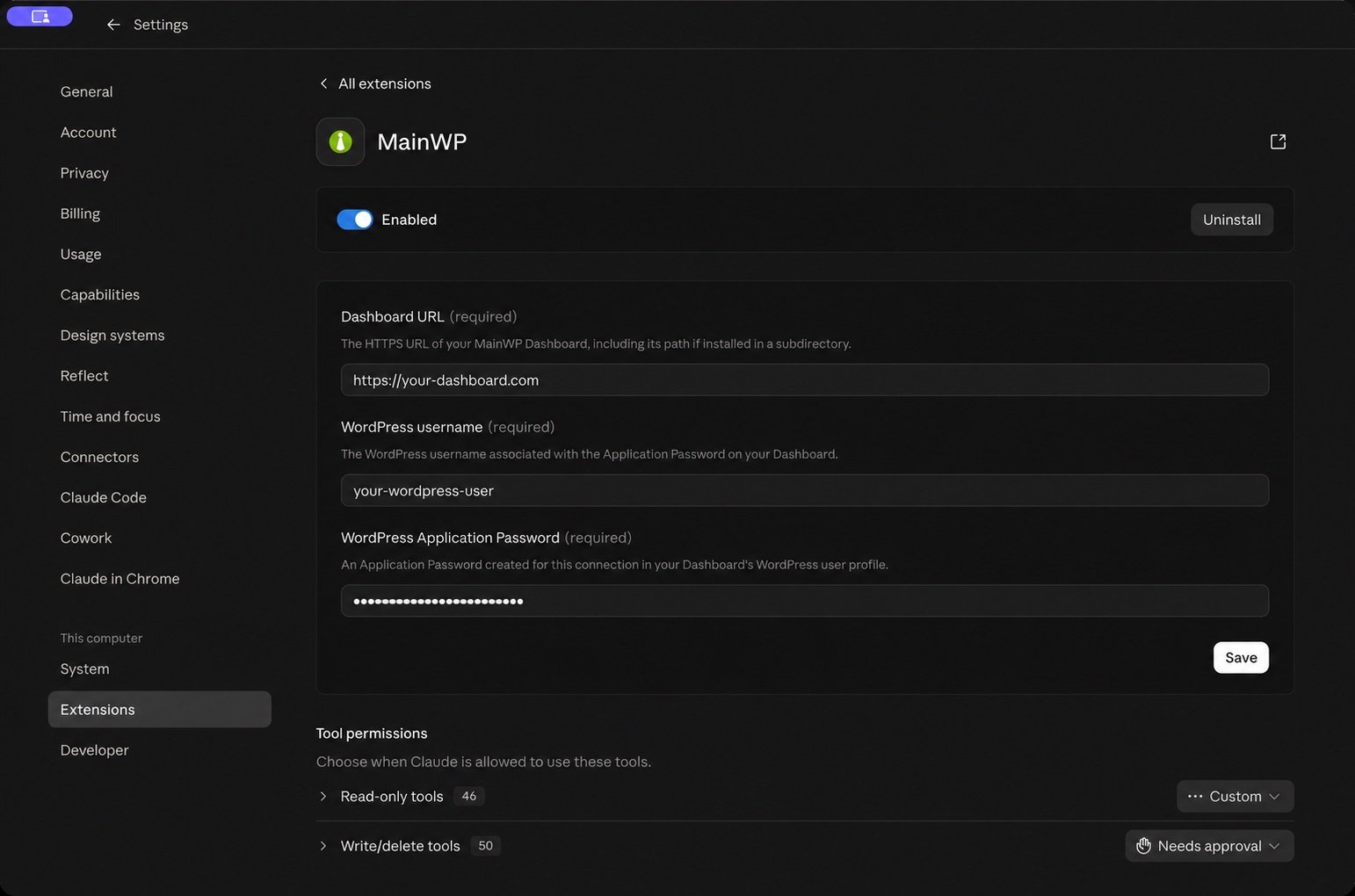 Click **Save** and check that the MainWP extension is enabled. If you changed an existing connection, turn the extension off and on again.
On the MainWP configuration page, scroll to **Tool permissions**. Claude Desktop separates **Read-only tools** from **Write/delete tools**.
Click **Save** and check that the MainWP extension is enabled. If you changed an existing connection, turn the extension off and on again.
On the MainWP configuration page, scroll to **Tool permissions**. Claude Desktop separates **Read-only tools** from **Write/delete tools**.
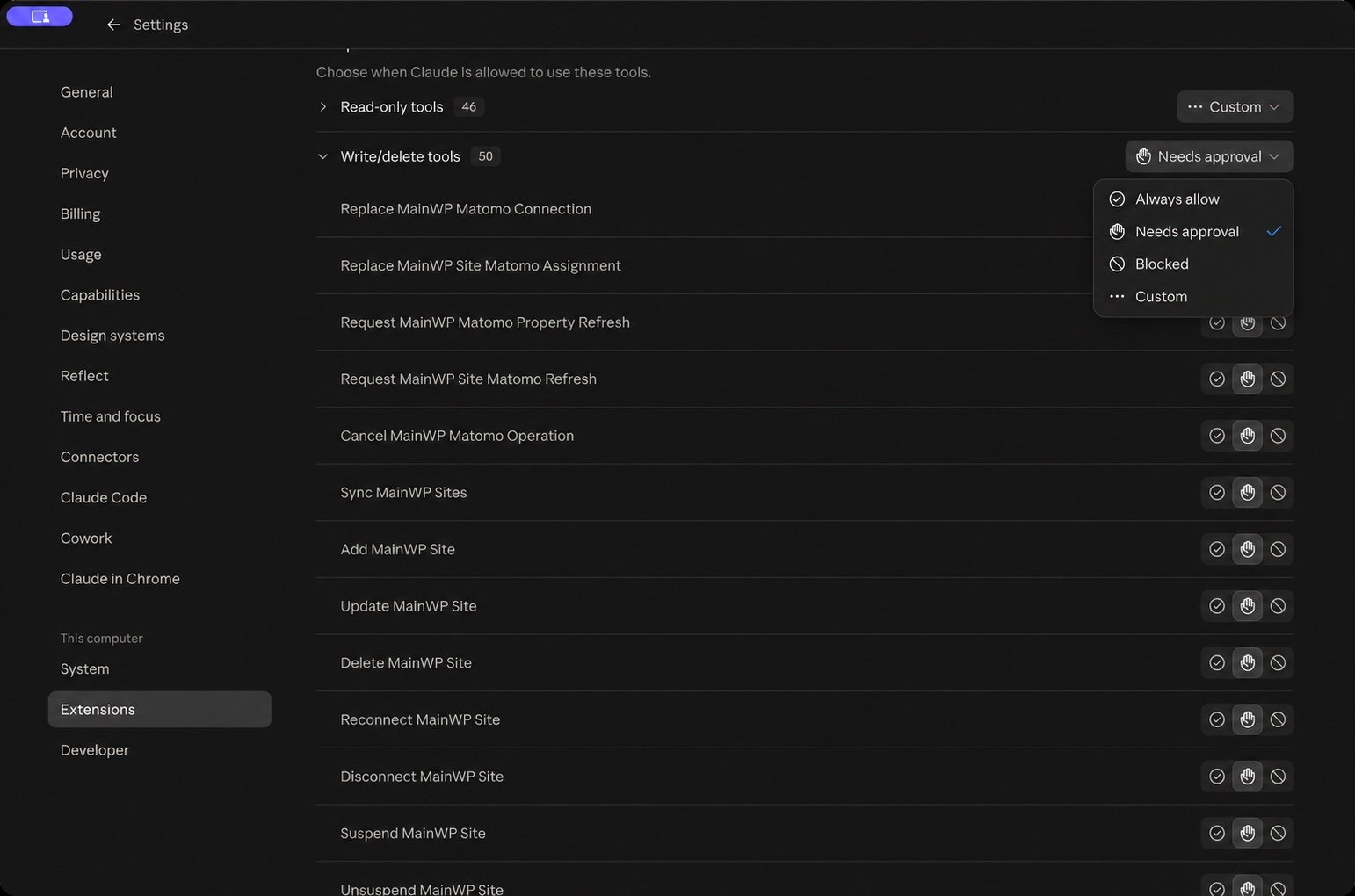 For changes you review before execution, keep the relevant tools on **Needs approval**. For a Desktop connection restricted to reading, set the **Write/delete tools** group to **Blocked** and check the individual tools for exceptions.
Return to Claude and start a new chat. Ask:
> Use MainWP to list all my sites. Do not change anything.
If Desktop asks to use a MainWP tool, click **Allow once**. A working connection returns your child sites. If Claude reports a connection problem, correct it under **MainWP → Configure**; see the [Desktop troubleshooting guide](/mcp-server/claude-desktop-bundle#troubleshooting).
## Make changes from Claude Desktop
Claude Desktop can make WordPress site changes through MainWP when the required write tool is available and permitted. A read-only connection can inspect sites and prepare recommendations; it cannot apply those changes.
1. Open **Settings → Extensions → MainWP → Configure → Tool permissions**.
2. Under **Write/delete tools**, find the operation you need and select **Needs approval**. A tool set to **Blocked** cannot run.
3. In a new Desktop chat, name the child site and the exact change. For example, if Hello Dolly is installed but inactive on a test site:
> Activate Hello Dolly on Example Test Site. Leave every other plugin unchanged.
Replace “Example Test Site” with your child site's name.
4. Review the requested tool and its inputs. Click **Allow once** to permit that call. This allows one call; **Always allow** changes the tool's permission for future calls.
5. Hello Dolly activation is classified as non-destructive, so this example has no separate MainWP confirmation. If MainWP returns a confirmation for a destructive operation, review it and explicitly approve the stated change in the chat. Desktop's tool approval and MainWP's server confirmation are separate steps.
6. Ask Claude to check the result, then verify it on the child site.
| Desktop tool permission | What happens |
| - | - |
| **Needs approval** | Claude asks before using that tool. **Allow once** permits the pending call. |
| **Blocked** | Claude cannot call the tool. Change the permission before asking it to apply that operation. |
| **Always allow** | Claude can call that tool without asking for Desktop approval each time. MainWP's server policies still apply. |
Desktop approval does not override MainWP's server settings. A read-only tool allowlist removes write tools; safe mode blocks operations classified as destructive. Safe mode alone is not read-only because some permitted operations still change sites. Keep MainWP's `requireUserConfirmation` enabled. See [Safety & Permissions](/mcp-server/safety) and [Restrict Tools](/mcp-server/guides/restrict-tools).
For the Desktop bundle, put `safeMode`, `allowedTools`, `blockedTools`, and `requireUserConfirmation` in `~/.config/mainwp-mcp/settings.json`. The bundle's **Configure** form has only the three connection fields. Turn the extension off and on after changing the file; see the [configuration file instructions](/mcp-server/reference/configuration#configuration-file).
For download verification, connection fields, updates, and troubleshooting, see the [Claude Desktop bundle guide](/mcp-server/claude-desktop-bundle).
## Claude Code CLI plugin
The Claude Code plugin includes the MCP server, the `mainwp-dashboard` agent skill, and ten `/mainwp:*` workflow commands.
## Before you start with Claude Code CLI
You need Claude Code CLI installed and signed in, Node.js 20.19 or later with `npx`, and an HTTPS connection to your MainWP Dashboard. Create a WordPress Application Password for a Dashboard user with the `manage_options` capability, which WordPress administrators have; see [Application Passwords](/api-reference/rest-api/application-passwords).
## Install in Claude Code CLI
Run the installation commands from your shell:
```bash theme={null}
claude plugin marketplace add mainwp/mainwp-mcp
claude plugin install mainwp@mainwp-mcp
```
If you already have an interactive Claude Code session open, use these slash commands there instead:
```text theme={null}
/plugin marketplace add mainwp/mainwp-mcp
/plugin install mainwp@mainwp-mcp
```
Both forms install the same plugin. Choose one form for the place where you are working.
Set your Dashboard URL, WordPress username, and Application Password in the environment that launches Claude Code or the central `settings.json` file. The [credentials and settings](#credentials-and-settings) section below explains both sources.
Run `claude` in your terminal. If a session was already open, restart it after changing connection settings. For a plugin installation with no connection-setting changes, you can run `/reload-plugins` in the existing session.
Run `/mainwp:setup`, then ask:
> List all my sites
A working connection returns your child sites by name and URL. Use `/mainwp:tools` to inspect the capabilities available on your Dashboard.
## Credentials and settings
The plugin carries no credential values. The server it starts inherits `MAINWP_URL`, `MAINWP_USER`, and `MAINWP_APP_PASSWORD` from the environment Claude Code runs in, so export them in the shell profile (or launcher) that starts Claude Code. A central `~/.config/mainwp-mcp/settings.json` works too; see the [Configuration Reference](/mcp-server/reference/configuration#configuration-file).
The server checks `./settings.json` in its working directory first and uses only the first file it finds, so a settings file in the folder where you start Claude Code takes precedence over the central file; the files are not merged.
Optional settings, such as safe mode or tool filters, can also come from that environment or the central `settings.json`. Environment variables take precedence over file settings. The plugin ships no `env` map of its own.
## Read-only access and making changes
Installing the plugin does not make your MainWP Dashboard read-only. What Claude can do depends on the tools exposed by the server, its configuration, and the permissions of the WordPress user whose Application Password you use. Claude Code's own tool permissions can also prevent a call.
| Configuration | What you can do in Claude Code |
| - | - |
| Read-only tool allowlist | Inspect sites, diagnose problems, and prepare reports or plans. Claude cannot apply changes because the write tools are unavailable. |
| Safe mode (`safeMode: true`) | Read data and use operations the Dashboard classifies as non-destructive. Plugin and theme activation and site syncing can still change your sites. Destructive calls are blocked, including updates on Dashboard 6.3 and later. |
| Normal operation (`safeMode: false`, the default) | Ask Claude to make changes through the available tools. Destructive operations require the server's confirmation flow when `requireUserConfirmation` is enabled, as it is by default. |
For strictly read-only access, use the [read-only tool allowlist](/mcp-server/guides/restrict-tools#ready-made-configurations). Safe mode alone is not read-only; on Dashboards before 6.3, it also permits updates.
To carry out a change, the tool for that operation must be available: include it if you use `allowedTools`, and make sure `blockedTools` does not exclude it. Safe mode must be off for a destructive operation. Keep `requireUserConfirmation` enabled, review the preview or confirmation request, and approve the specific operation before Claude executes it. Approval cannot override safe mode, tool filters, or WordPress permissions. See [Safety & Permissions](/mcp-server/safety).
Most `/mainwp:*` commands below inspect data or prepare a plan. For example, `/mainwp:update-workflow` prepares an update plan for review; it does not apply updates automatically. Ask Claude to carry out the changes you want after reviewing the plan. In a read-only session, you must first change the server configuration to expose the required write tools and restart Claude Code.
## If you already added a `mainwp` server by hand
Claude Code suppresses a plugin MCP server that duplicates a manually configured one, matching on the command and args. A hand-added `mainwp` entry that runs the standard `npx -y @mainwp/mcp` wins silently: the plugin's server never starts, and the plugin still contributes its commands and skill. A manual entry that runs anything else (a pinned version, a local checkout) is not a duplicate, so both servers start. The plugin's copy reads its launching environment and the first `settings.json` it finds, with environment variables taking precedence.
Run `claude mcp list`, or `/mcp` in a Claude Code session, to check which MainWP server is active before relying on its configuration.
To switch to the plugin's server:
1. Move everything in the manual entry's `env` block (credentials and any `MAINWP_*` settings such as safe mode or tool filters) into the environment that launches Claude Code, or into the corresponding fields in the first `settings.json` the server will load. It checks `./settings.json` in its working directory before `~/.config/mainwp-mcp/settings.json`; the files are not merged.
2. Remove the manual entry.
The plugin ships no `env` map by design. Preserve those values in the launching environment or the settings file the server will load before removing the manual entry, or the plugin's server may start without credentials or with different settings than before.
## The agent skill
The `mainwp-dashboard` skill loads automatically when a task involves managing sites through MainWP. It teaches the agent how this server behaves: the tool catalog comes from your Dashboard at runtime and varies with version, add-ons, and filtering; destructive operations stop for user confirmation; safe mode blocks destructive calls at execution, tool filtering can remove tools on purpose, and the agent reports either rather than working around it.
## Workflow commands
| Command | What it does |
| - | - |
| `/mainwp:setup` | Diagnose the MCP connection and configuration without exposing secrets |
| `/mainwp:tools` | Show what your Dashboard exposes, grouped by capability |
| `/mainwp:network-summary` | Executive summary of the network: site counts, update totals, health |
| `/mainwp:site-report` | Detailed report for one site: overview, updates, health, next actions |
| `/mainwp:troubleshoot-site` | Diagnose one site: connectivity, sync health, pending updates, errors |
| `/mainwp:update-workflow` | Plan a safe update run: what to update, in what order, on which sites |
| `/mainwp:security-audit` | Security-focused audit: outdated core, plugins, themes |
| `/mainwp:backup-status` | Backup coverage and freshness across managed sites |
| `/mainwp:maintenance-check` | Maintenance sweep across every site, ranked by urgency |
| `/mainwp:performance-check` | Performance indicators for one site or the network, from Dashboard data |
`/mainwp:site-report` and `/mainwp:troubleshoot-site` accept a site ID or name. With no argument, they list your managed sites and ask which one you want.
`/mainwp:backup-status`, `/mainwp:security-audit`, and `/mainwp:update-workflow` take site IDs or `all` for their site scope. `/mainwp:performance-check` takes one site ID or `all`. An empty site scope means every managed site. Commands resolve the requested sites against your Dashboard and stop if a supplied site cannot be found.
This documentation is built and hosted on [Mintlify](https://mintlify.com), a developer documentation platform.
For changes you review before execution, keep the relevant tools on **Needs approval**. For a Desktop connection restricted to reading, set the **Write/delete tools** group to **Blocked** and check the individual tools for exceptions.
Return to Claude and start a new chat. Ask:
> Use MainWP to list all my sites. Do not change anything.
If Desktop asks to use a MainWP tool, click **Allow once**. A working connection returns your child sites. If Claude reports a connection problem, correct it under **MainWP → Configure**; see the [Desktop troubleshooting guide](/mcp-server/claude-desktop-bundle#troubleshooting).
## Make changes from Claude Desktop
Claude Desktop can make WordPress site changes through MainWP when the required write tool is available and permitted. A read-only connection can inspect sites and prepare recommendations; it cannot apply those changes.
1. Open **Settings → Extensions → MainWP → Configure → Tool permissions**.
2. Under **Write/delete tools**, find the operation you need and select **Needs approval**. A tool set to **Blocked** cannot run.
3. In a new Desktop chat, name the child site and the exact change. For example, if Hello Dolly is installed but inactive on a test site:
> Activate Hello Dolly on Example Test Site. Leave every other plugin unchanged.
Replace “Example Test Site” with your child site's name.
4. Review the requested tool and its inputs. Click **Allow once** to permit that call. This allows one call; **Always allow** changes the tool's permission for future calls.
5. Hello Dolly activation is classified as non-destructive, so this example has no separate MainWP confirmation. If MainWP returns a confirmation for a destructive operation, review it and explicitly approve the stated change in the chat. Desktop's tool approval and MainWP's server confirmation are separate steps.
6. Ask Claude to check the result, then verify it on the child site.
| Desktop tool permission | What happens |
| - | - |
| **Needs approval** | Claude asks before using that tool. **Allow once** permits the pending call. |
| **Blocked** | Claude cannot call the tool. Change the permission before asking it to apply that operation. |
| **Always allow** | Claude can call that tool without asking for Desktop approval each time. MainWP's server policies still apply. |
Desktop approval does not override MainWP's server settings. A read-only tool allowlist removes write tools; safe mode blocks operations classified as destructive. Safe mode alone is not read-only because some permitted operations still change sites. Keep MainWP's `requireUserConfirmation` enabled. See [Safety & Permissions](/mcp-server/safety) and [Restrict Tools](/mcp-server/guides/restrict-tools).
For the Desktop bundle, put `safeMode`, `allowedTools`, `blockedTools`, and `requireUserConfirmation` in `~/.config/mainwp-mcp/settings.json`. The bundle's **Configure** form has only the three connection fields. Turn the extension off and on after changing the file; see the [configuration file instructions](/mcp-server/reference/configuration#configuration-file).
For download verification, connection fields, updates, and troubleshooting, see the [Claude Desktop bundle guide](/mcp-server/claude-desktop-bundle).
## Claude Code CLI plugin
The Claude Code plugin includes the MCP server, the `mainwp-dashboard` agent skill, and ten `/mainwp:*` workflow commands.
## Before you start with Claude Code CLI
You need Claude Code CLI installed and signed in, Node.js 20.19 or later with `npx`, and an HTTPS connection to your MainWP Dashboard. Create a WordPress Application Password for a Dashboard user with the `manage_options` capability, which WordPress administrators have; see [Application Passwords](/api-reference/rest-api/application-passwords).
## Install in Claude Code CLI
Run the installation commands from your shell:
```bash theme={null}
claude plugin marketplace add mainwp/mainwp-mcp
claude plugin install mainwp@mainwp-mcp
```
If you already have an interactive Claude Code session open, use these slash commands there instead:
```text theme={null}
/plugin marketplace add mainwp/mainwp-mcp
/plugin install mainwp@mainwp-mcp
```
Both forms install the same plugin. Choose one form for the place where you are working.
Set your Dashboard URL, WordPress username, and Application Password in the environment that launches Claude Code or the central `settings.json` file. The [credentials and settings](#credentials-and-settings) section below explains both sources.
Run `claude` in your terminal. If a session was already open, restart it after changing connection settings. For a plugin installation with no connection-setting changes, you can run `/reload-plugins` in the existing session.
Run `/mainwp:setup`, then ask:
> List all my sites
A working connection returns your child sites by name and URL. Use `/mainwp:tools` to inspect the capabilities available on your Dashboard.
## Credentials and settings
The plugin carries no credential values. The server it starts inherits `MAINWP_URL`, `MAINWP_USER`, and `MAINWP_APP_PASSWORD` from the environment Claude Code runs in, so export them in the shell profile (or launcher) that starts Claude Code. A central `~/.config/mainwp-mcp/settings.json` works too; see the [Configuration Reference](/mcp-server/reference/configuration#configuration-file).
The server checks `./settings.json` in its working directory first and uses only the first file it finds, so a settings file in the folder where you start Claude Code takes precedence over the central file; the files are not merged.
Optional settings, such as safe mode or tool filters, can also come from that environment or the central `settings.json`. Environment variables take precedence over file settings. The plugin ships no `env` map of its own.
## Read-only access and making changes
Installing the plugin does not make your MainWP Dashboard read-only. What Claude can do depends on the tools exposed by the server, its configuration, and the permissions of the WordPress user whose Application Password you use. Claude Code's own tool permissions can also prevent a call.
| Configuration | What you can do in Claude Code |
| - | - |
| Read-only tool allowlist | Inspect sites, diagnose problems, and prepare reports or plans. Claude cannot apply changes because the write tools are unavailable. |
| Safe mode (`safeMode: true`) | Read data and use operations the Dashboard classifies as non-destructive. Plugin and theme activation and site syncing can still change your sites. Destructive calls are blocked, including updates on Dashboard 6.3 and later. |
| Normal operation (`safeMode: false`, the default) | Ask Claude to make changes through the available tools. Destructive operations require the server's confirmation flow when `requireUserConfirmation` is enabled, as it is by default. |
For strictly read-only access, use the [read-only tool allowlist](/mcp-server/guides/restrict-tools#ready-made-configurations). Safe mode alone is not read-only; on Dashboards before 6.3, it also permits updates.
To carry out a change, the tool for that operation must be available: include it if you use `allowedTools`, and make sure `blockedTools` does not exclude it. Safe mode must be off for a destructive operation. Keep `requireUserConfirmation` enabled, review the preview or confirmation request, and approve the specific operation before Claude executes it. Approval cannot override safe mode, tool filters, or WordPress permissions. See [Safety & Permissions](/mcp-server/safety).
Most `/mainwp:*` commands below inspect data or prepare a plan. For example, `/mainwp:update-workflow` prepares an update plan for review; it does not apply updates automatically. Ask Claude to carry out the changes you want after reviewing the plan. In a read-only session, you must first change the server configuration to expose the required write tools and restart Claude Code.
## If you already added a `mainwp` server by hand
Claude Code suppresses a plugin MCP server that duplicates a manually configured one, matching on the command and args. A hand-added `mainwp` entry that runs the standard `npx -y @mainwp/mcp` wins silently: the plugin's server never starts, and the plugin still contributes its commands and skill. A manual entry that runs anything else (a pinned version, a local checkout) is not a duplicate, so both servers start. The plugin's copy reads its launching environment and the first `settings.json` it finds, with environment variables taking precedence.
Run `claude mcp list`, or `/mcp` in a Claude Code session, to check which MainWP server is active before relying on its configuration.
To switch to the plugin's server:
1. Move everything in the manual entry's `env` block (credentials and any `MAINWP_*` settings such as safe mode or tool filters) into the environment that launches Claude Code, or into the corresponding fields in the first `settings.json` the server will load. It checks `./settings.json` in its working directory before `~/.config/mainwp-mcp/settings.json`; the files are not merged.
2. Remove the manual entry.
The plugin ships no `env` map by design. Preserve those values in the launching environment or the settings file the server will load before removing the manual entry, or the plugin's server may start without credentials or with different settings than before.
## The agent skill
The `mainwp-dashboard` skill loads automatically when a task involves managing sites through MainWP. It teaches the agent how this server behaves: the tool catalog comes from your Dashboard at runtime and varies with version, add-ons, and filtering; destructive operations stop for user confirmation; safe mode blocks destructive calls at execution, tool filtering can remove tools on purpose, and the agent reports either rather than working around it.
## Workflow commands
| Command | What it does |
| - | - |
| `/mainwp:setup` | Diagnose the MCP connection and configuration without exposing secrets |
| `/mainwp:tools` | Show what your Dashboard exposes, grouped by capability |
| `/mainwp:network-summary` | Executive summary of the network: site counts, update totals, health |
| `/mainwp:site-report` | Detailed report for one site: overview, updates, health, next actions |
| `/mainwp:troubleshoot-site` | Diagnose one site: connectivity, sync health, pending updates, errors |
| `/mainwp:update-workflow` | Plan a safe update run: what to update, in what order, on which sites |
| `/mainwp:security-audit` | Security-focused audit: outdated core, plugins, themes |
| `/mainwp:backup-status` | Backup coverage and freshness across managed sites |
| `/mainwp:maintenance-check` | Maintenance sweep across every site, ranked by urgency |
| `/mainwp:performance-check` | Performance indicators for one site or the network, from Dashboard data |
`/mainwp:site-report` and `/mainwp:troubleshoot-site` accept a site ID or name. With no argument, they list your managed sites and ask which one you want.
`/mainwp:backup-status`, `/mainwp:security-audit`, and `/mainwp:update-workflow` take site IDs or `all` for their site scope. `/mainwp:performance-check` takes one site ID or `all`. An empty site scope means every managed site. Commands resolve the requested sites against your Dashboard and stop if a supplied site cannot be found.
This documentation is built and hosted on [Mintlify](https://mintlify.com), a developer documentation platform.