> ## Documentation Index
> Fetch the complete documentation index at: https://docs.mainwp.com/llms.txt
> Use this file to discover all available pages before exploring further.
# How to install a plugin on sites that already have a certain plugin installed
> Install or update a plugin on child sites that already have a specific plugin installed, useful for premium plugins with non-standard update mechanisms.
This workflow helps you install (or re-install) a plugin on child sites that already have a specific plugin installed. This is useful when:
* A premium plugin uses non-standard update mechanisms
* You need to manually update to a specific plugin version
* You want to ensure consistent versions across sites with the same plugin
## What You'll Learn
* How to find sites with a specific plugin installed
* How to install a plugin to those selected sites
## Prerequisites
* Child sites synced with your Dashboard
* Plugin ZIP file (if uploading manually)
***
## Before Using a ZIP for Premium Updates
If a premium update is missing, first check **top-right user menu > MainWP Settings > Premium Updates** (`/wp-admin/admin.php?page=PremiumUpdates`) in MainWP Dashboard 6.2. Built-in compatibility covers many products, and **Custom Identifiers** lets you add others without a code snippet. Verify the license on the child site and sync again before deciding whether a manual installation is needed.
 See [Premium Updates](/sites/updates/premium-updates) for setup. Use the workflow below when you need to install a vendor-provided ZIP or a specific version on selected sites.
***
## Find Sites with the Plugin Installed
Go to **Sites > Plugins > Manage Plugins** (`/wp-admin/admin.php?page=PluginsManage`).
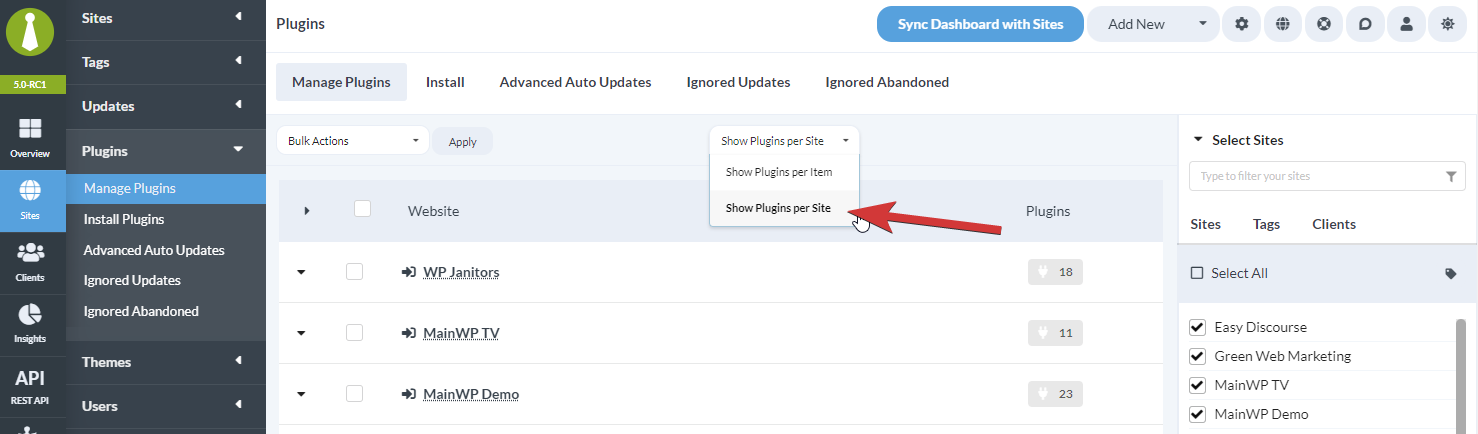
Click **Show Plugins per Site** to switch the view.
See [Premium Updates](/sites/updates/premium-updates) for setup. Use the workflow below when you need to install a vendor-provided ZIP or a specific version on selected sites.
***
## Find Sites with the Plugin Installed
Go to **Sites > Plugins > Manage Plugins** (`/wp-admin/admin.php?page=PluginsManage`).
Click **Show Plugins per Site** to switch the view.
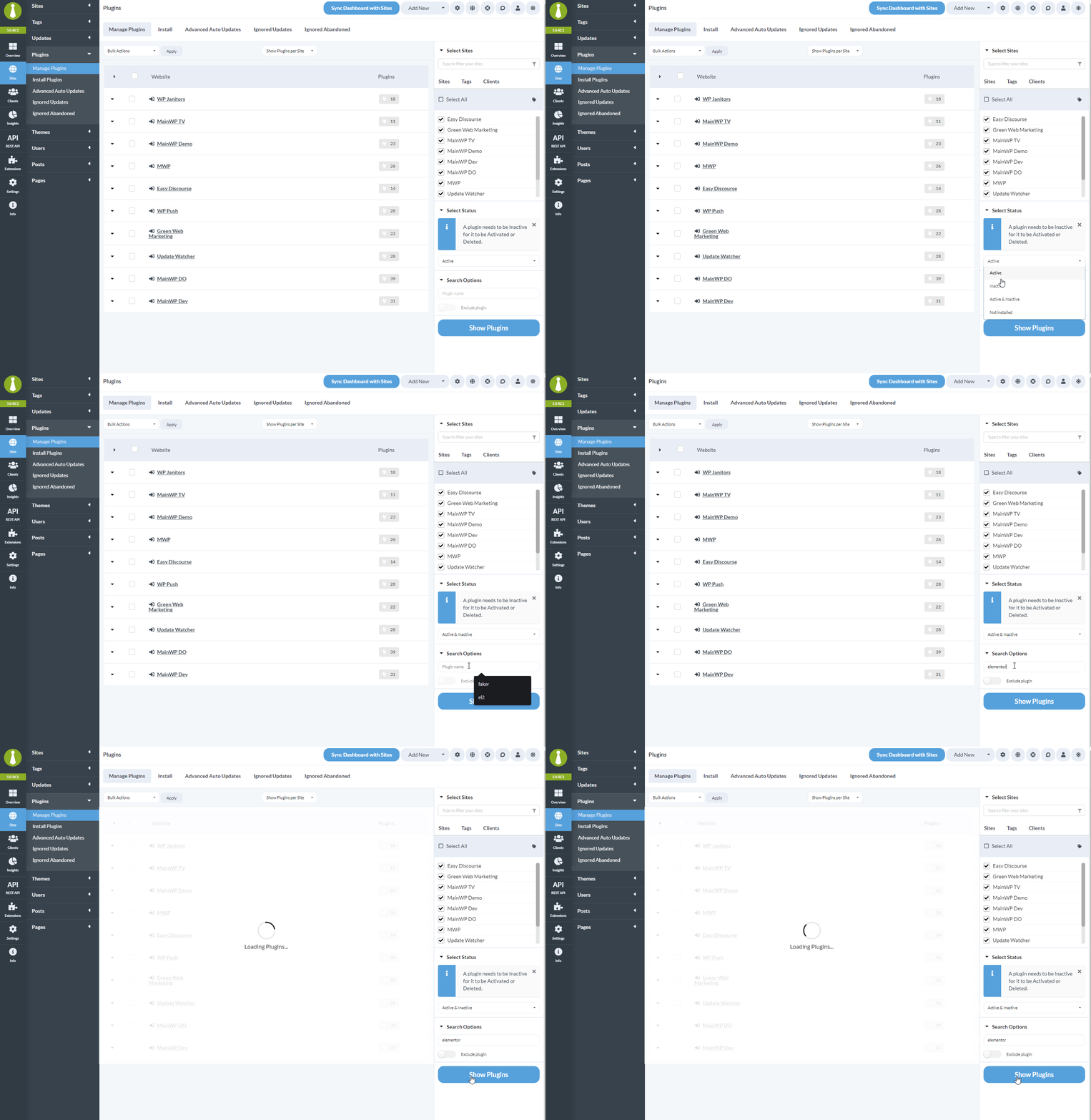
 Select the child sites to search. For this scenario, you'll typically want to select all sites.
In the **Select Status** dropdown, select:
* **Active** - Sites with the plugin active
* **Inactive** - Sites with the plugin installed but not active
* **Active & Inactive** - All sites with the plugin installed
In the **Search Options** field, type the plugin name.
Click **Show Plugins**. The table displays all sites with that plugin installed.
Select the child sites to search. For this scenario, you'll typically want to select all sites.
In the **Select Status** dropdown, select:
* **Active** - Sites with the plugin active
* **Inactive** - Sites with the plugin installed but not active
* **Active & Inactive** - All sites with the plugin installed
In the **Search Options** field, type the plugin name.
Click **Show Plugins**. The table displays all sites with that plugin installed.
 ***
## Install Plugin to Selected Sites
Select all or some sites from the results table.
Click the **Install to Selected Site(s)** button.
***
## Install Plugin to Selected Sites
Select all or some sites from the results table.
Click the **Install to Selected Site(s)** button.
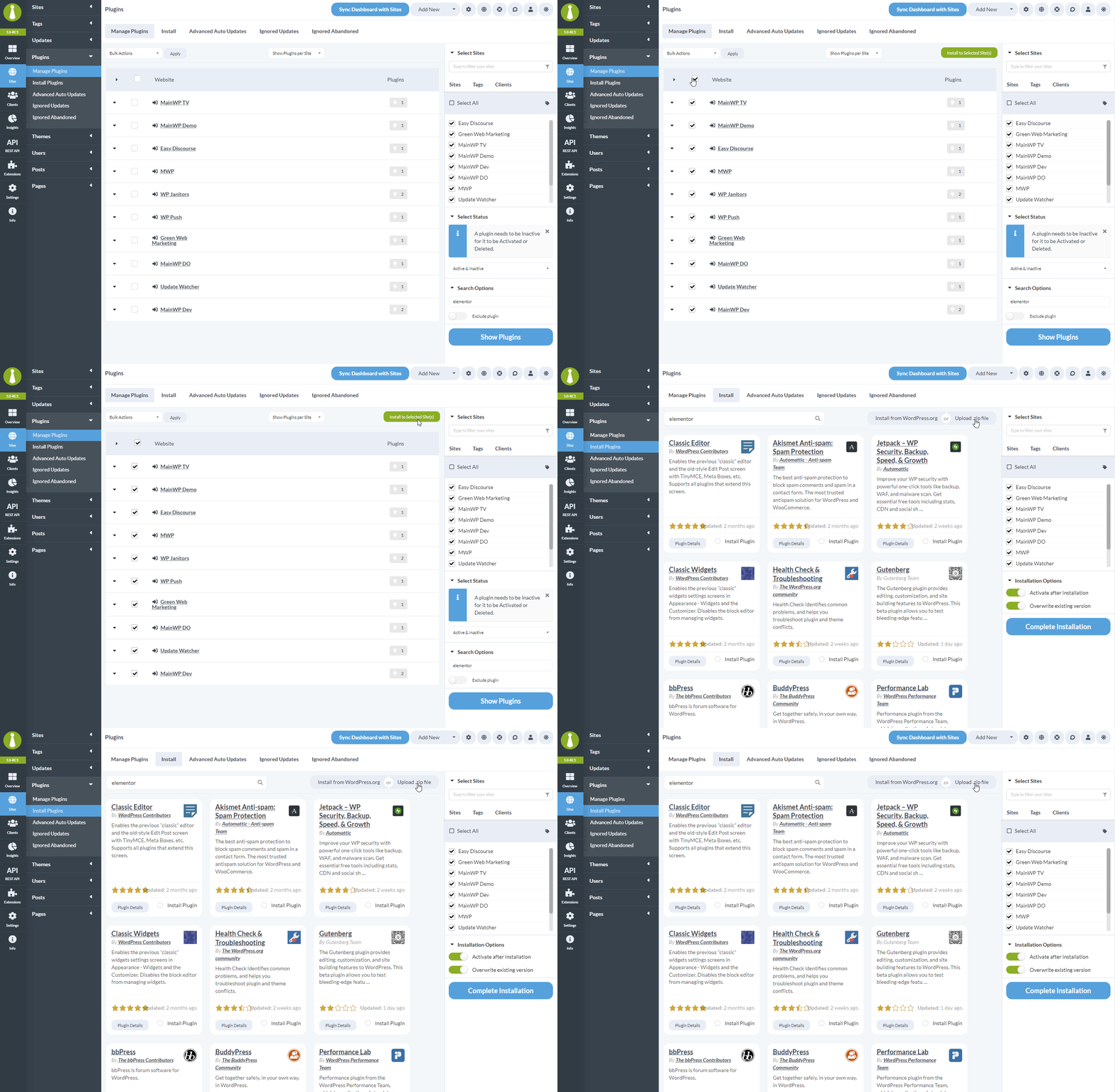 You're taken to **Plugins > Install Plugins** with the selected child sites pre-selected. Install the plugin by:
* Searching WordPress.org and clicking Install
* Uploading a ZIP file
***
## Use Cases
| Scenario | How This Helps |
| - | - |
| Manual premium plugin updates | Install a vendor-provided version ZIP on sites with the plugin |
| Downgrade plugin | Install specific older version |
| License-based plugins | Re-install after license renewal |
| Consistent versions | Ensure all sites run the same version |
***
## Self-Check Checklist
* [ ] Switched to "Per Site" view
* [ ] Selected target child sites
* [ ] Searched for plugin by name
* [ ] Selected sites from results
* [ ] Clicked Install to Selected Sites
* [ ] Installed plugin via WordPress.org or ZIP upload
***
## Related Resources
* [Find Sites Missing a Plugin](/advanced/miscellaneous/how-to-find-sites-that-dont-have-a-certain-plugin-or-theme-installed) - Sites without a plugin
* [Managing Plugins](/sites/plugins/managing-plugins-with-mainwp) - Plugin management overview
* [Premium Plugin Updates Not Detected](/troubleshooting/premium-plugin-updates-not-detected) - Update detection issues
This documentation is built and hosted on [Mintlify](https://mintlify.com), a developer documentation platform.
You're taken to **Plugins > Install Plugins** with the selected child sites pre-selected. Install the plugin by:
* Searching WordPress.org and clicking Install
* Uploading a ZIP file
***
## Use Cases
| Scenario | How This Helps |
| - | - |
| Manual premium plugin updates | Install a vendor-provided version ZIP on sites with the plugin |
| Downgrade plugin | Install specific older version |
| License-based plugins | Re-install after license renewal |
| Consistent versions | Ensure all sites run the same version |
***
## Self-Check Checklist
* [ ] Switched to "Per Site" view
* [ ] Selected target child sites
* [ ] Searched for plugin by name
* [ ] Selected sites from results
* [ ] Clicked Install to Selected Sites
* [ ] Installed plugin via WordPress.org or ZIP upload
***
## Related Resources
* [Find Sites Missing a Plugin](/advanced/miscellaneous/how-to-find-sites-that-dont-have-a-certain-plugin-or-theme-installed) - Sites without a plugin
* [Managing Plugins](/sites/plugins/managing-plugins-with-mainwp) - Plugin management overview
* [Premium Plugin Updates Not Detected](/troubleshooting/premium-plugin-updates-not-detected) - Update detection issues
This documentation is built and hosted on [Mintlify](https://mintlify.com), a developer documentation platform.