> ## Documentation Index
> Fetch the complete documentation index at: https://docs.mainwp.com/llms.txt
> Use this file to discover all available pages before exploring further.
# Getting Started with MainWP Essentials
> Learn how to get MainWP Essentials (the free tier), activate your API key, and install free add-ons on your MainWP Dashboard.
This article explains how to get MainWP Essentials and activate your API key on your MainWP Dashboard, which allows you to install add-ons directly and enable automatic updates.
## What You'll Learn
* How to create a MainWP.com account
* How to get MainWP Essentials (free)
* How to copy and activate your API key
* How to install free add-ons
***
## Create Your MainWP.com Account and Get MainWP Essentials
Use the [MainWP Essentials checkout link](https://mainwp.com/checkout/?add-to-cart=1264797\&empty-cart). This adds the free bundle to your cart automatically.
On the checkout page, enter your new account username and password.
Complete checkout to create your MainWP.com account and activate MainWP Essentials.
There is no charge and no payment method is required for MainWP Essentials.
## Copy Your API Key
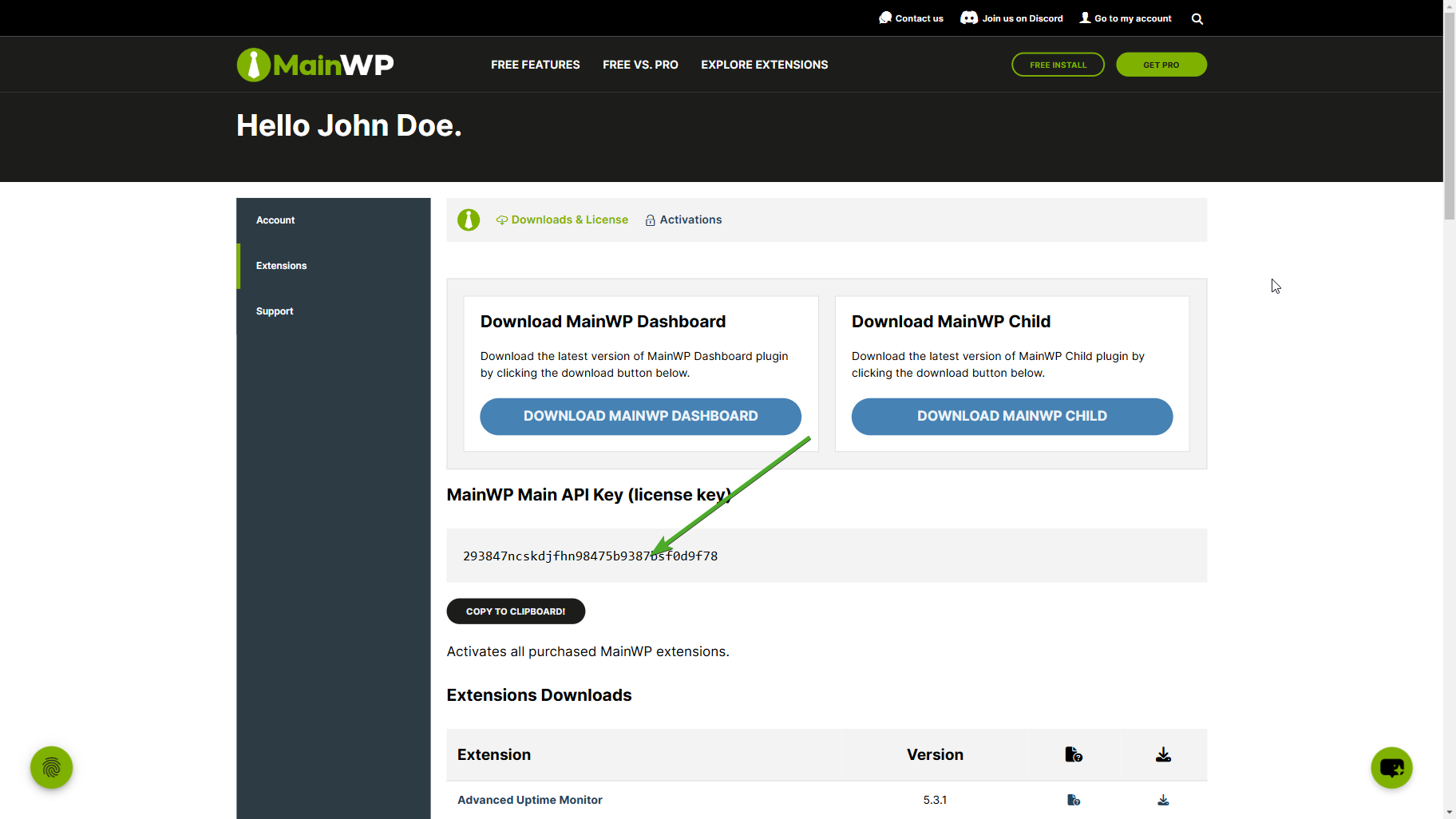
Navigate to your **[Account > Extensions](https://mainwp.com/my-account/my-api-downloads/)** page. Here you will find your Main API Key.
Copy your Main API Key - you'll need it in the next section.
 ## Activate Your API Key in MainWP Dashboard
Go to your self-hosted MainWP Dashboard site.
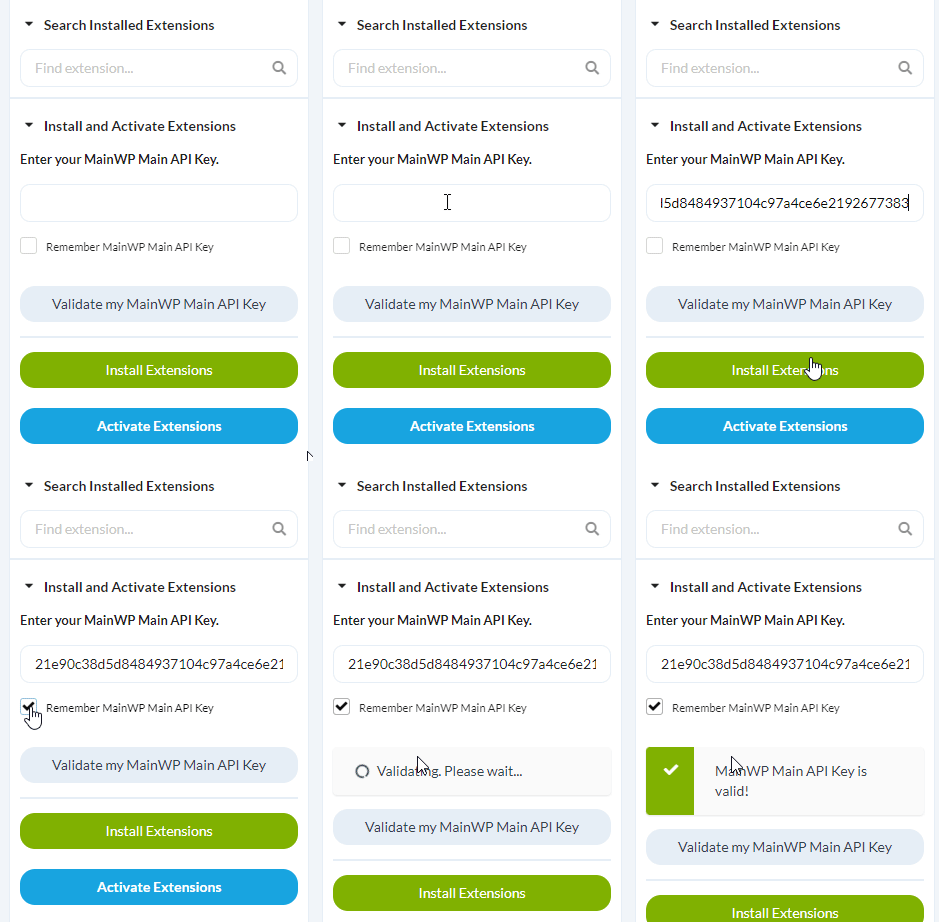
Navigate to the **MainWP > Add-ons** page.
Click **Add License Key** (or **Manage License** if a key is already saved).
Paste your Main API Key and check **Remember Key**.
Click **Validate License**.
## Activate Your API Key in MainWP Dashboard
Go to your self-hosted MainWP Dashboard site.
Navigate to the **MainWP > Add-ons** page.
Click **Add License Key** (or **Manage License** if a key is already saved).
Paste your Main API Key and check **Remember Key**.
Click **Validate License**.
 ## Install Add-ons
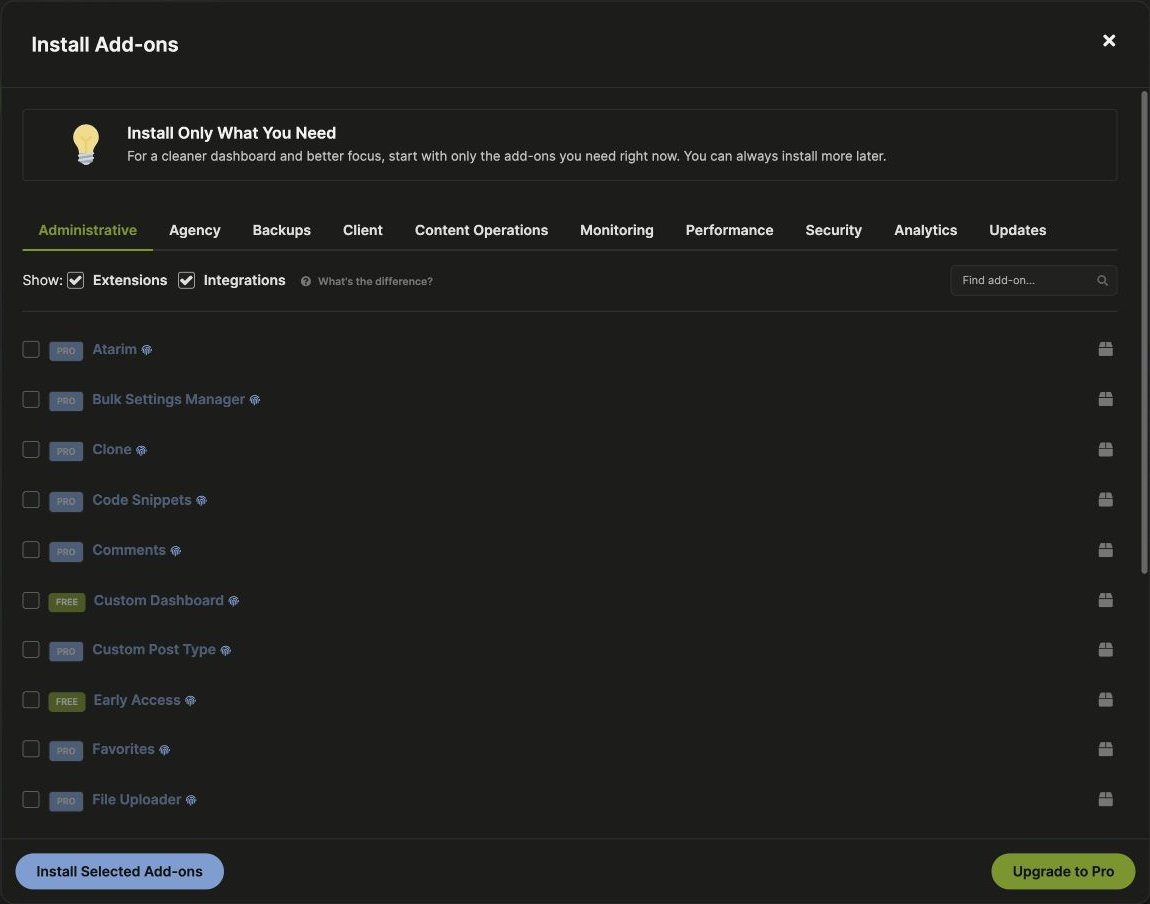
Click the **Install Add-ons** button.
Select the add-ons you want to install and click the **Install Selected Add-ons** button.
## Install Add-ons
Click the **Install Add-ons** button.
Select the add-ons you want to install and click the **Install Selected Add-ons** button.
 ***
## Related Resources
* [Add-on Bundles](/add-ons/bundles) - Compare Essentials vs Pro tiers
* [Add-ons Overview](/add-ons/overview) - Browse all available add-ons
* [Manage Add-ons](/dashboard/overview/manage-extensions) - Add-on management in Dashboard
This documentation is built and hosted on [Mintlify](https://mintlify.com), a developer documentation platform.
***
## Related Resources
* [Add-on Bundles](/add-ons/bundles) - Compare Essentials vs Pro tiers
* [Add-ons Overview](/add-ons/overview) - Browse all available add-ons
* [Manage Add-ons](/dashboard/overview/manage-extensions) - Add-on management in Dashboard
This documentation is built and hosted on [Mintlify](https://mintlify.com), a developer documentation platform.