> ## Documentation Index
> Fetch the complete documentation index at: https://docs.mainwp.com/llms.txt
> Use this file to discover all available pages before exploring further.
# Staging
> Create and manage staging sites for your Child Sites directly from your MainWP Dashboard using WP Staging. Test updates safely on staging replicas before applying changes to production sites.
## What You'll Learn
* Installing the Staging Extension and WP Staging plugin
* Creating staging sites from child sites
* Updating and deleting staging sites
* Running updates on staging sites first
* Publishing staging changes through WP Staging Pro
***
**Integration Add-on** - This add-on requires WP Staging Free or Pro on your Child Sites. It does not provide a push-to-production action.
**Staging Sites** are sites that duplicate your **Production Sites** *(same hardware, same software, same settings)* so that any change can be tested and evaluated before being placed into production.
In other words, it's a complete but independent copy of your production site, including the database.
The MainWP Staging Extension allows you to create and manage staging sites without hassle.
The MainWP Staging Extension integrates with [WP Staging Free](https://wordpress.org/plugins/wp-staging/) and WP Staging Pro for creating, updating, and deleting staging sites. Publishing staging changes to production is handled separately through WP Staging; see [Push Staging Changes to Production](#push-staging-changes-to-production).
## How it works
Once you trigger the process of creating a staging site, the WP Staging plugin will duplicate all site files and copy them to a subdirectory.
All database tables will be duplicated, but the prefix will be changed.
Once this process is done, the necessary data will be updated in the **wp-config.php** file in the staging site.
Within a couple of seconds, you will have a replica of your child site where you can test updates.
After creating a staging site, MainWP adds the new staging URL to your MainWP Dashboard as a staging site and places it in the **Staging Sites** tag when that tag exists.
MainWP Staging Extension is extensively tested by the MainWP team. If you find any issues, please contact [MainWP Support](https://mainwp.com/mainwp-support/).
## Install and Set the MainWP Staging Extension
Installation of the MainWP Staging Extension requires two important steps:
* Installing the Extension itself on your MainWP Dashboard site
* Installing WP Staging Free or Pro on Child Sites
### Installing the Extension
The MainWP Staging Extension needs to be installed only on your MainWP Dashboard site. You can [install it as any other MainWP add-on.](/dashboard/overview/manage-extensions#install-add-ons)
### Installing the Plugin
Install and activate WP Staging Free or Pro on your production Child Sites. Both editions are recognized by the MainWP Staging Add-on.
The plugin-search instructions below install **WP Staging Free** from WordPress.org. For Pro, use the separate ZIP package from your WP STAGING account and follow the [WP Staging Pro installation guide](https://wp-staging.com/docs/install-wp-staging/).
### Install from MainWP Dashboard
[Select your child](/getting-started/mainwp-user-interface) sites
In the **Installation Options** box, make sure that the **Activate after installation option** is selected.
For additional help with installing WordPress plugins from the MainWP Dashboard, please review this [help document](/sites/plugins/managing-plugins-with-mainwp).
### Install directly on Child Site
For additional help with installing WordPress plugins, please review this [help document.](https://wordpress.org/documentation/article/manage-plugins/) After installing the WP Staging plugin, it is required to Synchronize your sites so your MainWP Dashboard becomes aware that the plugin has been installed and activated.
## Create Staging Site
To create a staging site for a child site,
In the list of child sites, locate the wanted child site and click the **Create Staging Site** action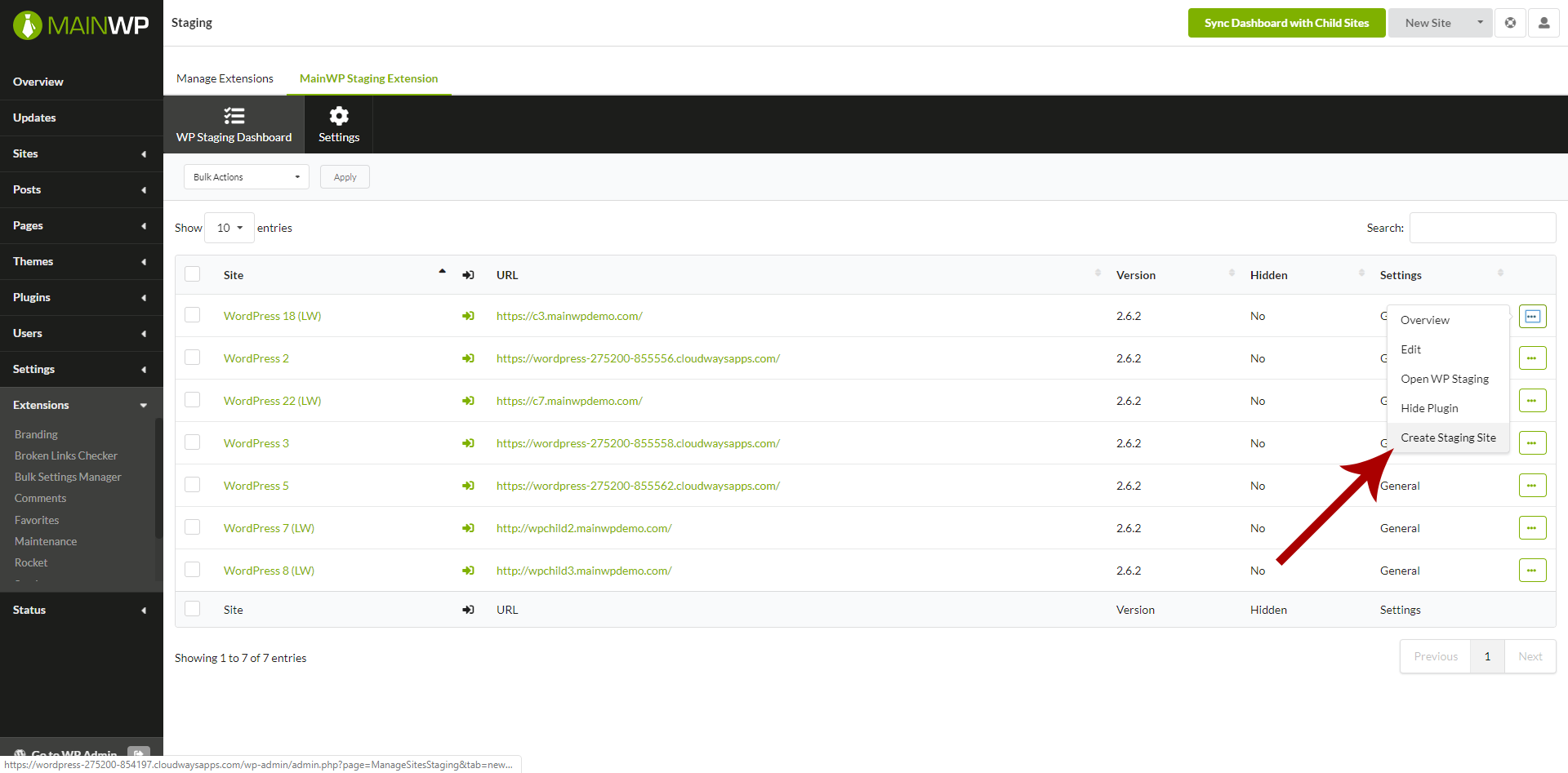 Enter the **Staging Site Name**
1. Exclude/Include database tables
2. Exclude/Include files
3. Click the **Create Staging Site** button
Enter the **Staging Site Name**
1. Exclude/Include database tables
2. Exclude/Include files
3. Click the **Create Staging Site** button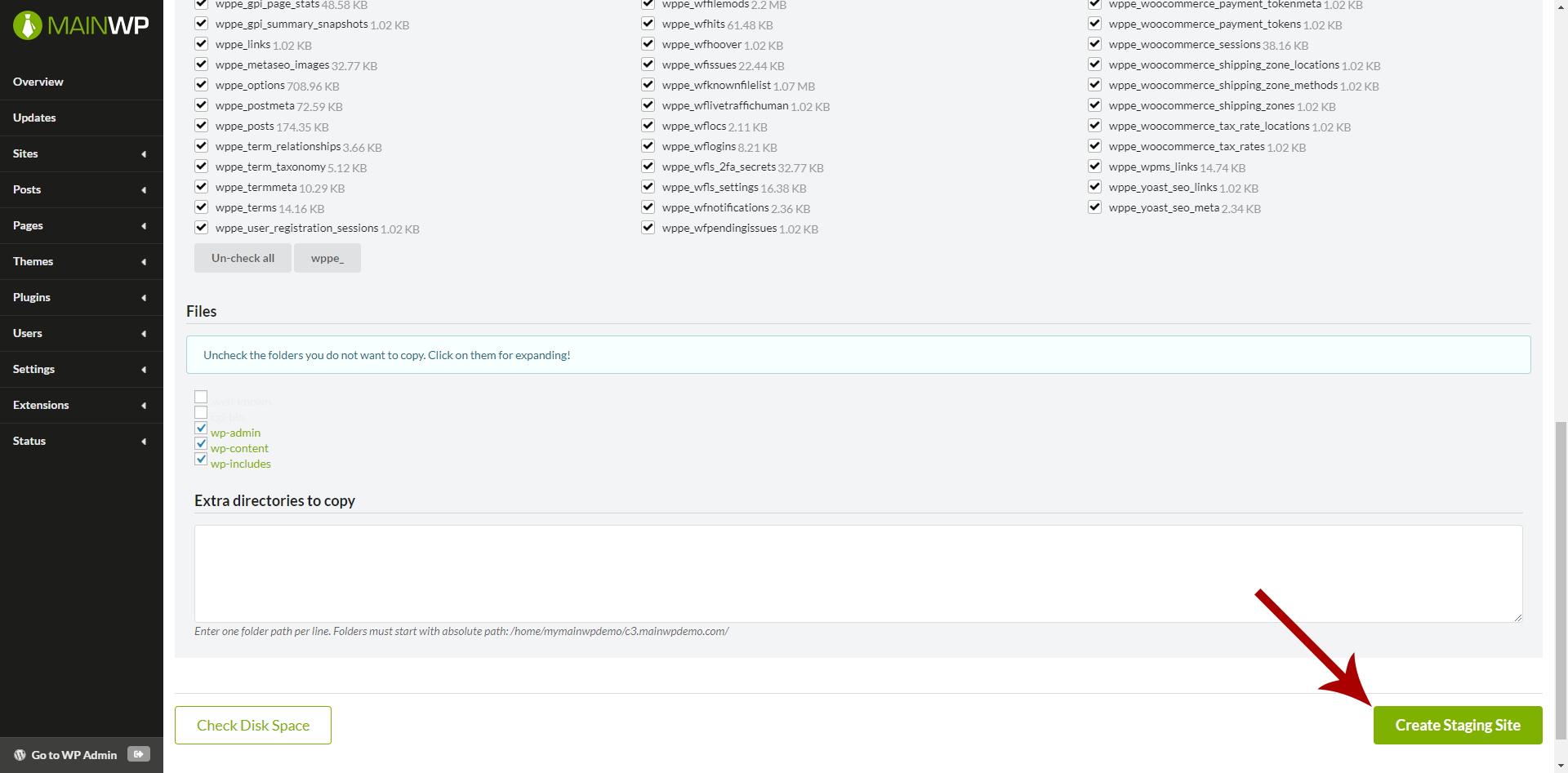 ## Update a Staging Site
Updating a staging site copies the selected database tables and files from the live site to staging again. This can overwrite changes on staging; it does not publish staging changes to production. To refresh the staging copy,
Click the **Manage Staging Sites** action (you will be redirected to the page where you can see your staging sites for the child site)
## Push Staging Changes to Production
The MainWP Staging Add-on does not provide a push-to-production action, including when WP Staging Pro is installed. Publishing takes place in WP Staging on the **production Child Site**.
WP Staging Free does not include the built-in push feature. To use it, install WP Staging Pro with a plan that includes **Push to Live**. Check [WP STAGING's current plan comparison](https://wp-staging.com/pro-features/) for availability.
These steps apply to a staging copy listed in WP Staging on the production site. Create and verify a fresh production backup before starting.
You can also go to **MainWP > Add-ons > Administrative > Staging** (`/wp-admin/admin.php?page=Extensions-Mainwp-Staging-Extension`) and choose **Go to WP Staging** from the production site's action menu.
Open **WP STAGING > Start / STAGING**, locate the staging copy, and select **Push Changes**.
Choose the files and database tables to copy. Selected tables replace their production counterparts, so protect any newer live orders, comments, or other content.
Confirm the selection, start the push, and check the live site when it finishes. Follow [WP STAGING's illustrated push guide](https://wp-staging.com/docs/copy-staging-site-to-live-site/) for the full procedure.
If the staging copy is on a separate server or was created with another tool, the standard push workflow may not apply. Review [WP STAGING's migration guidance](https://wp-staging.com/docs/category/migration/) for that setup. Connecting both sites to MainWP does not create a publishing connection between them.
## Delete a Staging Site
To delete a staging site,
Click the **Manage Staging Sites** action (you will be redirected to the page where you can see your staging sites for the child site)
## Run Updates on Staging Sites
To run updates on your child sites,
## Update a Staging Site
Updating a staging site copies the selected database tables and files from the live site to staging again. This can overwrite changes on staging; it does not publish staging changes to production. To refresh the staging copy,
Click the **Manage Staging Sites** action (you will be redirected to the page where you can see your staging sites for the child site)
## Push Staging Changes to Production
The MainWP Staging Add-on does not provide a push-to-production action, including when WP Staging Pro is installed. Publishing takes place in WP Staging on the **production Child Site**.
WP Staging Free does not include the built-in push feature. To use it, install WP Staging Pro with a plan that includes **Push to Live**. Check [WP STAGING's current plan comparison](https://wp-staging.com/pro-features/) for availability.
These steps apply to a staging copy listed in WP Staging on the production site. Create and verify a fresh production backup before starting.
You can also go to **MainWP > Add-ons > Administrative > Staging** (`/wp-admin/admin.php?page=Extensions-Mainwp-Staging-Extension`) and choose **Go to WP Staging** from the production site's action menu.
Open **WP STAGING > Start / STAGING**, locate the staging copy, and select **Push Changes**.
Choose the files and database tables to copy. Selected tables replace their production counterparts, so protect any newer live orders, comments, or other content.
Confirm the selection, start the push, and check the live site when it finishes. Follow [WP STAGING's illustrated push guide](https://wp-staging.com/docs/copy-staging-site-to-live-site/) for the full procedure.
If the staging copy is on a separate server or was created with another tool, the standard push workflow may not apply. Review [WP STAGING's migration guidance](https://wp-staging.com/docs/category/migration/) for that setup. Connecting both sites to MainWP does not create a publishing connection between them.
## Delete a Staging Site
To delete a staging site,
Click the **Manage Staging Sites** action (you will be redirected to the page where you can see your staging sites for the child site)
## Run Updates on Staging Sites
To run updates on your child sites,
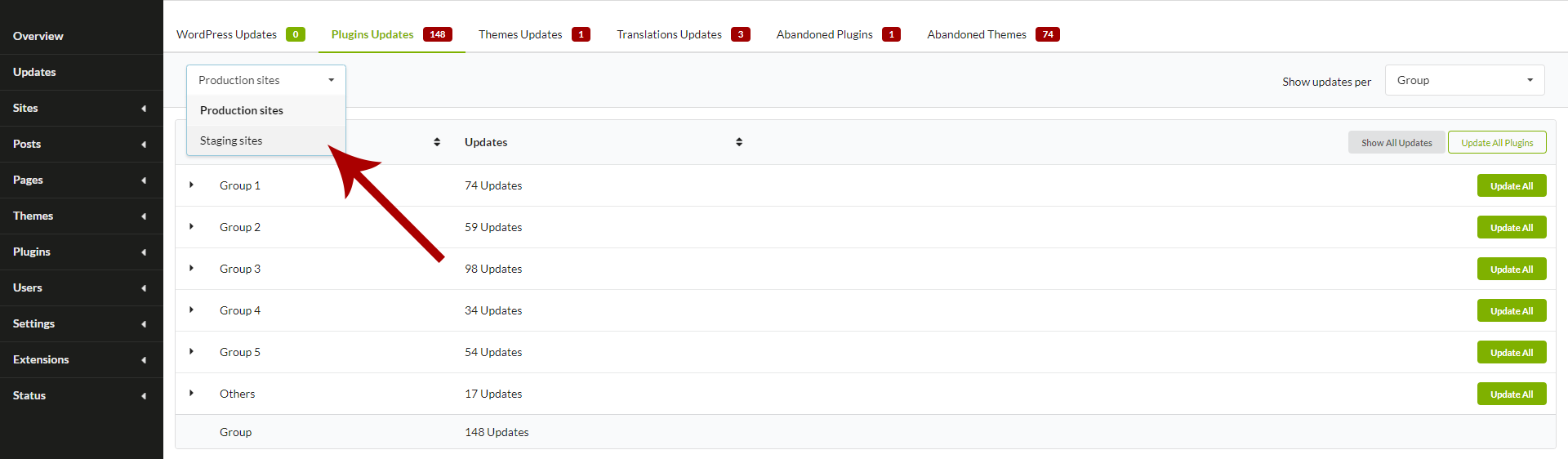 After selecting **Staging sites**, updates will be performed only on staging sites. After you verify that everything is ok on the staging sites, you can run updates on your production sites.
***
## Related Resources
* [Development Add-ons](/add-ons/development) - Browse all development tools
* [Clone Extension](/add-ons/development/clone-extension) - Clone sites between servers
* [Manage Updates](/sites/updates/manage-updates) - Understanding update management
This documentation is built and hosted on [Mintlify](https://mintlify.com), a developer documentation platform.
After selecting **Staging sites**, updates will be performed only on staging sites. After you verify that everything is ok on the staging sites, you can run updates on your production sites.
***
## Related Resources
* [Development Add-ons](/add-ons/development) - Browse all development tools
* [Clone Extension](/add-ons/development/clone-extension) - Clone sites between servers
* [Manage Updates](/sites/updates/manage-updates) - Understanding update management
This documentation is built and hosted on [Mintlify](https://mintlify.com), a developer documentation platform.